


Imagine a labelling process where you never have to manually select a template or guess how many labels remain on the roll. For many Australian business owners, the daily reality is often a series of frustrating print errors and wasted materials caused by incorrect software settings. We recognise that efficiency in your warehouse or medical administration office is vital for maintaining a professional image and smooth operations. This guide shows you how to master the dymo labelwriter 550 to streamline your labelling tasks and eliminate manual data entry. By understanding the Automatic Label Recognition technology and the latest software requirements, you can ensure your workflow remains uninterrupted. We will cover everything from initial setup to advanced filing and shipping techniques. DymoOnline provides the specialist knowledge needed to help you organise your workspace effectively, ensuring you get the most out of your equipment without the typical setup headaches.
Key Takeaways
- Discover how Automatic Label Recognition identifies your label size and quantity to prevent common printing errors.
- Learn the essential steps to set up your dymo labelwriter 550 using DYMO Connect for Desktop to ensure a reliable USB connection.
- Understand why using authentic DYMO label rolls is necessary to unlock the automation features of the 5 series hardware.
- Streamline your business workflows by utilising direct thermal printing technology that eliminates the need for ink or toner refills.
Understanding the DYMO LabelWriter 550 and Automatic Label Recognition
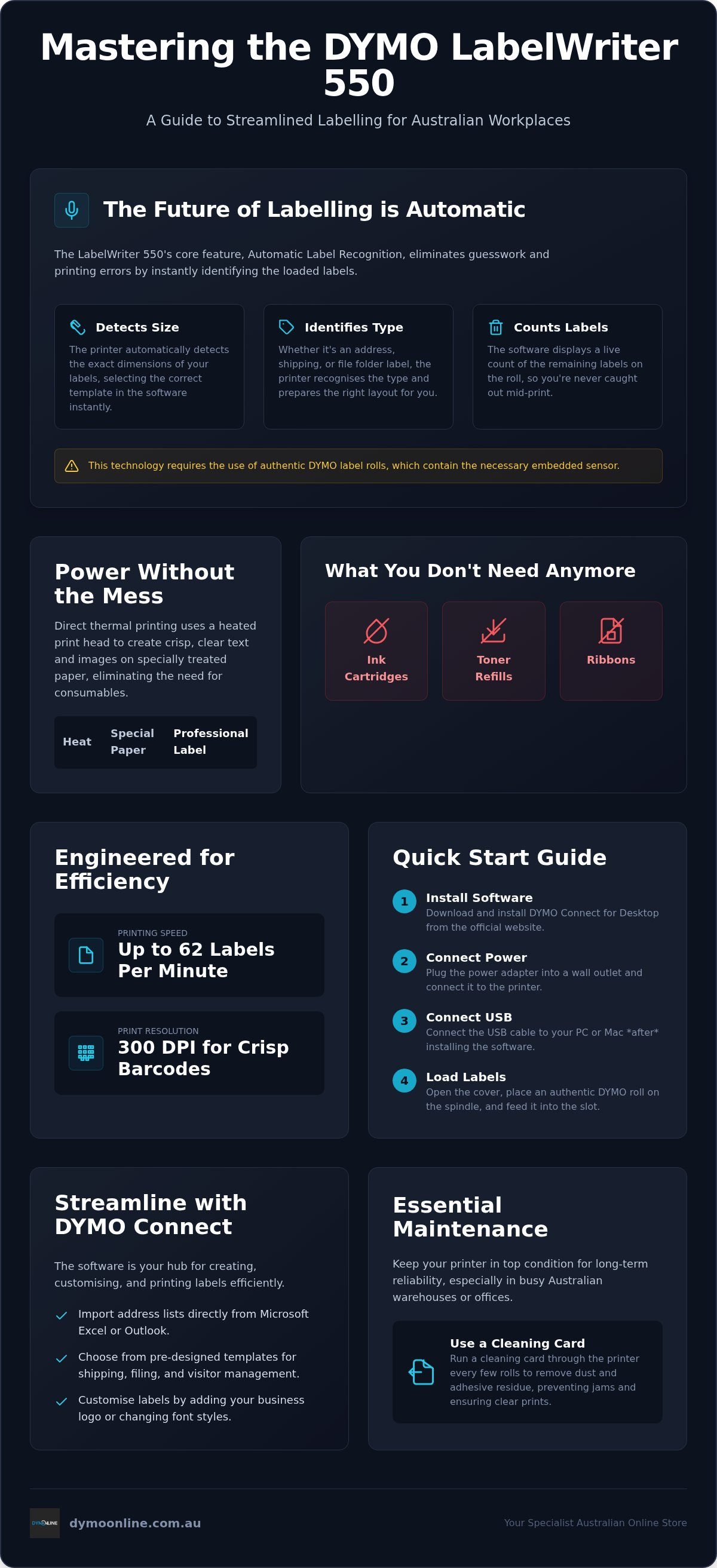
The dymo labelwriter 550 represents a significant shift in professional organisation for Australian workplaces. It uses direct thermal printing; the machine applies heat to specially treated paper to create text and images. At DymoOnline, we recognise that this technology eliminates the need for expensive ink or toner cartridges, making it a reliable choice for high-volume tasks in medical centres and schools. Because there are no ribbons to replace or smudge, the output remains crisp and professional for every application.
Central to the dymo labelwriter 550 is the Automatic Label Recognition technology. A built-in sensor identifies the size, type, and quantity of labels remaining on the roll. As noted in the Dymo Corporation history, this transition to smart sensors ensures the software and hardware work in perfect synchronisation. You must use DYMO-branded rolls to enable these features. The printer requires the embedded sensor technology to communicate with your computer, which prevents the frustration of selecting the wrong template or running out of supplies mid-print.
The Transition to High-Speed Thermal Labelling
Switching to the 550 series allows businesses to move beyond the limitations of traditional desktop printing. Standard models print up to 62 labels per minute, which is far more efficient than feeding individual sheets through a standard office printer. This speed helps Australian businesses minimise label waste by preventing alignment errors that often occur with manual feeding. If you're looking to upgrade your current setup, explore our range of LabelWriter Printers to find the right fit for your specific workflow. Using automated hardware ensures that every label is positioned correctly from the first print to the last.
Setting Up Your LabelWriter 550 for Australian Workflows
Setting up your dymo labelwriter 550 begins with a stable physical connection. Plug the power adapter into a wall outlet and connect the USB cable to your PC or Mac. It's essential to install the DYMO Connect for Desktop software before connecting the hardware to ensure the operating system recognises the drivers immediately. One of the primary benefits of thermal label printing is its seamless integration with existing office applications. You can efficiently organise your address lists in Microsoft Excel and import them directly into the software. This process eliminates manual data entry and minimises the risk of shipping errors in Australian warehouse environments. For inventory management, the 300 dpi resolution allows you to produce crisp barcode labels that are compatible with standard Australian scanning systems.
Streamlining Administrative Tasks with DYMO Connect
The DYMO Connect interface features pre-designed templates for Australian shipping, filing, and visitor management. These layouts allow you to customise your labels by adding a business logo or adjusting font styles to suit your brand requirements. This versatility ensures that every item leaving your office looks professional. For deeper technical insights, refer to our Ultimate Guide to the Dymo LabelWriter 550. If you require further assistance with your specific setup, please contact our specialist support group for expert guidance.
Maximising Performance with the Right Label Rolls
The dymo labelwriter 550 requires authentic rolls to function, as the internal sensor must read the embedded tag to enable printing. This hardware-driven automation means the software automatically detects if you've loaded address, shipping, or file folder labels. It removes the need to manually scroll through template lists, which significantly speeds up your workflow. Maintaining this ecosystem with authentic supplies is the most effective way to ensure the long-term reliability of your machine. Unlike previous generations, you've now got real-time visibility of exactly how many labels remain on your current roll.
Maintenance is equally important, especially in high-traffic Australian warehouses where dust can accumulate. We recommend using a cleaning card every few rolls to remove paper dust and adhesive residue from the print head. This simple step prevents jams and maintains the 300 dpi print quality required for scannable barcode labels. Neglecting this can lead to faded text or misaligned prints that disrupt your daily operations.
For businesses involved in manufacturing or retail, following Australian product labelling laws is mandatory. Using the correct label size ensures that all required trade measurements and safety warnings are clearly visible to consumers. Selecting the right material for these tasks prevents the need for reprints and reduces overall waste.
Selecting Labels for Specific Business Environments
Australian medical administration teams often rely on small-format rolls for pathology samples and patient files. In contrast, local retail shops require more durable options for shelf labelling and price tagging to ensure they don't peel or fade under store lighting. You can find a comprehensive selection of these authentic options in our LabelWriter Labels range. Choosing the right roll for the specific environment protects your professional reputation and ensures your labels serve their intended purpose effectively.
Optimise Your Business Workflow with Precision Labelling
The dymo labelwriter 550 is a sophisticated tool designed to eliminate the manual errors that often disrupt daily operations. By utilising the Automatic Label Recognition feature and the latest DYMO Connect software, you can ensure your shipping and filing tasks are handled with professional precision. Maintaining your machine with authentic DYMO label rolls is the key to long-term reliability and crisp print quality in any Australian business environment. These automated features help you minimise waste while ensuring every label meets your specific requirements.
DymoOnline provides specialist Australian support and expert knowledge of the entire DYMO ecosystem to help you find the right solution for your office or warehouse. With nationwide delivery across Australia, we ensure your workspace remains stocked with the necessary supplies to keep moving. If you're ready to transition to a more organised and efficient labelling system, browse the DYMO LabelWriter 550 range at DymoOnline today. We look forward to helping you streamline your professional workflows with confidence.
Frequently Asked Questions
How do I fix a "Label Not Recognised" error on the DYMO LabelWriter 550?
Ensure you are using authentic DYMO labels. The dymo labelwriter 550 features Automatic Label Recognition that requires a specific sensor tag to operate. If the error persists, check that the roll is seated correctly in the spool and that the sensor is not obstructed by dust. Resetting the printer by unplugging it for 30 seconds can also resolve software communication glitches.
Can I use old LabelWriter 450 labels in the new 550 model?
No, you cannot use older 450 series labels in the dymo labelwriter 550. This model requires authentic DYMO LabelWriter labels equipped with an embedded sensor tag for the Automatic Label Recognition system. Older rolls or third-party alternatives lack this technology; the printer won't detect the roll or allow a print job to proceed. Using the correct supplies ensures machine longevity.
What is the difference between the LabelWriter 550 and the 550 Turbo?
The primary difference is the printing speed. While the standard 550 model prints up to 62 labels per minute, the 550 Turbo increases this to 90 labels per minute. Both machines share the same Automatic Label Recognition technology and require authentic rolls to function. The Turbo version is typically preferred for high-volume Australian environments like medical centres or logistics warehouses.
How do I clean the print head on my LabelWriter 550 to maintain print quality?
To clean the print head, use a cleaning card or a lint-free cloth with isopropyl alcohol. Regular maintenance removes the adhesive residue and dust that can cause jams. We recommend cleaning every time you replace a roll to ensure scannable print quality. DymoOnline provides specialist support and supplies to help you maintain your equipment in professional working condition.

Article by
DymoOnline Team
The DYMOOnline Team provides practical guidance for Australian businesses, warehouses, retailers, offices, schools, healthcare workplaces and home users who rely on accurate, efficient labelling. DYMOOnline specialises in DYMO label makers, DYMO label printers, label tapes, label rolls, shipping labels, address labels, barcode labels and labelling accessories, helping customers choose the right labelling products for organisation, mailing, inventory, filing, pricing and workplace efficiency.
General Information
This article is provided as general information only to help customers compare and choose DYMO label makers, label printers, label tapes, label rolls, shipping labels, address labels, barcode labels and related labelling supplies. Product details, specifications, compatibility, availability, pricing and suitability may vary. Always check the individual product page, manufacturer information, printer model compatibility and label size requirements before purchasing or using a product.
