

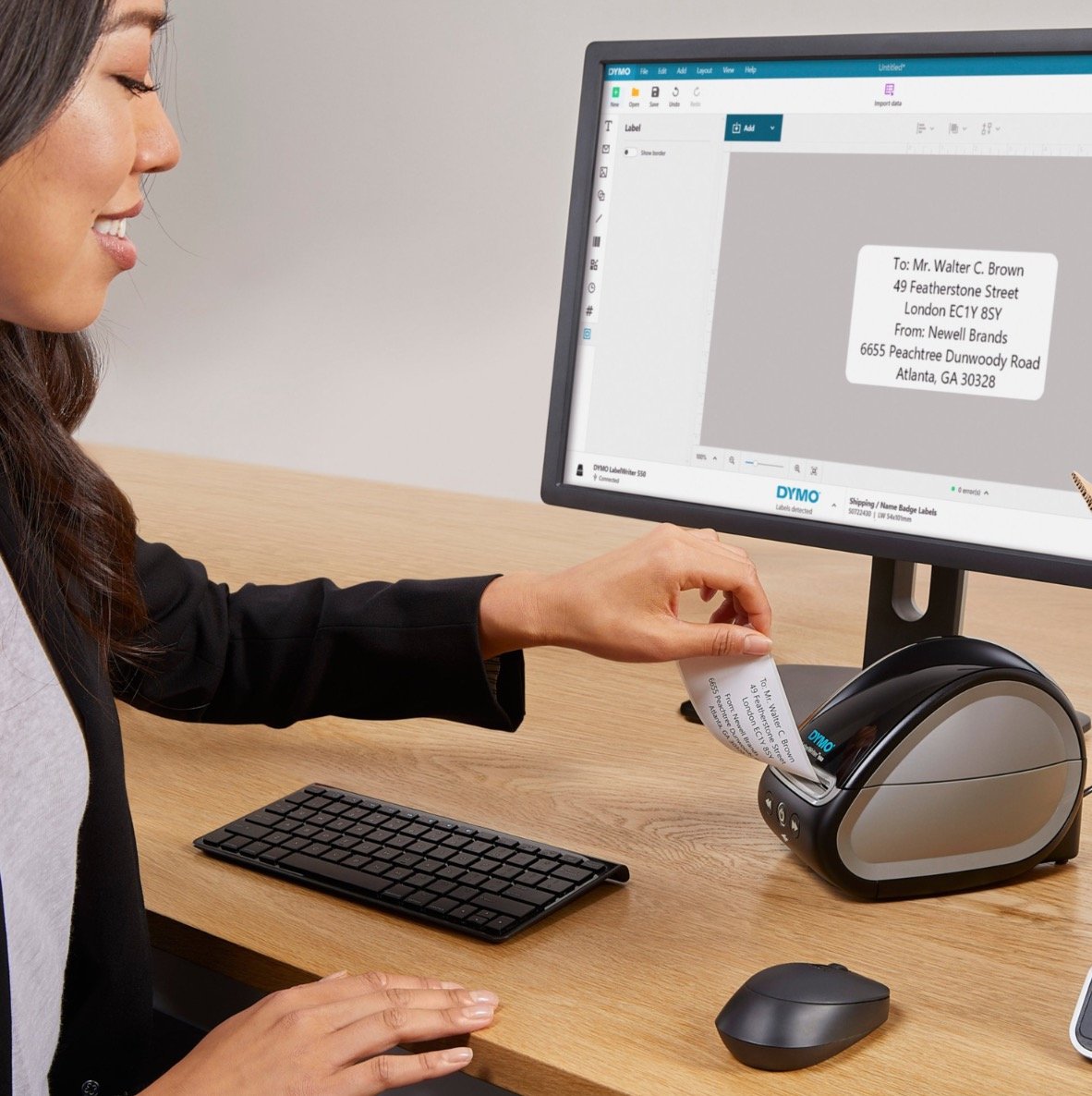
It’s 3:00 PM on a Tuesday, your dispatch desk is overflowing with orders, and your Dymo LabelWriter 550 suddenly stops recognising a full roll of labels. This common frustration often stems from the 550 series' shift to Automatic Label Recognition technology, which requires genuine DYMO labels manufactured after April 2020. We understand how disruptive it is when hardware fails during peak periods, especially when you're trying to organise a shipment or manage medical records. This professional guide to dymo labelwriter 550 troubleshooting will help you resolve these errors quickly so you can get your printer back online immediately.
You'll learn how to fix software connectivity issues, restore print quality, and understand exactly why this model behaves differently than its predecessors. We've compiled these expert tips from our experience as Australian labelling specialists at DYMOOnline to help you minimise future downtime and keep your operations running smoothly. Whether you're managing a warehouse or a busy office, these practical steps ensure your labelling process remains efficient and reliable. By the end of this guide, you'll have the technical knowledge to maintain your equipment and avoid the most common pitfalls of the 550 series.
Key Takeaways
- Learn to interpret the simplified LED interface, distinguishing between a solid blue status light and a flashing red error signal.
- Master dymo labelwriter 550 troubleshooting by understanding how the integrated RFID sensors require authentic DYMO label rolls to function correctly.
- Resolve connectivity issues by ensuring your system has transitioned from the older v8 software to the current DYMO Connect for Desktop.
- Follow a safe, step-by-step process to clear label jams and remove adhesive residue without damaging the sensitive thermal print head.
- Identify when a hardware fault requires professional intervention and understand your support options under Australian Consumer Law.
Identifying Common Dymo LabelWriter 550 Status Light Errors
The Dymo LabelWriter 550 communicates its internal state through a simplified LED interface. This single light is your primary diagnostic tool before you even open your computer software. Understanding these visual cues is a fundamental part of dymo labelwriter 550 troubleshooting, as it helps you pinpoint whether the issue is mechanical, electronic, or related to the label media itself.
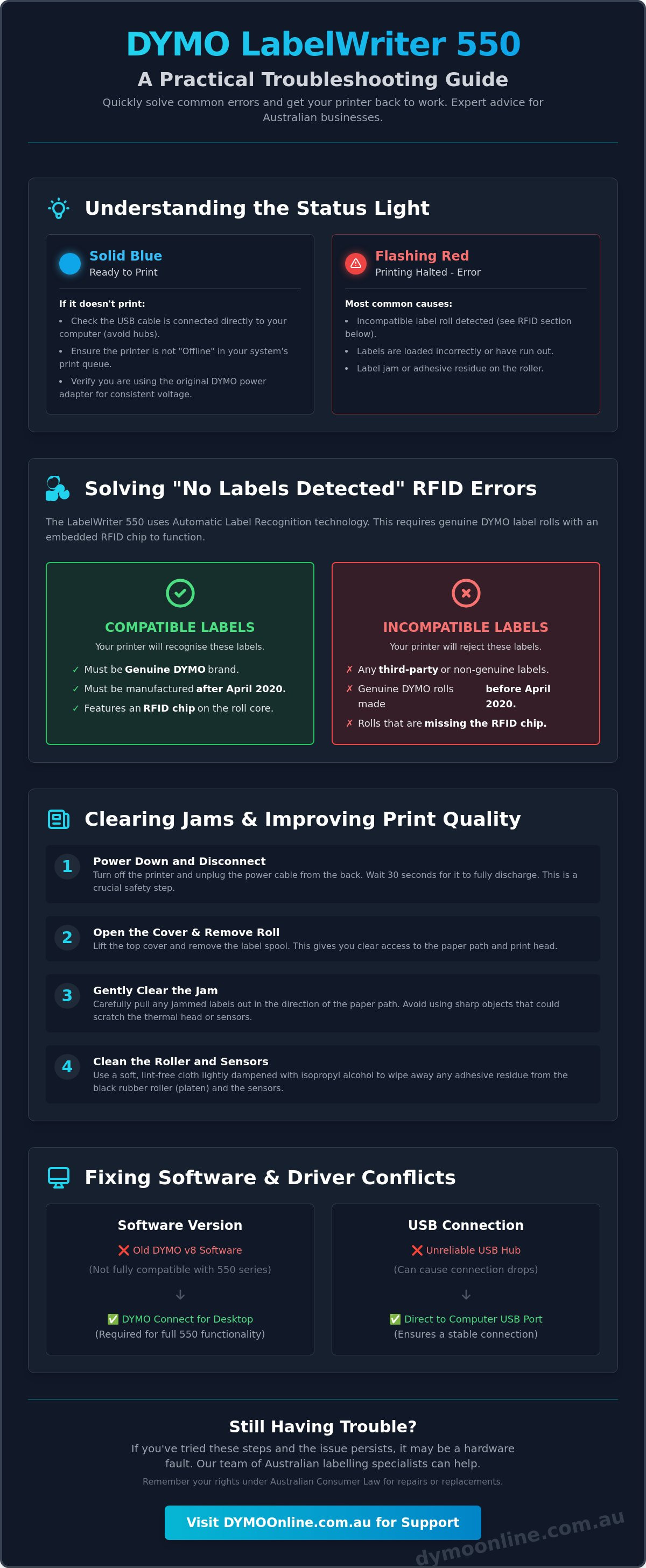
A solid blue light indicates that the printer is powered and ready for a job. However, the introduction of Automatic Label Recognition technology has made the flashing red light a more frequent sight for some users. This system relies on RFID sensors to detect the size and type of labels loaded. You can read more about the history of the Dymo Corporation on Wikipedia, which includes details on the transition to this specialised sensor technology that prevents the use of non-genuine rolls.
To better understand how to handle mechanical issues like jams, watch this helpful video:
If the printer becomes unresponsive or the light patterns don't clear after fixing an obvious jam, you may need to perform a hard reset. This process clears the printer's internal cache and forces the sensors to re-scan the media. To do this safely, unplug the power cable from the back of the device while it's still turned on. Wait for 30 seconds to allow the capacitors to discharge fully, then reconnect the power. This simple step often resolves "ghost" errors where the printer remains stuck in an error state despite the physical problem being solved.
The Flashing Red Light: Most Common Causes
When the LED flashes red, the printer has encountered a stop-error. Most often, this occurs because the label roll is missing or has been loaded incorrectly into the spool. The labels must be fed under the guides and through the front slot until the printer grips them. Another frequent cause is a failure to read the RFID chip. If you are using a roll that was manufactured before April 2020 or a third-party alternative, the 550 series will refuse to print. Finally, check for adhesive buildup on the platen roller; even a tiny amount of residue can cause the sensor to lose track of the label gaps.
Solid Light but No Print: Checking the Connection
If your light is solid blue but nothing happens when you click print, the issue is likely communication-based. Verify that the USB cable is seated firmly in the rear port of the printer and directly into your computer. Avoid using USB hubs, as they can sometimes drop the connection during high-data transfers. Check your Windows or Mac print queue to see if the device is listed as "Offline." If the printer keeps losing power, ensure you are using the original Dymo AC adapters. Third-party power supplies often fail to provide the consistent voltage required for thermal printing heads to operate correctly.
Solving the "No Labels Detected" and RFID Recognition Error
The LabelWriter 550 series represents a significant shift in thermal printing technology. Unlike older models that relied solely on optical sensors to detect gaps between labels, the 550 uses Automatic Label Recognition. This system communicates with a small RFID chip embedded in the internal spool of each roll. It's designed to automatically identify the label size, type, and even the number of labels remaining on the roll. While this feature aims to streamline the printing process, it is also the most common source of dymo labelwriter 550 troubleshooting queries in Australian offices and warehouses.
If your printer is showing a "No Labels Detected" error despite having a full roll loaded, the first thing to check is the authenticity of the media. This model is engineered to work exclusively with genuine DYMO labels manufactured after April 2020. For broader issues involving print queues or software communication that might mimic a sensor error, you might find PCMag's Printer Troubleshooting Guide a helpful resource for general device management. However, for the 550 series specifically, the RFID sensor's inability to "handshake" with the label roll is the primary culprit for detection failures.
Verifying Genuine Dymo Labels
To ensure your printer functions as intended, you must use rolls that feature the official DYMO logo and the RFID mark on the cardboard spool. The 550 series was specifically designed to prevent the use of generic or "compatible" labels that lack this encrypted chip. If you've accidentally purchased non-genuine stock, the printer will simply refuse to engage. We recommend using genuine LabelWriter LW standard labels to maintain compatibility and avoid the "No Labels" error. This specialised technology ensures the printer knows exactly which template to use in your software, minimising wasted labels during the calibration process.
Correct Roll Loading and Sensor Alignment
Even with the right labels, poor alignment can trigger an error. Always ensure the labels feed from underneath the roll, not over the top. The left-hand guide must be pushed snugly against the edge of the roll to keep the RFID chip within range of the internal sensor. If you've been using your printer in a dusty environment, such as a busy dispatch centre, dust can settle on the sensor eye. Gently cleaning the sensor with a dry cotton swab can often restore recognition. If you continue to experience recognition issues with authentic rolls, the specialists at DymoOnline are available to help; you can contact our technical team for further guidance.
Fixing Software and Driver Conflicts in Australia
Australian businesses often face hurdles when transitioning from legacy systems to modern hardware. The LabelWriter 550 requires the modern DYMO Connect for Desktop software, which is a departure from the older Dymo Label Software (v8) many users have operated for over a decade. This change is central to dymo labelwriter 550 troubleshooting; using the wrong software version is the most common reason the device fails to appear in your print list. If you've recently upgraded your hardware but kept your old software, the printer simply won't communicate with your computer.
When the application interface displays a "Printer Not Found" error, it's rarely a sign of a broken device. Instead, it usually indicates that the driver hasn't correctly registered within the operating system's print spooler. For those working in medical administration or schools, driver deployment often requires IT department intervention due to restricted network permissions. The Printing United Alliance emphasises that adhering to current software standards is vital for maintaining the technical integrity and performance of thermal printing equipment across professional sectors.
DYMO Connect vs. Legacy Software
The 550 series is not backwards compatible with DLS v8. If you have older software installed, it can interfere with the new drivers and cause the system to hang. A clean uninstallation is the best approach to resolve this conflict. You should remove all legacy Dymo software from your system and restart your computer before attempting a fresh installation of DYMO Connect. This prevents driver "ghosting" where the operating system tries to use old instructions for new hardware. Once the new software is active, you can begin organising your label templates by importing them into the new format, which is designed for better stability and modern operating systems.
USB Connectivity and Port Troubleshooting
Physical connectivity also plays a role in software errors. USB hubs are notorious for causing data dropouts, especially in high-volume dispatch environments where multiple devices compete for bandwidth. If the software cannot find the printer, connect the USB cable directly to a port on the computer's motherboard. We often find that switching between USB 2.0 and USB 3.0 ports can resolve stubborn connectivity issues. If your current cable shows signs of wear or you've lost the original, visit our Dymo accessories page to source a reliable replacement. A direct, secure connection is essential for the software to register the RFID handshake from the label roll successfully.
Clearing Label Jams and Improving Print Quality
Thermal printing depends on a direct, unobstructed connection between the print head and the chemically treated label surface. Any residue in this path, whether it's adhesive seepage or simple environmental dust, will lead to "white lines" or labels that slip during the feed cycle. Mastering the physical maintenance of your device is just as vital as software fixes in dymo labelwriter 550 troubleshooting. If you notice vertical streaks or inconsistent darkness, the issue is almost certainly a dirty print head rather than a permanent hardware failure. Identifying whether the print head is failing or just dirty is the first step toward restoring professional results.
Safe Jam Removal Process
Label jams typically occur when a label peels off the backing and wraps around the internal platen roller. When this happens, you must act carefully to avoid permanent damage. Start by powering down the unit and unplugging the AC adapter. This step is non-negotiable; it protects the electronic components and ensures the motor doesn't engage while you're clearing the path. Use the release lever to create a gap between the print head and the roller. This lever disengages the drive mechanism and allows you to gently pull the jammed material free. You should never use metal tools, scissors, or knives to scrape the roller. The platen is made of a soft rubberised material, and even a microscopic scratch will result in unprinted spots on every label you produce for the rest of the machine's life.
Cleaning for Professional Results
Maintaining high-quality output requires a proactive cleaning schedule, especially for businesses involved in high-volume shipping label printing. We recommend using a Dymo Cleaning Card after every second or third roll to remove microscopic thermal dust that accumulates over time. For more stubborn adhesive buildup that a card can't shift, you can use a cotton swab moistened with high-percentage Isopropyl alcohol. Gently wipe the print head, which is the thin grey strip located above the roller. If you're using a 550 Turbo model, remember to clean the automatic cutter area as well. Adhesive can accumulate on the blade, causing it to stick or tear the labels instead of providing a crisp edge. Regular maintenance doesn't just improve the look of your labels; it extends the life of the motor by reducing friction. If you've followed these cleaning steps and still experience poor print quality, you can contact our specialist team for further technical assistance.
When to Seek Professional Australian Support
When the DIY steps for dymo labelwriter 550 troubleshooting have been exhausted, it's vital to recognise when a problem requires professional intervention. If you've performed a hard reset, cleaned the print head, and verified your labels are genuine, but the printer still fails to feed or remains unresponsive, you're likely dealing with an internal hardware fault. This could include a failed RFID sensor board or a motor malfunction. In these instances, attempting to dismantle the device yourself will void your warranty and potentially cause further damage to sensitive electronic components.
Australian businesses benefit from strong protections under the Australian Consumer Law, which ensures that hardware must be durable and fit for purpose. If your printer is relatively new and has failed through no fault of your own, you have specific rights regarding repairs, replacements, or refunds. Purchasing through a specialist Australian supplier ensures that you aren't just getting a box, but access to a local knowledge base that understands the specific needs of the Australian market. Preparing your printer for a return involves removing all media, unplugging the power supply, and ensuring the serial number is clearly legible.
Warranty and Specialist Advice
Before reaching out for help, gather your printer's serial number, which is located on the underside of the unit. You'll also need your proof of purchase to verify your warranty status. If you bought your equipment through a reputable source like Mega Office Supplies or our own store, this documentation is usually easy to retrieve. You can contact the DymoOnline team for expert Australian support to determine if a repair is viable. In some cases, particularly for high-volume logistics, it may be more cost-effective to upgrade to a wide-format LabelWriter 5XL rather than repairing an older, standard-width model.
Preventing Future Downtime
The best way to manage printer issues is to prevent them from occurring during busy periods. We recommend keeping at least one spare roll of genuine DYMO labels on hand; this allows you to quickly test if a "No Labels" error is roll-specific or a sensor issue. Additionally, setting your computer to check for DYMO Connect software updates monthly will help you avoid driver conflicts before they disrupt your workflow. Sticking to a specialised Australian supplier like DYMOOnline ensures you receive authentic stock with the correct RFID technology, giving you peace of mind that your hardware will remain compatible and operational for years to come.
Maintaining Your Labelling Efficiency
Mastering the 550 series requires a shift in how you organise your device maintenance. Success with this model relies on two critical factors: maintaining current DYMO Connect software and ensuring every roll features the necessary RFID technology for automatic recognition. By following the cleaning protocols and software checks outlined in this guide, you can eliminate the majority of common errors that disrupt your workflow. These small, proactive steps are the most effective way to protect your investment and keep your office or warehouse running without interruption.
DYMOOnline has been family owned and operated since 2008, ensuring our clients have access to 100% genuine Dymo products. Through our partnership with Mega Office Supplies, we offer reliable nationwide shipping to every corner of the country. If your dymo labelwriter 550 troubleshooting hasn't restored your printer to its full capacity, we're here to help. You can contact our technical team for expert guidance or choose to browse our latest hardware for a reliable replacement. With the right supplies and professional support, you can return to labelling with absolute confidence.
Frequently Asked Questions
Why is my Dymo 550 flashing a red light even though labels are loaded?
The flashing red light usually signifies that the internal sensor cannot detect the RFID chip on your label roll. This happens if the roll is inserted backwards or if you're using older stock manufactured before April 2020. Ensure the labels feed from underneath the spool and that the left hand guide is snug. If the light persists, the sensor may need a quick wipe with a dry cloth to remove dust.
Can I use generic labels in my Dymo LabelWriter 550?
You cannot use generic or "compatible" labels with this specific model. The LabelWriter 550 series is built with Automatic Label Recognition technology that requires an encrypted RFID chip found only in genuine DYMO rolls. While older models accepted third party media, the 550 will refuse to print without an authentic handshake from the spool. This design ensures the software always knows the exact label size and quantity remaining.
How do I reset my Dymo LabelWriter 550?
To reset the device, you should perform a power cycle by unplugging the AC adapter from the rear while the printer is still powered on. Wait for 30 seconds to allow the internal capacitors to discharge before reconnecting. This simple dymo labelwriter 550 troubleshooting step clears the printer's cache and often resolves errors where the status light remains red despite the labels being correctly loaded.
Why does my computer say "Printer Out of Paper" when it is full?
This message is the software's way of saying it cannot communicate with the label roll's RFID chip. It doesn't always mean the roll is physically empty; it often means the sensor has lost the connection. Verify that you are using genuine DYMO labels and that the roll hasn't shifted away from the left hand sensor. A quick reset of the software can also refresh the detection status.
What software do I need for the Dymo 550 series?
The 550 series requires the modern DYMO Connect for Desktop application. The legacy Dymo Label Software (v8) is no longer supported for this hardware and won't recognise the printer. For effective dymo labelwriter 550 troubleshooting, ensure you're running the most recent version of DYMO Connect. This software is essential for the Automatic Label Recognition features to function as intended.
How do I clean the print head on my LabelWriter 550?
Cleaning involves using a specialised Dymo Cleaning Card or a cotton swab dipped in Isopropyl alcohol. Open the cover, remove the labels, and gently wipe the thermal print head, which is the narrow grey strip located just above the rubber roller. Doing this every two rolls prevents adhesive residue from causing white streaks or paper slips. It's a vital maintenance task for any high volume labelling environment.
Is the Dymo 550 compatible with Windows 11 and the latest macOS?
The LabelWriter 550 is fully compatible with Windows 11 and the latest versions of macOS. DYMO regularly updates its Connect software to ensure it works with the latest security protocols and processor architectures, including Apple Silicon. If you encounter issues on a new machine, check that you've granted the software full disk access in your system's privacy settings to allow the drivers to communicate.
Where can I find genuine Dymo labels in Australia with fast shipping?
Authentic rolls are available through DYMOOnline, a specialist store that's been family owned and operated since 2008. We provide 100% genuine products to local businesses. By ordering through a local provider, you ensure the labels feature the correct RFID technology required for the 550 series. We offer nationwide shipping from our Australian warehouses to ensure your dispatch desk or medical office remains fully stocked without delay.
General Information
This article is provided as general information only to help customers compare and choose DYMO label makers, label printers, label tapes, label rolls, shipping labels, address labels, barcode labels and related labelling supplies. Product details, specifications, compatibility, availability, pricing and suitability may vary. Always check the individual product page, manufacturer information, printer model compatibility and label size requirements before purchasing or using a product.


