
Dymo LabelWriter Not Printing? Expert Troubleshooting for Australian Businesses
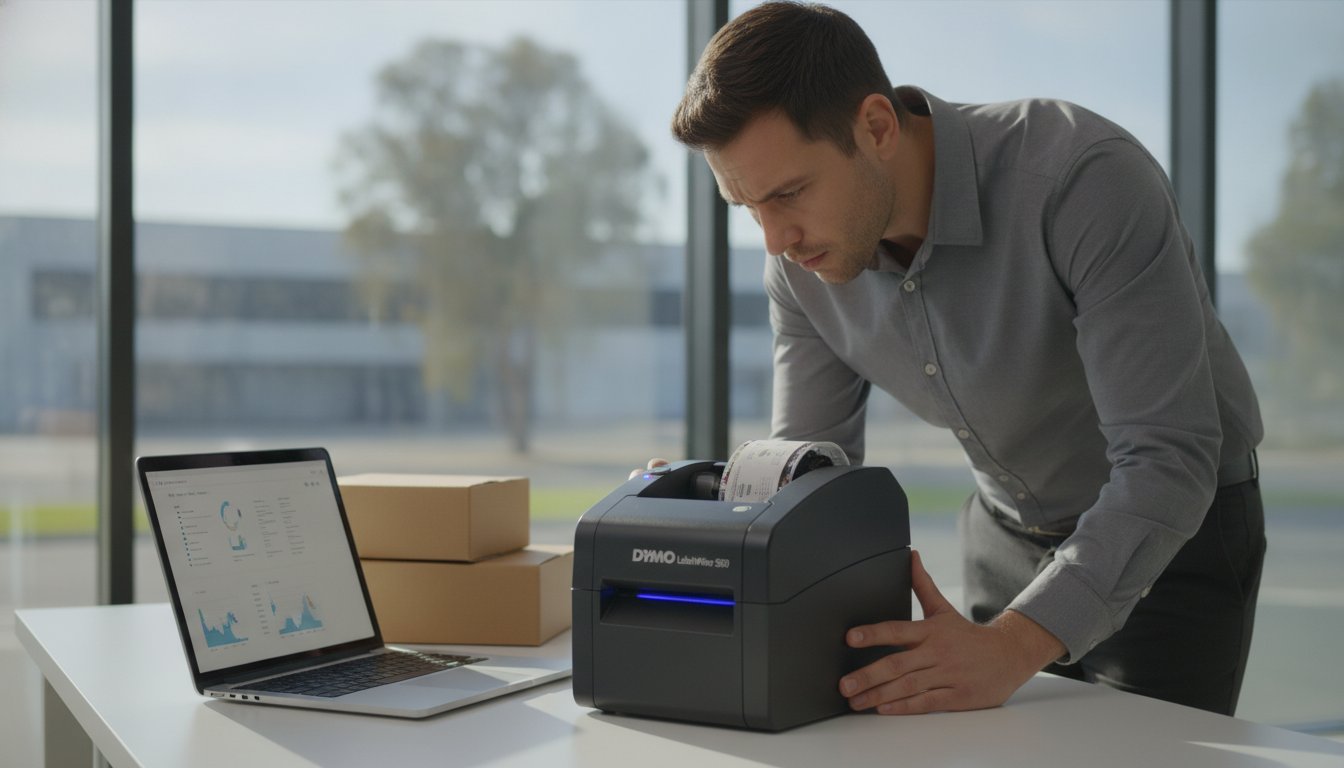
It's 8:45 AM on a Monday in a busy Melbourne warehouse, and your dispatch desk is already piled high with orders. You click print, but instead of the familiar hum of a shipping label being produced, you're met with a persistent flashing blue light and a blank queue. When your dymo labelwriter not printing becomes the bottleneck in your morning, the resulting workflow disruption can feel impossible to manage. We understand that in a professional Australian office or industrial site, you don't have time for vague error messages or technical guesswork.
You likely view your labelling equipment as a stable partner in your daily operations, and any sudden failure is more than just a nuisance; it's a threat to your efficiency. This guide provides the expert troubleshooting steps required to get your device back online immediately. We will examine the specific reasons why these errors occur, from the latest Dymo Connect 1.6.1 software updates to the Automatic Label Recognition sensors found in newer 550 series models. You'll learn how to manage your DYMO labels effectively, clear stubborn jams, and ensure your label rolls are always ready for high-volume tasks. As specialists at DYMOOnline, we're here to provide the technical clarity you need to maintain a seamless printing environment.
Key Takeaways
- Verify your printer's power status and ensure the USB cable is connected directly to your computer centre rather than a hub to maintain a stable data link.
- Resolve your dymo labelwriter not printing issues by updating to Dymo Connect v1.6.1, ensuring full compatibility with Windows 11 and the latest macOS environments.
- Master the 'Reverse Feed' method using the form feed button to safely clear internal jams and minimise the risk of damaging the thermal print head.
- Understand the importance of using genuine DYMO labels to satisfy the Automatic Label Recognition sensors found in newer 550 series printers.
- Distinguish between temporary software glitches and terminal hardware failure to decide when it is time to upgrade to a more efficient LabelWriter 550 or 5XL model.
Essential First Checks for Your Dymo LabelWriter
When your dymo labelwriter not printing becomes a barrier to finishing your daily tasks, the solution usually begins with a physical inspection of the hardware. Most Australian businesses rely on these units for consistent output, so a sudden halt is often caused by a simple power or connection oversight. Before adjusting any digital settings, ensure the printer is receiving consistent power and that the data connection is uninterrupted. Understanding how label printers work helps clarify why these initial steps are so vital; since these devices rely on thermal technology rather than ink, physical alignment and connection stability are the primary foundations of a successful print job.
To better understand this concept, watch this helpful video:
Data integrity is paramount. You should always plug the USB cable directly into the computer centre rather than using an external hub or monitor port. Hubs often fail to provide the consistent voltage or data throughput required for high-volume labelling tasks, which can result in the printer being "offline" or "not found" by your operating system. If you're using a network-enabled model, check that the Ethernet cable is securely clicked into the port and that the router is assigning an IP address to the unit.
Understanding Dymo Status Light Patterns
The LED on the front of your device is a diagnostic tool. A solid blue light is your target, indicating the unit is ready and powered. If you see a flashing blue light, the printer is likely sensing a label jam or has run out of stock. If there is no light at all, check the Dymo AC adapter. Ensure you are using the official 24V adapter, as third-party power bricks may not provide the specific amperage needed for the thermal print head to function. A solid blue light that still results in no output often points toward a software communication error rather than a hardware fault.
The Critical Role of Genuine Dymo Labels
If you are using the LabelWriter 550 or 5XL models, the most common reason for a failure to print is the use of non-genuine consumables. These newer models feature Automatic Label Recognition technology. This system uses an RFID chip embedded in the spool of genuine Dymo labels to identify the size and type of label loaded. If the sensor cannot detect this chip, the printer will refuse to engage. This ensures that the printer settings always match the media, preventing misaligned address labels or wasted shipping labels. Generic alternatives lack this chip, making them incompatible with the current 5 series hardware.
Finally, verify that the label roll is seated correctly. Labels must face down as they enter the feed path, and the label guide should be pushed flush against the side of the roll to prevent it from drifting. Even a slight misalignment can cause the sensor to lose track of the gaps between labels, triggering an error state and leaving your dymo labelwriter not printing despite having a full roll of stock.
Resolving Software and Driver Conflicts
If your hardware checks out but the labels aren't appearing, the bottleneck is likely within your operating system's software stack. Software conflicts remain the most frequent reason for a dymo labelwriter not printing, especially after a major Windows or macOS update. While hardware is tangible, the communication between your browser, the Dymo software, and the printer driver involves several layers where errors can occur. Following general printer troubleshooting advice often reveals that a simple software refresh resolves most 'offline' status errors.
Your first priority is ensuring your software is current. As of June 2026, Dymo Connect for Desktop version 1.6.1 is the required standard for full compatibility with Windows 11 and recent macOS releases. Older versions often fail to communicate with the newer Apple Silicon processors or updated security protocols in Windows. If your software is up to date, check your print queue. Stalled jobs from previous sessions can 'clog' the system, preventing new shipping labels from processing. Clear all pending documents and verify the LabelWriter is set as your 'Default Printer' to prevent the system from routing jobs to a non-existent PDF printer or office photocopier.
Fixing the Dymo Web Service Certificate
For Australian businesses using browser-based platforms like Shopify or Australia Post MyPost Business, the Dymo Web Service is the critical link. If this service fails, your browser won't 'see' the printer. Locate the Dymo icon in your system tray on Windows or the menu bar on a Mac. Select 'Diagnose'. This tool checks if the SSL certificate is valid, which is required for secure printing. If the service shows as 'Stopped', simply click 'Start Service' to restore the connection. This often fixes the 'Printer Not Found' error without requiring a full reboot.
Driver Reinstallation for Australian Users
Sometimes, 'ghost' printers appear in your Device Manager, creating driver conflicts that stop your printer from responding. You should uninstall these duplicate entries entirely to keep your system organised. A key professional tip: always install the Dymo Connect software first and only plug in the USB cable when prompted. This ensures the correct driver is assigned to the hardware from the start. For a deeper look at resolving persistent driver errors, consult our Dymo Troubleshooting Guide. If these steps don't clear the error, you can always contact our support team for further technical guidance.
Clearing Jams and Feeding Problems
Mechanical failures are often the root cause when a dymo labelwriter not printing stops your dispatch line. While software errors are complex, physical jams are straightforward but require a delicate touch to resolve. Jams generally occur when labels are misaligned or when adhesive residue accumulates on the internal rollers over time. Unlike common printer problems found in standard inkjet units, thermal label printers have very few moving parts, which makes it easier to pinpoint exactly where the feed has failed.
The 'Reverse Feed' method is your first line of defence. Instead of pulling the labels forward through the exit slot, use the form feed button to gently back the stock out toward the spool. This reduces tension on the internal components. If the labels are truly stuck, you'll need to open the cover and lift the label guide. This reveals the internal roller and the thermal print head. Inspect the sensor path carefully; even a tiny fragment of a label or a speck of dust can blind the optical sensor, leading the printer to believe it's out of stock when it isn't.
Step-by-Step Label Jam Removal
Before you begin any physical intervention, power down the unit. This protects the sensitive circuitry and prevents the motor from engaging while you're working. Use the release lever to take all tension off the labels before attempting to move them. You should never use sharp metal objects like scissors or knives to pry labels loose. These can permanently scratch the delicate thermal element or the rubber roller, leading to permanent print defects. Gently pull the labels from the rear of the machine after releasing the lever. If a label has wrapped completely around the roller, rotate the roller manually to find the edge and peel it back slowly.
Maintaining the Feed Roller
Adhesive build-up is a silent productivity killer in high-volume environments. Over time, the sticky backing of your shipping labels can transfer to the feed roller, causing labels to stick and wrap around the mechanism. Using a Dymo cleaning card once a month is an efficient way to remove this residue without dismantling the unit. These cards are saturated with a specific cleaning solution that breaks down adhesive without damaging the rubber. Keeping the entry and exit paths clear ensures smooth labelling during busy periods. You can find official cleaning supplies in the Dymo Accessories section of our store. Regular maintenance prevents the friction that leads to jams, keeping your warehouse operations moving without interruption.
Fixing Print Quality: Blank Labels and Faded Text
If your dymo labelwriter not printing results in purely blank labels, it is often a matter of physical orientation rather than a terminal fault. A common misconception in many Australian offices is that these units require ink or toner. In reality, Dymo printers utilise direct thermal technology, where a heated print head activates a chemical layer on the label surface. Because there is no ink to run out of, blank or faded output indicates that either the heat is not reaching the label or the label itself is incapable of reacting to it.
Blank labels usually occur when the roll is loaded backward. Thermal labels are only sensitive on one side; if the roll is feeding with the chemical coating facing away from the print head, no image will appear. Similarly, using non-thermal paper that lacks the necessary coating will result in a blank feed. You should verify that your labels are genuine thermal stock and that the roll is feeding from the bottom with the labels facing the front of the device. If the text is present but extremely faint, it may be that your power adapter is failing to provide the consistent voltage required to reach the necessary printing temperature.
Cleaning the Thermal Print Head
The heating element is a thin grey or black line located inside the printer. Over time, dust and microscopic label fragments can insulate this element, leading to streaky or faded text. This is a particular concern for LabelWriter 5XL users who process high volumes of large shipping labels. To resolve this, use a lint-free cloth dampened with 70% isopropyl alcohol to gently wipe the element. Regular cleaning ensures consistent heat transfer, which is vital for creating scannable barcodes and clear address details for your logistics partners.
Software Scale and Darkness Settings
Software settings can also compromise print quality. If your barcodes appear faint or lack contrast, you can increase the 'Print Density' within the printer preferences in Dymo Connect. You should also ensure 'Scale to Fit' is disabled, as this can distort text and cause it to appear fuzzy or cut off. If your printer skips every second label, it is likely that the software's label size setting does not match the physical roll dimensions. Common Australian sizes like the 99012 large address label or 11354 multi-purpose label must be correctly selected in the software centre to ensure the sensor identifies the gap between labels accurately. If you have adjusted these settings and cleaned the hardware but still face issues, contact our support team for a more detailed diagnostic of your equipment.

When to Upgrade Your Australian Labelling Setup
Recognising the difference between a temporary glitch and a mechanical breakdown is essential for maintaining an efficient workflow. Terminal failure often presents as a grinding noise from the internal gears, indicating that the motor can no longer drive the roller mechanism. You might also notice 'dead pixels', which are consistent white vertical lines across every label. These signify that specific heating elements in the thermal print head have burnt out. While these components cannot be easily repaired, professional technicians like those at ZD Computer Trading LLC specialise in providing comprehensive repair services for printers, plotters, and scanners to keep business operations running smoothly.
Signs Your LabelWriter is Beyond Repair
Persistent 'Printer Not Found' errors that remain after replacing the USB cable and performing a clean driver reinstallation often point to a failing logic board. When these internal electronic faults occur, a cost-benefit analysis usually favours an upgrade. Transitioning to a new LabelWriter 550 is typically more economical than seeking out-of-warranty repairs for legacy 450 models. The newer 5 series offers significantly higher print speeds and more robust connectivity options, ensuring your office remains productive as Australian shipping requirements evolve through 2026 and beyond.
The DymoOnline Advantage
Choosing a specialist Australian supplier ensures you receive authentic hardware and the specific technical knowledge required for local business environments. At DYMOOnline, we prioritise transparency and reliability, providing nationwide shipping to ensure your operations are back online as quickly as possible. Whether you are a small retailer or a large-scale industrial facility, moving toward a wide-format solution like the LabelWriter 5XL can drastically improve your dispatch efficiency, especially as 2D barcodes become the industry standard for traceability in the Australian retail sector.
If your current dymo labelwriter not printing is causing significant delays, it may be time for a professional assessment. Our team can help you determine if a simple replacement part like a new Dymo AC adapter is needed or if a full system upgrade is the more sustainable path forward. For tailored advice on bulk pricing or to conduct a corporate labelling audit for your organisation, contact our Australian support team today. We are dedicated to helping you find the most efficient labelling solutions for your specific application.
Restoring Your Workflow Efficiency
Resolving issues with a dymo labelwriter not printing usually involves three critical areas: software versioning, label authenticity, and mechanical cleanliness. By ensuring you're running Dymo Connect 1.6.1 and using only genuine rolls equipped with Automatic Label Recognition, you'll eliminate the most common technical hurdles. Regular maintenance of the thermal print head will further extend the life of your equipment and maintain barcode clarity for your logistics partners.
As a specialist Australian supplier established in 2009, DYMOOnline provides the expert local support required to keep your warehouse or office moving. We offer same-day delivery in major metros for urgent stock replacements and technical guidance for all current models. If your troubleshooting attempts haven't yielded results, it's often more efficient to consult with a professional who understands the specific needs of the Australian market.
Contact our Australian support team for expert advice on genuine replacements or to upgrade your current labelling setup. We're here to help you maintain a seamless and productive printing environment.
Frequently Asked Questions
Why is my Dymo LabelWriter light flashing blue?
A flashing blue light indicates a label jam or that the printer has run out of labels. It is the device's way of signalling a physical interruption in the feed path. Check the spool to ensure stock is loaded and that no labels have wrapped around the internal roller. Once the path is clear and the cover is securely closed, the light should return to a solid blue state.
Does the Dymo LabelWriter 550 require ink or toner?
No, the Dymo LabelWriter 550 uses direct thermal printing technology, which requires neither ink nor toner. The printer uses a heated print head to create images on chemically treated thermal labels. This design minimises maintenance costs and ensures you never run out of ink during a busy dispatch period. You only need to supply genuine thermal label rolls to keep the unit operational.
Can I use generic labels in my Dymo 550 or 5XL?
You cannot use generic or third-party labels in the LabelWriter 550 or 5XL models. These newer printers feature Automatic Label Recognition technology that requires an RFID chip found only in genuine Dymo rolls. If the printer doesn't detect this chip, it will refuse to print. Using genuine labels ensures technical accuracy regarding label size and type, preventing the common dymo labelwriter not printing errors seen with inferior alternatives.
How do I reset my Dymo LabelWriter to factory settings?
There isn't a physical reset button on most LabelWriter models; instead, you reset the device by power-cycling and refreshing the software. Disconnect the power and USB cables, wait for 30 seconds, then reconnect the power first. On your computer, you should also clear the print spooler and restart the Dymo Connect software. This process clears the internal memory and forces the hardware to re-establish a fresh handshake with your operating system.
Why is my Dymo printer printing blank labels?
Blank labels usually occur because the roll is loaded backward or you're using non-thermal paper. Ensure the labels are facing the front of the machine as they pass over the print head. Since thermal printing relies on heat reacting with a specific coating, if the non-sensitive side of the label faces the heating element, nothing will be produced. Double-check that your stock is genuine thermal media.
My computer says 'Dymo printer not found'—how do I fix this?
This error usually stems from a faulty USB connection or a stalled Dymo Web Service. Ensure your USB cable is plugged directly into a port on your computer centre rather than a hub. If the connection is secure, check the Dymo icon in your system tray or menu bar to verify the Web Service is running. Restarting this service often resolves the dymo labelwriter not printing status when the hardware is otherwise functional.
How do I clean the sensor on my Dymo LabelWriter?
You can clean the optical sensor by gently blowing compressed air into the label path to remove dust and debris. If residue remains, a cotton swab lightly dampened with isopropyl alcohol can be used to wipe the sensor area. It's vital to ensure the sensor is clear, as even a small fragment of a label can block the light beam, causing the printer to falsely report that it's out of stock.
What is the Dymo Connect Web Service and do I need it?
The Dymo Connect Web Service is a background application that allows your web browser to communicate with your local printer. You definitely need it if you're printing from browser-based platforms like Australia Post MyPost Business or various e-commerce dashboards. Without this service active, your browser won't be able to detect the LabelWriter, leading to persistent connection errors despite the software being installed on your desktop computer.

Article by
DymoOnline Team
The DYMOOnline Team provides practical guidance for Australian businesses, warehouses, retailers, offices, schools, healthcare workplaces and home users who rely on accurate, efficient labelling. DYMOOnline specialises in DYMO label makers, DYMO label printers, label tapes, label rolls, shipping labels, address labels, barcode labels and labelling accessories, helping customers choose the right labelling products for organisation, mailing, inventory, filing, pricing and workplace efficiency.
General Information
This article is provided as general information only to help customers compare and choose DYMO label makers, label printers, label tapes, label rolls, shipping labels, address labels, barcode labels and related labelling supplies. Product details, specifications, compatibility, availability, pricing and suitability may vary. Always check the individual product page, manufacturer information, printer model compatibility and label size requirements before purchasing or using a product.
Latest News
How to Clean a DYMO Print Head: Maintenance Guide
Imagine you're preparing a batch of urgent shipping labels for an afternoon pickup, only to find eac...
DYMO Labels: A Complete Guide to Selecting the Optimal Labelling Solution
Last Wednesday, an operations manager discovered that hundreds of shipping labels had lost their gri...
Dymo 4XL Driver Download & Install Guide Australia (2026)
We agree that navigating the choice between DYMO Connect and the legacy Label Software feels unnec...
Best DYMO Barcode Printers: 2026 Australian Expert Guide
A single unreadable barcode can halt an entire Australian supply chain, costing your business prec...
DYMO Printer Drivers: 2026 Australian User Guide
Why does your computer suddenly claim your LabelWriter doesn't exist the moment you have fifty urg...
Genuine DYMO D1 Labels: The Ultimate Australian Buyer’s Guide
A single jammed cassette or a set of peeling labels can cost your business far more in lost produc...