
DYMO Printer Drivers: 2026 Australian User Guide
Why does your computer suddenly claim your LabelWriter doesn't exist the moment you have fifty urgent shipping labels to print? It's a common frustration for Australian business owners when an operating system update disrupts their labelling workflow. We know the transition between software versions is confusing, especially when you're trying to determine if your hardware requires DYMO Connect or the classic DYMO Label Software v8.7.5. Finding the right dymo printer drivers shouldn't be a guessing game.
This guide simplifies the process of installing the correct software for your specific model. You'll learn how to match your hardware to the right digital environment and resolve "printer not recognised" errors for good. We'll cover everything from the new LabelWriter 5 series to legacy Rhino models, ensuring your office or warehouse stays organised without the technical headaches.
Key Takeaways
- Identify whether your specific LabelWriter or Rhino model requires the modern DYMO Connect interface or the legacy DYMO Label Software v8.7.5.
- Master the correct installation sequence for dymo printer drivers by following a pre-installation checklist designed to eliminate USB connection conflicts.
- Discover why using genuine DYMO labels is essential for the LabelWriter 550 series to ensure the driver correctly recognises remaining label stock.
- Resolve persistent connection issues following OS updates with our expert troubleshooting tips tailored for the Australian business environment.
Understanding DYMO Software and Driver Versions
A printer driver acts as the essential communication bridge between your computer's operating system and your labelling hardware. Without the correct dymo printer drivers, your machine cannot interpret the design instructions sent from your screen. Over the long DYMO Corporation history, software has evolved from basic text tools to the sophisticated, cloud-integrated platforms we use today.
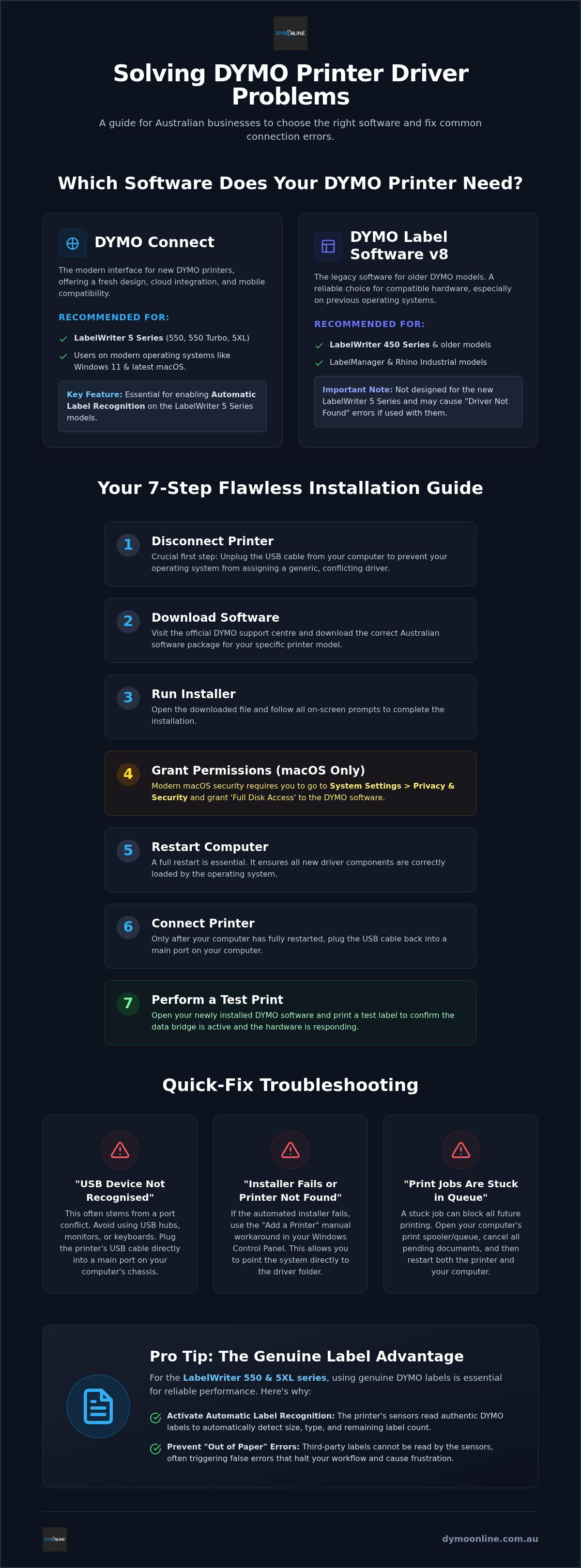
The current landscape is divided between the legacy DYMO Label Software (DLS) v8 and the modern DYMO Connect interface. While DYMO Connect offers a fresh design and mobile compatibility, it requires specific driver protocols to function correctly with modern hardware. For users of the LabelWriter 550 and 5XL series, the driver plays a critical role in automatic label recognition. These newer machines use sensors to detect label size and type, a feature that only functions when the software and driver are perfectly matched to your Windows 10, Windows 11, or macOS environment.
DYMO Connect vs. DYMO Label Software (v8)
Choosing the right version depends entirely on your hardware generation. If you're using a legacy LabelWriter 450 or a device from the LabelManager series, you might still rely on DLS v8.7.5, especially on older operating systems. However, installing the wrong version often triggers the "Driver Not Found" error. This occurs because the system is looking for a specific communication protocol that the installed software doesn't provide. To avoid disruptions, always verify your model number before downloading. The 550 series and 5XL are built exclusively for DYMO Connect, ensuring they take full advantage of high-speed printing and smart-labelling features.
How to Install DYMO Drivers on Windows and Mac
Installing dymo printer drivers requires a specific sequence to avoid software conflicts. Disconnect your USB cable first. This is critical. If you plug the device in too early, Windows or macOS may assign a generic driver that doesn't allow the official software to communicate with the hardware. Once disconnected, download the latest Australian software package from the official support centre. According to PCMag's guide to label makers, DYMO remains a top choice for reliability, but that performance depends on a clean installation.
For macOS users, modern security protocols require you to grant "Full Disk Access" to the DYMO software within System Settings. This permission allows the driver to write the necessary background files for your specific print head. After the installation finishes, restart your computer, connect the USB, and perform a test print. This verifies that the data bridge is active and the hardware is responding correctly.
Resolving Common Connection and Driver Errors
If you encounter the "USB Device Not Recognised" error, it often stems from a port conflict or an overloaded hub. Try switching to a direct USB port on your computer's chassis. It doesn't always work through a monitor or keyboard hub. If the automated installer fails, use the "Add a Printer" manual workaround in your Windows Control Panel. This allows you to point the system directly to the extracted dymo printer drivers folder, bypassing the installer's interface. For persistent print queues, clear your print spooler to remove stuck jobs. You can find deeper hardware fixes in our Dymo troubleshooting guide. If you're still stuck, reach out to our local experts for technical assistance.
Optimising Your Labelling Workflow with Genuine Support
Maintaining an efficient workflow requires more than just installing the right dymo printer drivers. It involves a synergy between hardware and software that's best achieved with genuine supplies. For instance, the LabelWriter 5XL relies on its driver to communicate with Automatic Label Recognition sensors. When using third-party labels in the 550 series, the driver often triggers a false "Out of Paper" error because it cannot verify the authenticity of the roll. This disruption undermines the professional standard required in a fast-paced Australian warehouse.
Regular software updates are vital for long-term reliability. They don't just fix bugs; they unlock advanced features like sophisticated barcode generation and seamless Excel data importing. These tools are critical for Rhino industrial labelling, where precision in asset tagging is mandatory. While PCMag's Best Label Makers of 2026 highlights the hardware's strength, the driver is what translates your complex data into a durable physical tag.
Expert Assistance for Australian Businesses
Generic retailers often lack the technical depth to troubleshoot networked environments. DymoOnline provides specialised knowledge for Australian businesses managing shared printers over a local network. If your dymo printer drivers aren't distributing correctly across multiple workstations, you need local expertise that understands Australian network configurations. Our team ensures your fleet remains operational without the lag of global support queues. Contact our Australian support team for expert help with your DYMO drivers and ensure your labelling system remains a reliable partner in your business growth.
Maintain Your Labelling Efficiency with Expert Support
Successfully managing your dymo printer drivers is the foundation of a reliable labelling system. By matching your hardware generation to the correct software and following a strict installation sequence, you can eliminate common connection errors and maximise your daily productivity. Remember that the LabelWriter 5 series requires a specific synergy between genuine drivers and authentic labels to ensure features like Automatic Label Recognition function correctly. Since 2009, DymoOnline has provided specialist Australian support as an authorised supplier of genuine hardware. Our local team possesses expert knowledge of the LabelWriter 5 series and is ready to resolve your technical challenges. Need help with your DYMO setup? Contact our Australian experts today. With the right configuration, your labelling workflow will remain a seamless and dependable part of your business operations.
Frequently Asked Questions
Where can I download the latest DYMO printer drivers for Windows 11?
You can access the latest dymo printer drivers through the manufacturer's global support portal to ensure your hardware remains compatible with modern Australian systems. For Windows 11 users, the recommended standard is DYMO Connect for Desktop v1.3.2. This version provides the necessary architecture for recent security updates and ensures your LabelWriter functions correctly without the need for outdated legacy software.
Why is my DYMO LabelWriter 550 not recognised by my computer after installing the driver?
This recognition error usually happens if the USB cable was connected before the software was fully ready. To fix this, disconnect the printer, remove the current driver, and restart your PC or Mac. Reinstall the software package and only plug in the USB cable when the installer specifically asks. This sequence ensures the system correctly assigns the communication port to your machine.
Can I use the same driver for my LabelWriter and my DYMO LabelManager?
Modern models like the LabelWriter 550 and the LabelManager 210D both operate within the unified DYMO Connect software environment. While the software interface is identical, the internal dymo printer drivers are specific to each hardware category. The installer package contains a full suite that automatically identifies whether you've connected a desktop LabelWriter or a portable LabelManager unit.
What should I do if the DYMO Connect software says "No Device Connected"?
Start by checking that your printer is powered on and connected directly to a USB port on your computer rather than an unpowered hub. If the error persists, ensure you're using a genuine DYMO AC adapter. Third-party power supplies often cause voltage fluctuations that prevent the driver from establishing a stable link, leading the software to fail in detecting the hardware.
Are there specific drivers needed for the DYMO LabelWriter 5XL on a Mac?
Mac users must download the specific macOS version of DYMO Connect for Desktop to support the LabelWriter 5XL. If you're using a modern Mac with Apple Silicon, such as an M2 or M3 chip, you must grant Full Disk Access in your system permissions. This step allows the driver to communicate with the printer hardware without being blocked by macOS security.
Do I need to uninstall old DYMO software before installing a new version?
It's highly recommended to uninstall older software versions to prevent file conflicts between legacy DYMO Label Software and the modern DYMO Connect interface. Residual files from previous installations often confuse the operating system, which can lead to persistent print errors. Performing a clean uninstall followed by a system restart ensures the new driver can establish a stable and reliable labelling environment.

Article by
DymoOnline Team
The DYMOOnline Team provides practical guidance for Australian businesses, warehouses, retailers, offices, schools, healthcare workplaces and home users who rely on accurate, efficient labelling. DYMOOnline specialises in DYMO label makers, DYMO label printers, label tapes, label rolls, shipping labels, address labels, barcode labels and labelling accessories, helping customers choose the right labelling products for organisation, mailing, inventory, filing, pricing and workplace efficiency.
General Information
This article is provided as general information only to help customers compare and choose DYMO label makers, label printers, label tapes, label rolls, shipping labels, address labels, barcode labels and related labelling supplies. Product details, specifications, compatibility, availability, pricing and suitability may vary. Always check the individual product page, manufacturer information, printer model compatibility and label size requirements before purchasing or using a product.
Latest News
DYMO Printer Drivers: 2026 Australian User Guide
Why does your computer suddenly claim your LabelWriter doesn't exist the moment you have fifty urg...
Genuine DYMO D1 Labels: The Ultimate Australian Buyer’s Guide
A single jammed cassette or a set of peeling labels can cost your business far more in lost produc...
Dymo Rhino vs Panduit Label Makers: The Best Choice for Australian Trades in 2026
You might assume that spending significantly more on a high-end label maker guarantees a better re...
Small Business Label Printer Australia: The 2026 Guide to Automated Labelling Systems
Imagine spending your Monday morning handwriting fifty delivery addresses, only to have several parc...
Australian Food Safety Label Requirements: A 2026 Compliance Checklist
Could your current food labels trigger a mandatory recall after 25 February 2026? It is a critical q...
Choosing the Best Australia Post Shipping Label Printer for Your Business in 2026
We understand that as your order volume increases, you need a reliable australia post shipping label...