


You have a stack of urgent orders ready for dispatch, but your printer is flashing a persistent "Out of Paper" error despite a fresh roll of shipping labels sitting in the tray. For many Australian businesses, these small technical hurdles often result in significant workflow delays and wasted stock. It's a frustrating reality that even the most reliable equipment requires precise configuration to perform at its peak in a modern digital environment.
We understand that you need your hardware to work without constant manual intervention. This dymo troubleshooting guide offers an authoritative resource to help you quickly identify and resolve hardware, software, and labelling issues across the entire range, including the LabelWriter 550 and Rhino series. Whether you're dealing with connectivity gaps on the latest macOS 14 or poor print quality on your industrial tapes, our expertise will help you restore full functionality.
In this guide, we provide clear instructions on installing the latest DYMO Connect v1.6 software, managing RFID label recognition, and performing routine maintenance to prevent future jams. You'll gain the practical knowledge required to maximise the lifespan of your printer and ensure your labelling operations remain efficient and professional.
Key Takeaways
- Identify the root cause of printing errors by categorising faults into mechanical, connectivity, or consumable-related issues for faster resolution.
- Learn safe techniques for clearing label jams and maintaining print heads to prevent damage to internal feed rollers and ensure long-term reliability.
- This dymo troubleshooting guide details how to ensure compatibility between your hardware and the latest DYMO Connect v1.6 software on modern operating systems.
- Understand the Automatic Label Recognition technology in the LabelWriter 550 series to resolve "Labels Not Recognised" errors when using genuine DYMO labels.
- Optimise the performance of portable devices like the LabelManager 160 or Rhino 6000+ by addressing common battery and charging configuration challenges.
The DYMO Support Framework: Identifying Your Issue
Effective troubleshooting begins with a structured approach. Rather than viewing a printer error as an isolated failure, it's more accurate to see it as a breakdown in a complex ecosystem. Throughout the Dymo Corporation history, the brand has shifted from manual embossers to sophisticated thermal systems that rely on precise hardware and software synchronisation. This dymo troubleshooting guide is designed to help you navigate these layers by categorising problems into three distinct pillars: mechanical faults, connectivity hurdles, and consumable-related errors.
Before you attempt any advanced repairs, you must identify your specific model. The steps for a desktop LabelWriter 550 differ significantly from those for a handheld Rhino Industrial device used in a warehouse. Misidentifying the hardware can lead to incorrect driver installations or improper cleaning techniques that might void your warranty. Establishing the correct model and software version is the first step toward a permanent fix.
To better understand the fundamentals of hardware maintenance, watch this helpful video:
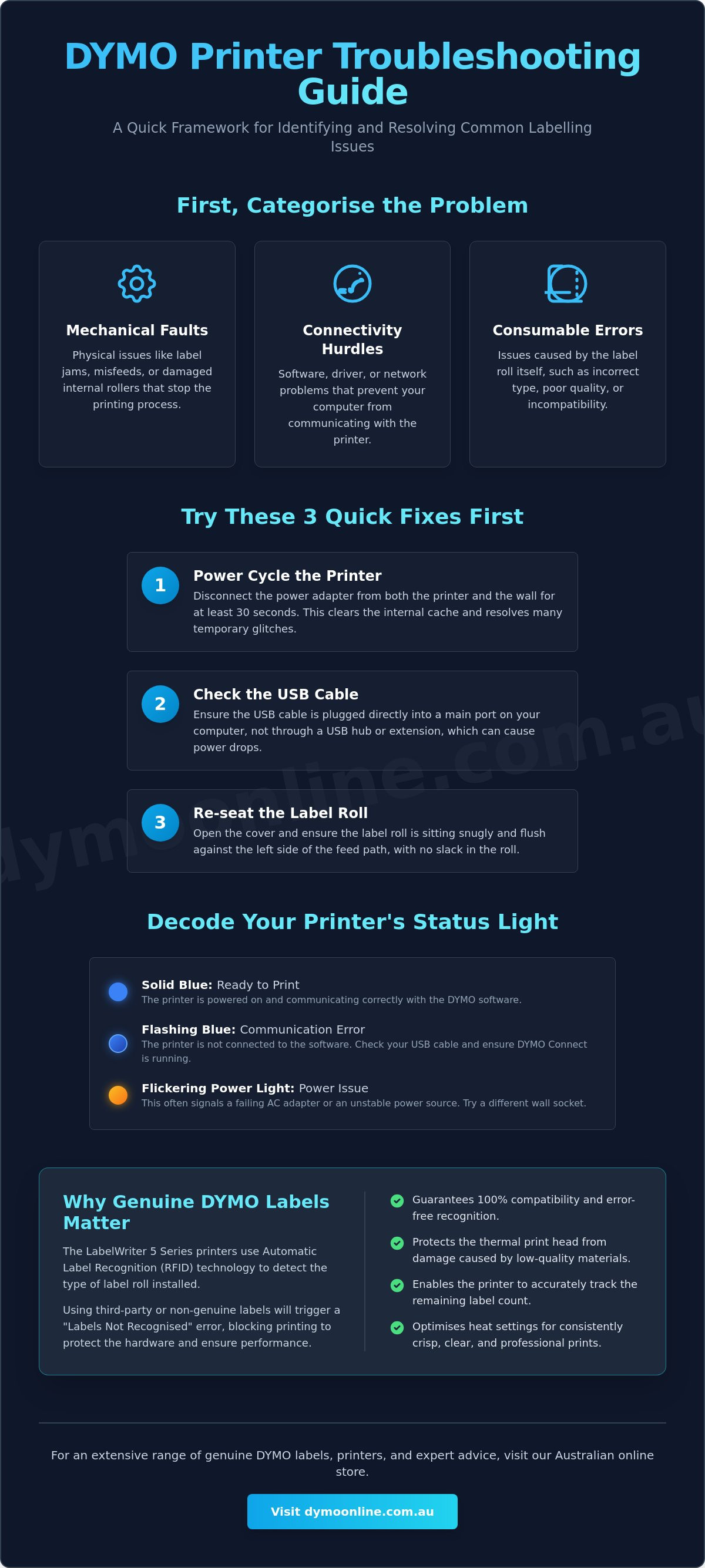
If you're experiencing a sudden halt in production, start with this "Quick Fix" checklist. These three steps resolve a large portion of common office labelling issues without requiring technical support:
- Power Cycle: Disconnect the power adapter from both the printer and the wall socket for 30 seconds to clear the internal cache.
- Cable Check: Ensure the USB cable is plugged directly into the computer rather than a USB hub, which can cause voltage drops.
- Label Alignment: Open the cover and ensure the label roll is flush against the left side of the feed path with no slack in the roll.
Understanding the Status Light Codes
The LED indicator on your device is your most direct diagnostic tool. A solid blue light generally indicates the printer is ready, while a flashing blue pattern often signals that the printer isn't communicating with the DYMO Connect software. On the LabelWriter 550 and 5XL series, specific light sequences can also indicate that the Automatic Label Recognition system is struggling to read the RFID tag on the roll. If you notice a flickering power light, it's often a sign of a failing AC adapter or inconsistent voltage from your power source.
The Role of Genuine DYMO Consumables
The introduction of the 5 Series printers has made the choice of supplies more critical than ever. These newer models utilise sensors to detect authentic labels. If you use third-party alternatives, the software may block printing entirely to protect the thermal print head from damage. To minimise downtime, Australian businesses should prioritise genuine DYMO labels. Authentic rolls ensure the printer can accurately track how many labels remain and adjust the heat settings to prevent "ghosting" or faded text, which is often mistaken for a hardware malfunction when it's actually a matter of consumable quality.
Resolving Hardware and Mechanical Faults
Mechanical failures are often the primary cause of downtime in high-volume environments like medical clinics and busy warehouses. While software updates are vital, the physical integrity of your hardware determines daily reliability. This dymo troubleshooting guide bridges the gap between office-based LabelWriter models and the rugged Rhino series, ensuring you can maintain any device in your fleet.
A common mistake when a label becomes stuck is attempting to pull it through the front of the machine with force. This can permanently damage the delicate feed rollers or the thermal print head. Instead, use the "Reverse Feed" technique by holding down the form-feed button for several seconds. This should only be done to back out a label that hasn't yet wrapped around the roller. If a label has completely adhered to the internal mechanism, you'll need to manually release the tension lever located inside the printer housing to gently slide the label out.
Power issues are another frequent culprit, particularly with high-speed models like the LabelWriter 550 Turbo. These units require a specific 24V output from the AC adapter to function correctly. If your printer is resetting during a print job or producing faint text, verify that you're using the original Dymo AC Adapter. Using a generic adapter with the wrong voltage can lead to inconsistent performance or even internal circuitry failure. If hardware issues persist after checking these basics, you can always reach out to our specialist team for further guidance on replacement parts.
Clearing Persistent Label Jams
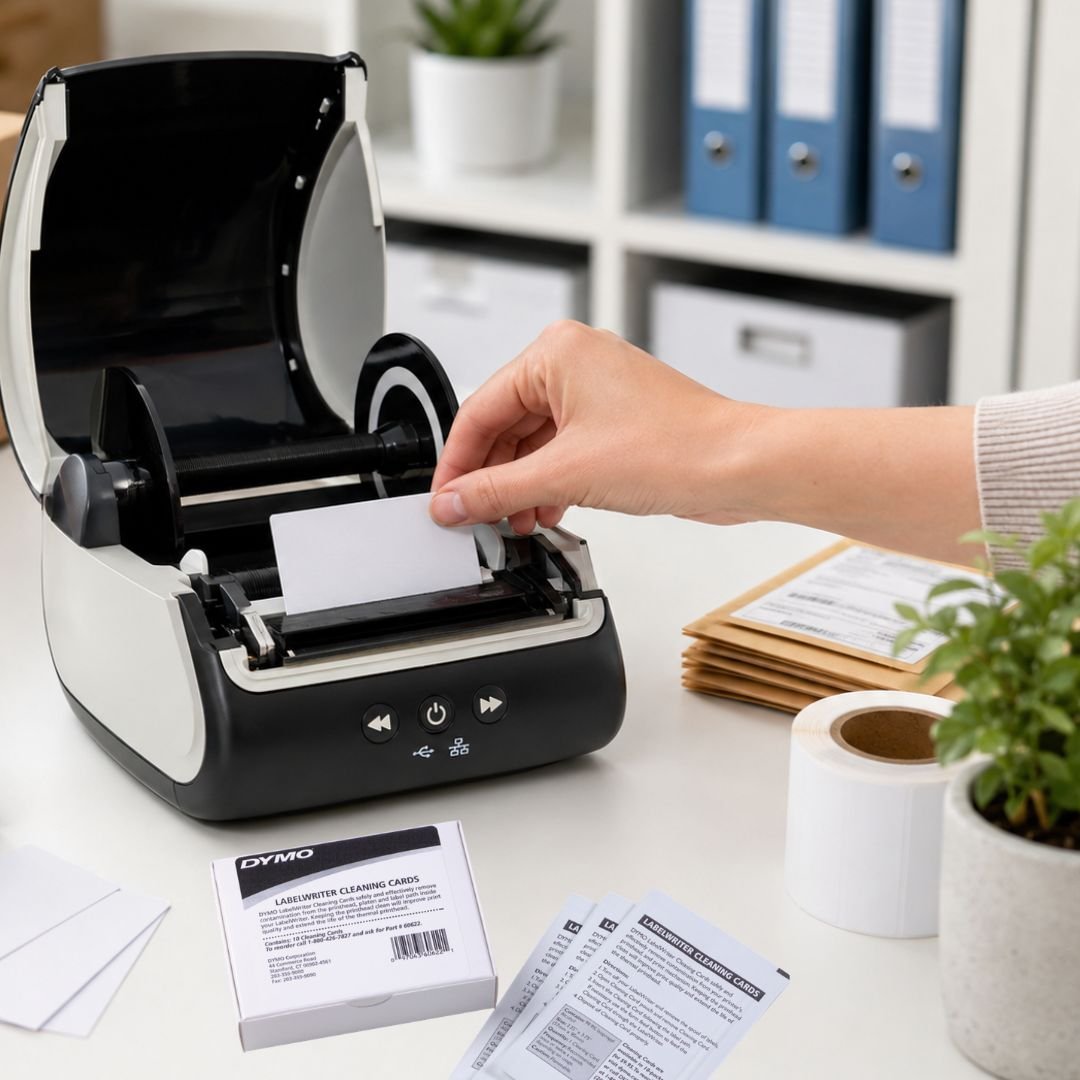
Adhesive buildup is the hidden enemy of thermal printing. Over time, the glue from label rolls can transfer to the feed roller, causing subsequent labels to wrap around it. To resolve this, use a DYMO cleaning card or a lint-free cloth lightly dampened with 99% isopropyl alcohol. Avoid using sharp metal objects like scissors to scrape away residue, as even a small nick on the rubber roller will cause permanent feed errors and misaligned printing.
Fixing Feed and Sensor Errors
If your printer displays an "Out of Paper" error while the roll is clearly full, the issue is likely a dirty sensor. On older models like the LabelWriter 450, the "Black Mark" sensor on the underside of the label path can become obscured by paper dust. A quick blast of compressed air is usually enough to clear the obstruction. Additionally, ensure the adjustable label guide is snug against the edge of the roll; a loose guide allows the labels to drift, which prevents the sensor from detecting the gaps between labels correctly.
Software, Drivers, and Connectivity Fixes
While mechanical fixes handle physical jams, software synchronisation ensures your computer communicates effectively with your hardware. Many Australian businesses find that a dymo troubleshooting guide is most useful following an operating system update. As of May 2026, the current standard is DYMO Connect v1.6. This version is compatible with macOS 14 and Windows 10 or higher, including specific support for Apple Silicon and ARM64 architectures. If your printer has suddenly stopped responding, the issue often lies in a corrupted driver or a background service that has failed to start.
A "Clean Reinstall" is the most reliable method to clear persistent software errors. This process goes beyond a simple uninstallation. It requires removing the printer from the Windows Device Manager or macOS System Settings, deleting the DYMO folders in your local application data, and restarting the print spooler service. This removes corrupted registry files that a standard uninstaller might leave behind, providing a fresh slate for the hardware to establish a stable link.
Connectivity issues for Wireless and LAN models frequently stem from IP conflicts within your local network. If your printer is assigned a static IP address that clashes with another device, the software will fail to locate the hardware. To maintain a stable connection, ensure your printer is assigned a unique IP address outside of your router's dynamic DHCP range. For USB-connected devices, always plug the cable directly into the computer's port rather than a non-powered USB hub to ensure consistent data transfer and voltage.
Resetting the DYMO Web Service
Browser-based applications used in medical administration or e-commerce platforms rely on the DYMO Web Service to bridge the gap between your web browser and the local printer. For healthcare professionals using these systems, you can learn more about Aussie Scripts to see how telehealth services are further digitising patient management. If you encounter the "DYMO Label Framework is not defined" error, the service is likely inactive. You can identify if it's running by looking for the DYMO icon in your system tray on Windows or the menu bar on a Mac. If the service is present but not working, you may need to regenerate the SSL certificate. Right-click the service icon and select "Diagnose" to prompt the software to reconfigure the certificate for local communication.
Driver Installation for Australian Users
Selecting the correct driver is vital when managing a fleet that includes both legacy and modern hardware. The LabelWriter 550 requires specific drivers that are not interchangeable with legacy 450 units. If Windows displays an "Unknown Device" error, the operating system hasn't correctly associated the hardware with the installed software. For a step-by-step setup, refer to our guide on How to Download and Install DYMO Software, which provides the precise instructions needed for current operating systems.
Troubleshooting the LabelWriter 5 Series Recognition
The introduction of the LabelWriter 550 and 5XL models brought a significant shift in how Australian businesses manage their labelling workflows. These machines utilise Automatic Label Recognition technology, which relies on an RFID (Radio Frequency Identification) chip embedded in the core of every genuine label roll. This dymo troubleshooting guide focuses on ensuring this handshake between hardware and consumable remains seamless. While this system automates label type and size selection, it can occasionally present a "Labels Not Recognised" error that brings production to a halt.
If your printer displays this error despite you using genuine stock, the issue is rarely a total hardware failure. The RFID reader is located internally near the label feed entry point. Over time, minute amounts of paper dust or adhesive residue can settle on the sensor, obstructing its ability to scan the tag on the roll core. A quick blast of compressed air into the feed path is often the simplest and most effective way to restore recognition. You should also verify that the roll is pushed firmly onto the spool; even a few millimetres of misalignment can prevent the reader from establishing a stable signal link.
Static electricity is another factor that frequently impacts RFID readability in dry Australian environments, such as air-conditioned offices or large warehouses. High levels of static build-up can temporarily scramble the low-frequency signal required for the printer to identify the roll. If recognition is intermittent, try a "hard reset" of the hardware. Unplug the power adapter, hold down the power button for ten seconds to discharge any residual electricity, and then reconnect the device. This often clears the internal cache and allows the sensor to re-scan the roll successfully.
The 550 and 5XL Recognition Error
When loading a new roll, always look for the "DYMO Authentic" symbol on the packaging to ensure the roll contains the necessary RFID tag. If the reader fails to pick up a new roll, lift the spool and re-seat it, ensuring the labels are feeding from the bottom of the roll. This precise placement is especially important when you are using labels designed for wide-format shipping, as the weight of the larger 5XL rolls can cause them to sit slightly off-centre if not properly secured on the spindle.
Firmware and RFID Sync Issues
Firmware acts as the bridge between your printer's physical sensors and your computer's software. If you have updated to the latest version of DYMO Connect but the printer's internal firmware is outdated, the RFID recognition protocols might clash. Use the DYMO Connect desktop application to check for mandatory hardware updates under the service menu. If you've tested multiple genuine rolls and performed a firmware update without success, the internal sensor may have sustained physical damage. For expert help with persistent recognition issues, contact our Australian support specialists for technical guidance.
Industrial and Portable Printer Maintenance
Handheld units like the Rhino Industrial series are designed for durability, yet they aren't immune to the dust and debris found on Australian construction sites or in high-volume warehouses. While desktop models often face software hurdles, portable devices frequently encounter physical challenges related to battery health and tape tension. This dymo troubleshooting guide provides the specific steps needed to maintain your mobile fleet, ensuring your Rhino 4200 or 6000+ remains operational in the field.
If your portable label maker experiences persistent screen freezes or displays garbled characters, a factory reset is the most effective way to clear internal memory errors. For many LabelManager and Rhino models, this involves holding a specific key combination, such as the power button and the '6' key, while the device is powered off. This process flushes the temporary cache and restores the default formatting logic. It's a vital step for tradies and technicians who rely on consistent serialisation and cable wrapping functions during complex installations.
Mechanical failures in the field are often misdiagnosed as electronic faults. If a handheld unit stops feeding tape, the cause is frequently a build-up of fine particles around the drive gears or the cutter blade. Regularly clearing the tape path with a dry cotton swab or a quick burst of compressed air is essential. This simple maintenance routine prevents the high-torque feed mechanism from straining, which is particularly important when you're using heavy-duty heat shrink tubing or industrial-grade adhesives.
Rhino and LabelManager Battery Care
Portable label makers like the LabelManager 160 and 210D are highly sensitive to voltage drops. Using non-alkaline batteries often triggers "Low Battery" warnings prematurely because these units require a consistent power supply to drive the thermal head and motor simultaneously. For heavy-duty labelling sessions in a home office or warehouse, we recommend using official Dymo AC adapters. If you must use batteries, ensure the contacts are clean and free from corrosion. Even a small amount of oxidation can impede power delivery, causing the printer to cut out mid-print or produce faded text.
D1 Tape and LetraTag Troubleshooting
"Tape Jam" or "Cassette Jammed" errors usually stem from ribbon slack within the cassette itself. Before inserting a new D1 or LetraTag cassette, always turn the internal black spool clockwise to take up any slack. If labels aren't cutting cleanly or are getting caught in the blade, the cutter is likely gummed up with adhesive residue. A small amount of isopropyl alcohol on the blade will restore its edge. Choosing the correct LetraTag refills and genuine D1 tapes ensures the motor doesn't overwork, protecting the long-term mechanical health of your device.
Maintaining Long-Term Labelling Efficiency
Resolving technical faults doesn't have to be a recurring burden on your business operations. By following this dymo troubleshooting guide, you've gained the practical skills to manage everything from RFID recognition errors in the LabelWriter 550 to the rugged maintenance requirements of the Rhino series. Success lies in the combination of using the latest DYMO Connect software and ensuring your hardware is maintained with genuine consumables. These small adjustments to your workflow will significantly reduce downtime and prevent the frustration of wasted label rolls.
As a specialist Australian supplier, DymoOnline provides more than just hardware. We offer deep technical expertise and nationwide shipping through Mega Office Supplies to ensure your organisation stays productive. Whether you're managing a medical clinic, a school, or a high-volume warehouse, the right supplies and knowledge are your best defence against mechanical failure. If you've followed these steps and still face persistent issues, our team is ready to assist. You can contact our expert support team for professional guidance on all DYMO products and supplies. With a few simple preventative habits, your labelling system will continue to be a reliable asset for years to come.
Frequently Asked Questions
Why is my DYMO LabelWriter flashing a blue light?
A flashing blue light indicates the printer has encountered a status error, typically because it's out of labels or a jam has occurred. In the LabelWriter 550 and 5XL models, this can also mean the internal sensor cannot detect the RFID tag on the label roll. Open the cover to ensure the roll is seated correctly and that you aren't using generic labels without the required chip.
How do I fix a DYMO printer that is not recognised by my computer?
Start by unplugging the USB cable and plugging it directly into a port on your computer rather than a USB hub. Ensure you have installed DYMO Connect v1.6, as older software versions don't support modern operating systems like Windows 11. If the issue persists, restart the Print Spooler service in your computer's administrative settings to refresh the connection between the hardware and your software.
Why is my DYMO printer printing blank labels?
Blank labels usually mean the labels have been loaded upside down or you're using non-thermal paper. Since these printers use heat instead of ink, the chemically treated side of the label must face the print head. Ensure the labels feed from the bottom of the roll. If the labels are loaded correctly and still print blank, the thermal print head may require a reboot or cleaning.
Can I use generic labels in my DYMO LabelWriter 550?
No, the LabelWriter 550 and 5XL models are designed to work exclusively with genuine DYMO labels. These printers feature Automatic Label Recognition technology that reads an RFID chip embedded in the roll core. Third-party labels lack this chip, which causes the printer to display a "Labels Not Recognised" error and prevents it from printing. Using authentic rolls ensures your printer can track label count and size accurately.
How do I clean the print head on my DYMO LabelWriter?
Clean the print head using a DYMO cleaning card or a lint-free cloth lightly dampened with 99% isopropyl alcohol. Gently wipe the thermal element and the rubber feed roller to remove any adhesive residue or paper dust that has accumulated. Regular cleaning every two to three rolls prevents streaking and ensures your shipping labels remain legible for couriers and postal services.
What should I do if my DYMO Rhino keeps jamming?
Jams in the Rhino series often happen because the tape ribbon has become slack inside the cassette. Before you insert a D1 or industrial tape, turn the internal spool clockwise to tighten the ribbon. If the tape is getting caught during the cut, clean the cutter blade with alcohol to remove adhesive buildup. This ensures the blade slices through the tape cleanly without pulling it back into the mechanism.
Where can I find the latest DYMO drivers for Windows 11?
The most current drivers are included in the DYMO Connect for Desktop v1.6 installer. This dymo troubleshooting guide recommends downloading the software directly from the official support site to ensure compatibility with 64-bit and ARM64 Windows architectures. Avoid third-party driver repositories, as these often host outdated versions that can cause stability issues or "Printer Not Found" errors during the setup process.
Why does my DYMO printer skip labels or print multiple times?
Skipping labels is usually caused by a dirty "Black Mark" sensor or incorrect software settings. Ensure the label guide is snug against the side of the roll so the labels don't drift as they feed. You should also check that the label size selected in your print dialogue matches the physical dimensions of the roll in the printer. If these settings don't match, the sensor will fail to detect the gap between labels.
General Information
This article is provided as general information only to help customers compare and choose DYMO label makers, label printers, label tapes, label rolls, shipping labels, address labels, barcode labels and related labelling supplies. Product details, specifications, compatibility, availability, pricing and suitability may vary. Always check the individual product page, manufacturer information, printer model compatibility and label size requirements before purchasing or using a product.


