
How to Download and Install DYMO Software from support.dymo.com: A 2026 Guide
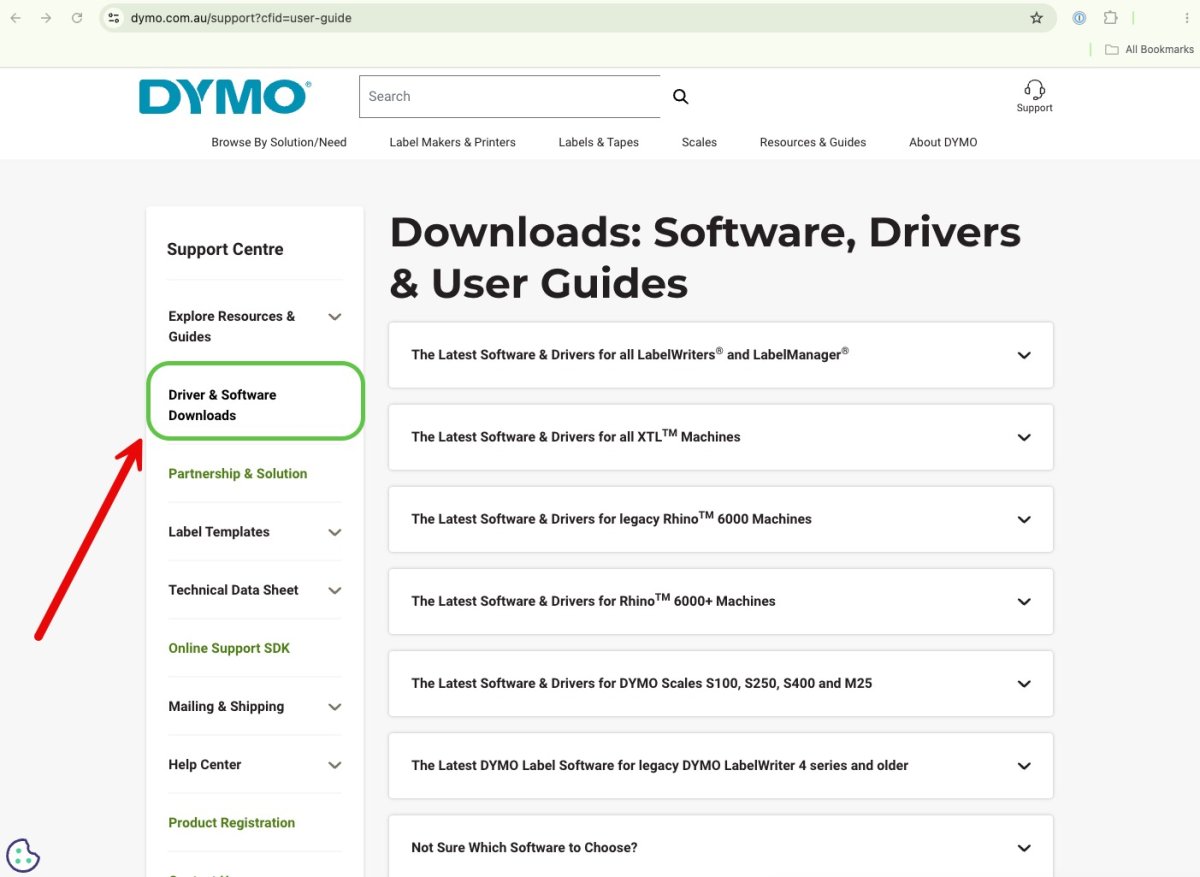
Why does the simple task of finding a printer driver often feel like a digital maze? If you've ever landed on the official portal only to find yourself stuck between DYMO Connect, legacy Label Software, and region settings that don't quite match your Australian office setup, you aren't alone. It's frustrating when you just want to organise your workspace or prepare a shipment, but your computer refuses to recognise your LabelWriter 550 or Rhino 6000+.
A support.dymo.com software download should be straightforward, yet the sheer volume of options for Windows 10, macOS 14, and various processor architectures can lead to installation errors. We understand that your time is better spent on logistics than troubleshooting technical glitches. This guide provides a comprehensive roadmap to navigate the portal and choose the correct software for your specific environment with absolute confidence.
You'll learn how to identify the latest version 1.6 drivers for modern machines and the specialised DYMO ID software required for industrial applications. We'll walk you through the selection process for both Apple Silicon and Intel systems so you can get back to printing high-quality shipping labels and D1 tapes without the headache.
Key Takeaways
- Learn how to navigate the official portal by selecting the correct Australian region to ensure your drivers are compatible with local hardware standards.
- Understand the technical differences between the modern DYMO Connect interface for the LabelWriter 550 series and the legacy DYMO Label Software v8.
- Master the correct installation sequence to prevent connection errors, specifically the rule of installing software before connecting your printer via USB.
- Follow our step-by-step instructions for a successful support.dymo.com software download that matches your specific Windows or macOS operating system.
- Identify the operational requirements for the LabelWriter 5XL and 550 Turbo, including the necessity of genuine DYMO labels for automatic recognition features.
Navigating the support.dymo.com Software Download Portal
The official support portal is the primary destination for any professional looking to maintain their labelling equipment. While the interface is designed to be functional, it requires a methodical approach to ensure you don't download incompatible files. A successful support.dymo.com software download begins with preparation rather than immediate clicking. Since the Dymo Corporation transitioned to the 5-series architecture, software compatibility has become more rigid, making it essential to identify your specific hardware generation before you start.
To better understand this concept, watch this helpful video:
Locating Your Hardware Details
You'll find the specific model name and serial number on the underside of your device. This is a critical step because the software requirements for a legacy LabelWriter 450 differ significantly from the modern LabelWriter 550. While older machines might still rely on DYMO Label Software (DLS) v8, the newer 500-series requires the DYMO Connect for Desktop application. Hardware generation matters because the 2026 versions of Windows and macOS have strict driver signature requirements that older software packages may not meet. If you are using a Rhino 6000+ or an XTL machine, you'll need the specialised DYMO ID software instead of the standard consumer packages.
Before initiating the download, verify your operating system version. For Mac users, knowing if you are running macOS 14 (Sonoma) or the newer macOS 15 (Sequoia) determines which version of DYMO Connect you need. Similarly, Windows users should distinguish between Windows 10, 11, and the latest Windows 12. The support site provides specific installers for Intel 64-bit, 32-bit, and ARM64 architectures. Choosing the wrong architecture will result in a failed installation or a "driver not found" error when you eventually plug in your printer.
Regional Site Selection Tips
The portal often uses geo-location to direct users, but it might default to the US site. For Australian users, it's vital to ensure you are in the Oceania or Australian section of the support centre. This ensures you receive drivers that align with local standards and regional paper sizes, such as A4 instead of US Letter. If you find yourself on a page with prices in USD or references to North American support hours, use the region selector at the top or bottom of the page to switch to Australia. Additionally, check that your browser isn't blocking the download pop-ups from the DYMO domain, as this is a common cause for "failed" download attempts. Staying within the Australian regional site also ensures you get the most relevant information for local shipping labels and address formats used by Australia Post and local couriers.
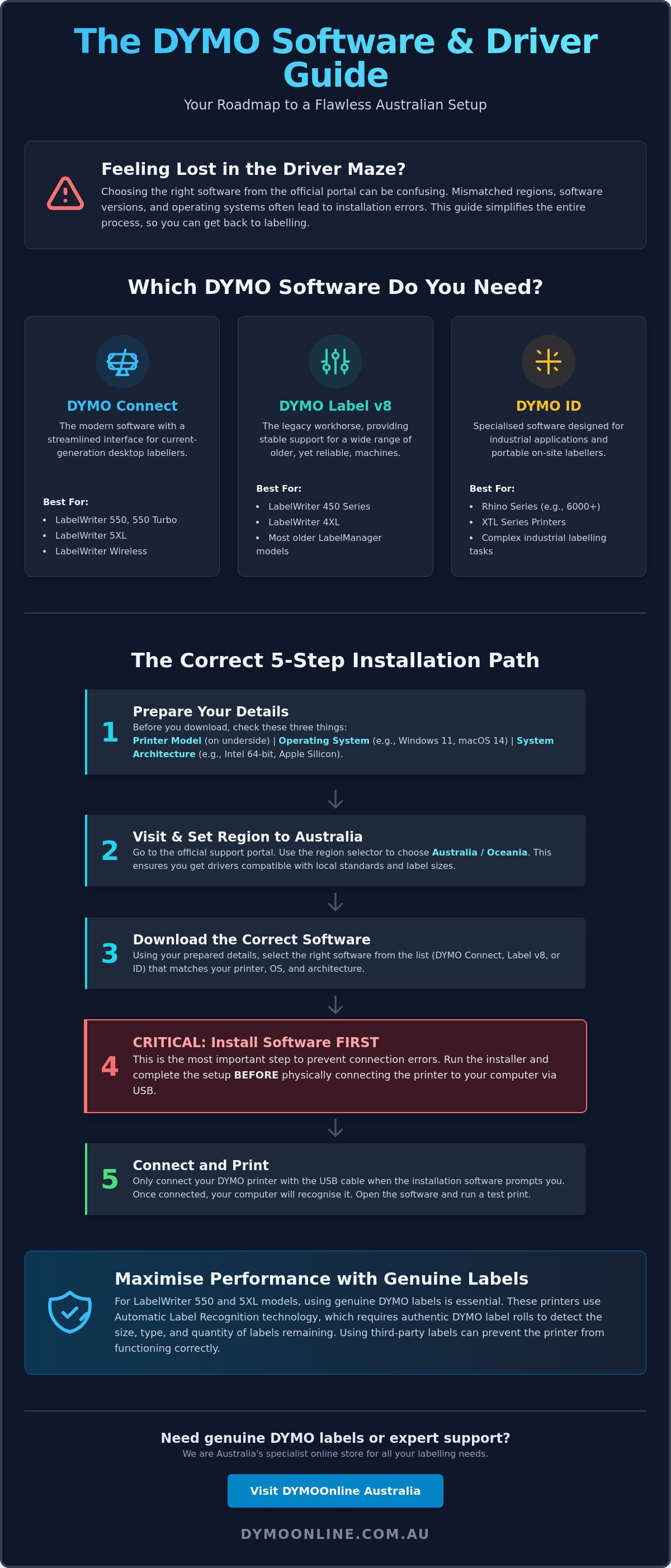
DYMO Connect vs. DYMO Label Software: Which Should You Download?
Choosing between the two primary software packages is the most common point of confusion during a support.dymo.com software download. The decision isn't merely a matter of personal preference for a specific interface; it's a technical requirement dictated by your hardware generation. While both programs allow you to design and print, they operate on different architectures. DYMO Connect is the modern, app-driven solution designed for current hardware, whereas DYMO Label Software (DLS) v8 remains the stable workhorse for legacy systems. As noted in a PCMag review of DYMO software, the transition to more modern, app-like interfaces has changed how users interact with their labelling tasks, prioritising clean design over complex menu structures.
The compatibility of your DYMO LabelWriter range is the deciding factor. If you've recently upgraded your office to the 550 series, the older v8 software simply won't communicate with your printer. Conversely, while DYMO Connect does support many older 450-series models, some users find that the legacy v8 software provides a more reliable experience for high-volume database printing on older machines. Understanding these distinctions ensures you don't waste time installing a package that won't recognise your device.
When to Choose DYMO Connect
DYMO Connect is the essential choice for any user operating a LabelWriter 550, 550 Turbo, or the wide-format 5XL. It's designed to leverage the Automatic Label Recognition technology built into these machines. This feature allows the software to detect the size, type, and remaining quantity of labels on your roll automatically. It's also the superior choice for creative environments, offering modern design templates and better integration with mobile devices via Wi-Fi or Bluetooth. If your workflow involves customising labels with various fonts and graphics, the modern interface of Connect is far more intuitive.
When to Stick with DYMO Label v8
For those still relying on the venerable LabelWriter 450 or 400 series, DYMO Label Software v8 is often the more practical download. Many Australian medical centres and law firms prefer v8 because it handles large address databases and Excel imports with exceptional stability. It's also the primary software for several older LabelManager machines that may not be fully supported by the newer Connect app. If your labelling tasks are repetitive and data-heavy, the streamlined, "no-frills" nature of v8 is an advantage. If you're struggling to determine which version suits your specific business application, you can get expert advice from our Australian support team to clarify your requirements.
Step-by-Step Guide to Installing DYMO Drivers on Windows and Mac
Before you reach for the USB cable, remember the most critical rule of printer installation: don't connect your device to the computer until the software explicitly tells you to. This is the single most common mistake made by users after completing a support.dymo.com software download. If you plug the printer in prematurely, your operating system may assign a generic, "plug-and-play" driver that lacks the specific instructions needed for your DYMO LabelWriter to function correctly. This often results in a "ghost" printer entry that prevents the official software from ever seeing the hardware.
The installation process is designed to inject the correct drivers into your system's library before the hardware handshake occurs. Whether you're in a home office or a corporate warehouse, you'll need administrative privileges to complete this task. In many Australian workplaces, IT policies might block driver installation, so ensure you have the necessary permissions or an IT administrator on hand before executing the file. This ensures the installer can successfully modify system-level folders without being quarantined by security protocols.
Windows Installation Walkthrough
Locate the .exe file in your downloads folder. Right-click the file and select "Run as administrator" to ensure the installer has the authority to write to the system's driver store. During the process, Windows Defender or your third-party antivirus might flag the driver injection as a potential threat. You must allow these prompts to proceed. Once the software installation finishes, a pop-up will eventually ask you to connect the USB cable and power on the device. After doing so, wait a few moments and then check the "Printers & Scanners" menu in your Windows settings. Your printer should appear with its full model name, such as "LabelWriter 550 Turbo," rather than a generic "USB Printing Support" label.
macOS Installation and Security Settings
Mac users will typically deal with a .pkg installer. Double-click the file and follow the guided steps. On modern versions of macOS, such as Sonoma or Sequoia, you'll likely encounter several security prompts. You must navigate to "System Settings," then "Privacy & Security," to allow the software to communicate with external peripherals. Apple's strict sandboxing means the driver won't load until you've manually approved the extension. After the software is active, add the printer via the "Printers & Scanners" section. Ensure the "Use" dropdown menu shows the specific DYMO driver profile rather than the "AirPrint" or "Generic" options, which don't support custom label dimensions or the Automatic Label Recognition features of the 5-series.
Once the printer is recognised by the operating system, perform a test print using a standard address label. This finalises the handshake and confirms that the software can successfully communicate the correct dimensions and print density to the print head. If the test print is successful, you are ready to begin your labelling tasks.
Resolving Common Connection and Compatibility Issues
Even after a successful support.dymo.com software download, you might encounter the dreaded "No Device Detected" message. This is rarely a hardware failure. It's usually a communication breakdown between the operating system and the driver library. In a busy Australian office, these technical hurdles can stall your despatch process or disrupt your filing system. Understanding how to bridge this gap is essential for maintaining an efficient workflow with your LabelWriter 550 or 5XL series.
One specific issue unique to the 5-series is the "Label Recognition" error. These modern machines utilise an internal sensor to read the RFID chips in genuine DYMO label rolls. If the software fails to recognise the labels, first ensure you aren't using third-party alternatives. If the error persists with authentic rolls, it often indicates that the software service hasn't started correctly in the background. A quick restart of the DYMO Label Service in your system's "Services" menu usually resolves this without needing a full reinstallation.
USB Connectivity and Port Troubleshooting
Modern laptops used across Australian businesses often lack traditional USB-A ports, forcing users to rely on USB-C adapters or hubs. Cheap, unpowered hubs are a frequent cause of "Unknown Device" errors because they don't provide the stable data stream or power required for high-speed label printing. For the most reliable connection, always use a high-quality DYMO accessory or a powered docking station. If your printer becomes unresponsive, you can reset its internal memory. Unplug the power cable, wait for 30 seconds, and then reconnect it while holding down the form-feed button until the light flashes. This clears communication "hangs" and forces the computer to re-initiate the handshake.
Software Version Conflicts
A common question is whether you can have both DYMO Connect and DYMO Label v8 installed simultaneously. While technically possible, it isn't recommended. Both programs attempt to claim ownership of the USB port, which can lead to intermittent "Printer Busy" errors. If you've upgraded to a newer machine, it's best to perform a clean uninstallation of the old software before starting your next support.dymo.com software download. Ensure you are running the latest 2026 patches, such as version 1.6 for DYMO Connect, which includes specific optimisations for Windows 12 and the latest macOS security protocols. If these steps don't bring your printer back online, contact our expert support team for advanced assistance with your specific setup.
Maximising Your Workflow with Genuine Labels and Expert Support
After completing your support.dymo.com software download, the final step to a functional workspace is ensuring your hardware and media are perfectly synchronised. For users of the 550 and 5XL series, the software isn't just a design tool; it's a diagnostic interface that relies on real-time data from the label roll. This is where many Australian businesses encounter operational hurdles if they attempt to bypass the manufacturer's ecosystem. A successful setup requires both the correct driver and the appropriate media to maintain a seamless printing cycle.
The Role of Genuine Labels in Software Functionality
The modern DYMO Connect interface uses Automatic Label Recognition to display the exact dimensions and remaining quantity of your genuine DYMO LW labels. This communication happens via a small sensor that reads the roll's core. If the software detects a non-genuine or compatible roll, it will effectively lock out the print function. This isn't a technical glitch; it's a hardware-software handshake designed to prevent print head damage and ensure the thermal settings are perfectly calibrated for the specific adhesive type. Using non-genuine labels risks poor print density and can lead to adhesive bleed, which eventually clogs the print head and requires costly replacements.
For high-volume environments, the Dymo LabelWriter 5XL is the standard for wide-format shipping solutions. The software allows you to set up custom templates that align with Australian shipping standards, such as those required by Australia Post or local courier networks. By selecting the correct 104mm x 159mm template in DYMO Connect, you ensure that barcodes are crisp and scannable, minimising delivery delays caused by poor label quality. The software automatically adjusts the orientation and margins so your shipping labels look professional every time.
Expert Support for Australian Businesses
Navigating driver updates and hardware synchronisation is simpler when you partner with a local specialist. Choosing an Australian store like DYMOOnline means you're accessing a professional knowledge base tailored to our regional requirements. We provide rapid delivery on essential supplies across major Australian centres, ensuring your despatch line never grinds to a halt. If you're managing large-scale labelling projects in a warehouse or medical facility, we can assist with bulk pricing and technical guidance to maximise your efficiency. Our focus is on building your confidence in the tools you use every day.
To maintain a seamless labelling setup in 2026, follow this final checklist:
- Verify your printer model and OS version before starting your support.dymo.com software download.
- Install the software fully before connecting the USB cable to avoid driver ghosting.
- Use only genuine DYMO labels to maintain full software functionality and avoid lock-outs.
- Set up custom templates for local Australian shipping dimensions to ensure barcode clarity.
- Keep your software updated to the latest 2026 patch to maintain compatibility with Windows or macOS security updates.
Optimising Your Labelling Efficiency for the Future
Mastering the support.dymo.com software download process is the foundation of a productive Australian workspace. By correctly identifying whether your hardware requires DYMO Connect or the legacy v8 platform, you eliminate the technical friction that often stalls office operations. A successful setup relies on installing your drivers before connecting the hardware and committing to genuine media to maintain the health of your print head. These simple steps ensure your LabelWriter or Rhino printer performs at its peak for years to come.
As a specialist Australian supplier since 2009, DYMOOnline provides more than just hardware. We offer the peace of mind that comes with expert technical support for all models, from the home-office LabelManager to the industrial Rhino series. Our commitment to efficiency includes same-day despatch for major metropolitan areas, ensuring your organisation stays stocked with essential address and shipping labels without delay. Whether you're troubleshooting a connection or upgrading to the wide-format 5XL, our team is here to ensure your labelling remains error-free and professional.
Browse our full range of DYMO printers and genuine labels at DYMOOnline to find the perfect solution for your specific application. With the right software and authentic supplies in place, you're ready to organise your environment with total confidence.
Frequently Asked Questions
Where can I find the official support.dymo.com software download link?
You'll find the official link by visiting the support.dymo.com portal and navigating to the "Downloads" category. It's essential to verify you're on the Australian regional page to ensure the drivers align with local hardware specifications. Once there, you can select your specific printer model from the dropdown menu to initiate your support.dymo.com software download for Windows or Mac.
Is DYMO Connect compatible with my older LabelWriter 450?
DYMO Connect is fully compatible with the LabelWriter 450, though it was originally built for the newer 550 series. While it offers a modern interface and updated design templates, legacy users who rely on older Excel databases often find that DYMO Label Software v8 provides better stability for those specific high-volume tasks. You can choose either version based on your workflow requirements.
What should I do if the DYMO software won't install on my Mac?
If the installation fails on your Mac, you likely need to adjust your Privacy & Security settings. Modern versions of macOS, including Sonoma and Sequoia, block third-party drivers by default. Navigate to System Settings, select Privacy & Security, and look for a prompt asking to allow the DYMO software extension. Once approved, you'll need to restart your computer to finalise the driver injection.
Do I need a separate driver for the DYMO LabelWriter 5XL?
You don't need a separate driver specifically for the LabelWriter 5XL as it's included in the unified DYMO Connect installer. This single software package contains the necessary communication protocols for the entire 500-series, including the 550 and 550 Turbo. Simply download the main desktop application, and it will automatically recognise the 5XL once you plug it into your USB port.
Why does my DYMO software say 'No Label Detected' when I have labels loaded?
A 'No Label Detected' error on a 5-series printer usually means the machine cannot read the RFID chip on the label roll. This is most common when using non-genuine or compatible labels that lack the required technology. Ensure you are using authentic DYMO labels and that the roll is seated correctly so the internal sensor can communicate with the software.
Can I use DYMO software to print Australian shipping labels from eBay or Shopify?
You can certainly print shipping labels from eBay, Shopify, or MyPost Business using your DYMO printer. For standard Australian courier labels, you'll generally need the LabelWriter 5XL and the 104mm x 159mm label rolls. Simply select your DYMO printer in the browser print settings and ensure the paper size matches your loaded roll to avoid scaling issues.
How do I update my DYMO printer drivers to the 2026 version?
To update your drivers to the latest 2026 version, visit the official portal and perform a fresh support.dymo.com software download. It's best practice to uninstall your current software version before running the new installer. This prevents file conflicts and ensures that the 2026 patches for Windows 12 or the latest macOS are correctly applied to your system's library.
Is there a mobile app for DYMO printers in Australia?
The DYMO Connect mobile app is available for Australian users on both the App Store and Google Play. To use it, you'll need a printer with wireless or Bluetooth capabilities, such as the LabelWriter Wireless or the LabelManager 280. The app allows you to design labels on your phone and print them directly over your local network, which is ideal for retail and warehouse environments.
General Information
This article is provided as general information only to help customers compare and choose DYMO label makers, label printers, label tapes, label rolls, shipping labels, address labels, barcode labels and related labelling supplies. Product details, specifications, compatibility, availability, pricing and suitability may vary. Always check the individual product page, manufacturer information, printer model compatibility and label size requirements before purchasing or using a product.
Latest News
Dymo 4XL Driver Download & Install Guide Australia (2026)
Imagine you have a surge of orders ready for Australia Post, but your printer is suddenly unrespon...
Best DYMO Barcode Printers: 2026 Australian Expert Guide
A single unreadable barcode can halt an entire Australian supply chain, costing your business prec...
DYMO Printer Drivers: 2026 Australian User Guide
Why does your computer suddenly claim your LabelWriter doesn't exist the moment you have fifty urg...
Genuine DYMO D1 Labels: The Ultimate Australian Buyer’s Guide
A single jammed cassette or a set of peeling labels can cost your business far more in lost produc...
Dymo Rhino vs Panduit Label Makers: The Best Choice for Australian Trades in 2026
You might assume that spending significantly more on a high-end label maker guarantees a better re...
Small Business Label Printer Australia: The 2026 Guide to Automated Labelling Systems
Imagine spending your Monday morning handwriting fifty delivery addresses, only to have several parc...