
Dymo 4XL Driver Download & Install Guide Australia (2026)
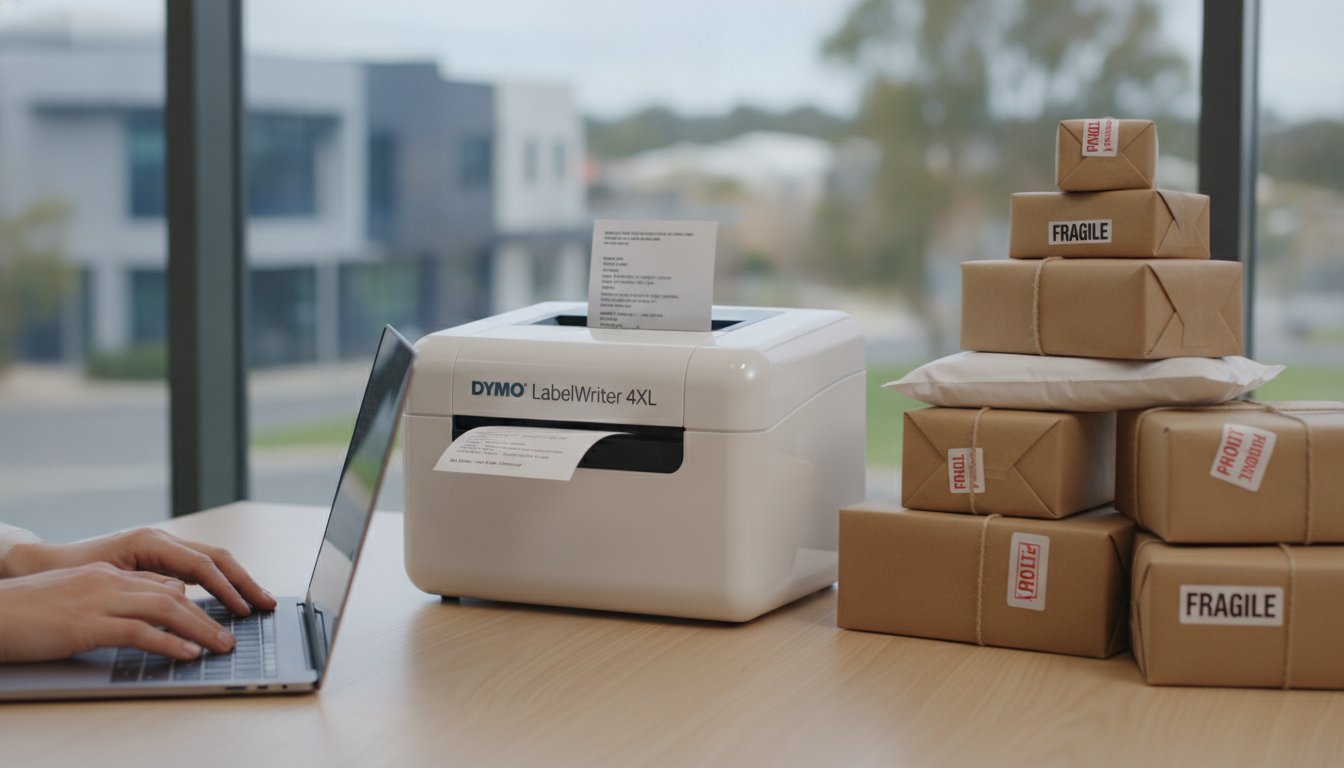
Imagine you have a surge of orders ready for Australia Post, but your printer is suddenly unresponsive after a recent system update. It's an all too common frustration for local businesses when the dymo 4xl driver isn't correctly configured for the latest operating system. Whether you're shipping via Shopify or eBay, a reliable connection is the backbone of your daily logistics and professional presentation.
We agree that navigating the choice between DYMO Connect and the legacy Label Software feels unnecessarily complex. This guide promises to help you master your 4XL setup by identifying the precise software versions required for your hardware in 2026. We'll preview the step by step installation process for DYMO Connect v1.6.1, address common alignment errors, and ensure your labels are perfectly formatted for the Australian market.
Key Takeaways
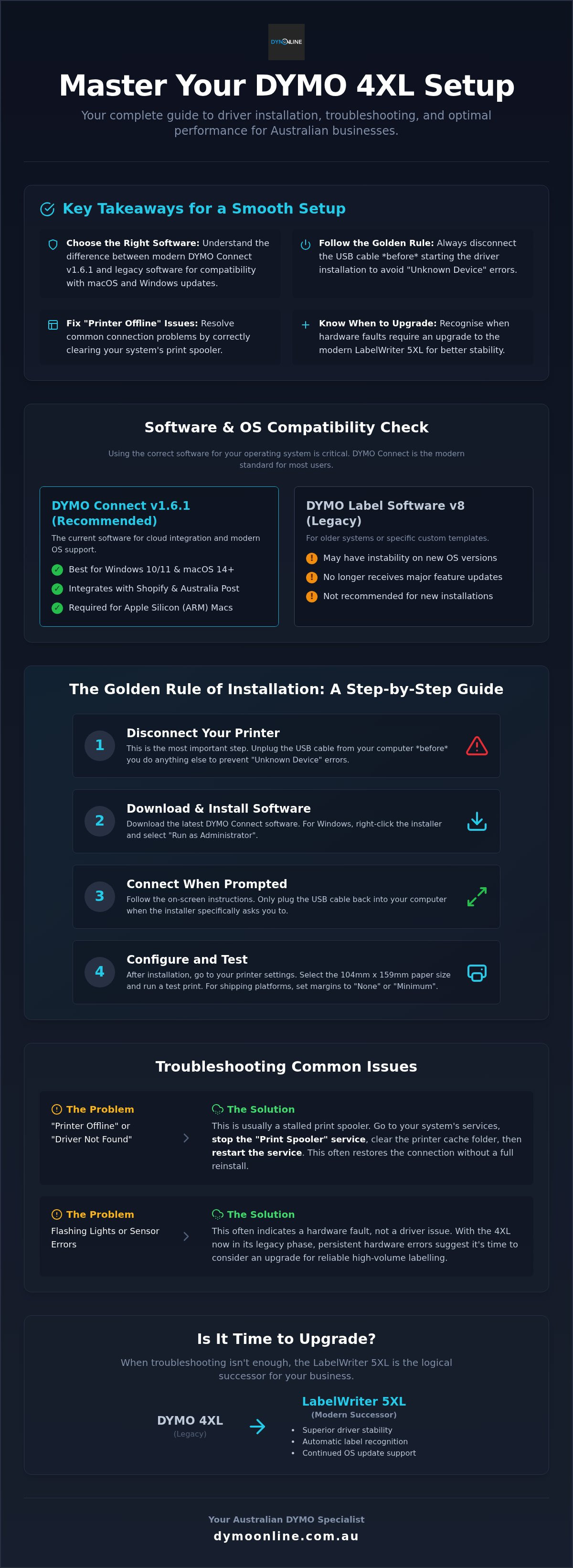
- Learn to distinguish between DYMO Connect v1.6.1 and legacy software to ensure your 4XL remains compatible with the latest macOS and Windows updates.
- Avoid common "Unknown Device" errors by following the golden rule of disconnecting your USB cable before starting the installation process.
- Resolve persistent "Printer Offline" statuses by correctly configuring your dymo 4xl driver and clearing the print spooler to restore your shipping workflow.
- Identify when a software fix is no longer sufficient and discover how transitioning to the LabelWriter 5XL can modernise your high-volume labelling.
Understanding the Dymo 4XL Driver and Software Requirements
The Dymo 4XL driver acts as the essential translator between your computer's operating system and the printer's hardware. Without it, your PC or Mac cannot communicate specific printing instructions to the device. While the Dymo Corporation history shows a long evolution of labelling technology, the core requirement for a stable driver remains unchanged for high-volume shipping. It's the technical bridge that ensures your hardware understands the dimensions and density required for every label.
It's vital to distinguish between the driver and the labelling software. The driver is the background engine, while software like DYMO Connect or DYMO Label Software v8 is the interface you use to design labels. Most Australian businesses now prefer DYMO Connect because it offers superior integration with cloud-based platforms like Shopify and Australia Post MyPost Business. However, some legacy Dymo 4XL units may still rely on the older v8 software for specific custom templates that haven't been migrated yet.
OS Compatibility: Windows 11 and macOS Sequoia
Before you download any files, verify your operating system version in your system settings. Windows 11 users should ensure they run the installer as an Administrator to prevent registry errors that can block the Dymo 4XL driver from appearing in the printer list. For those on macOS Sequoia, avoid the temptation to use generic "AirPrint" drivers; these often lack the specific dimensions required for Dymo 4XL shipping labels, leading to misaligned prints and wasted stock. Mac users with Apple Silicon must specifically select the ARM-compatible installer to maintain system stability.
DYMO Connect v1.6.1 requires a minimum of Windows 10 or macOS 14 to operate effectively in 2026.
Step-by-Step Guide to Installing the Dymo 4XL Driver
Installing the dymo 4xl driver correctly is a matter of sequence. The golden rule is to disconnect the USB cable from your computer before running the installer. If you connect the printer too early, Windows often assigns a generic "Unknown Device" profile. This profile blocks the official software from communicating with the hardware, leading to persistent "Printer Offline" errors. Always wait until the software explicitly prompts you to plug in the device.
For Windows users, locate the downloaded file, right-click it, and select "Run as Administrator." This ensures every registry component for the dymo 4xl driver registers correctly within the system. Once the installation is complete and the printer is connected, navigate to your printer preferences to select the standard 104mm x 159mm paper size. We highly recommend using genuine Dymo 4XL and 5XL labels during your initial test print. Genuine stock ensures the optical sensors calibrate perfectly, preventing the skipped labels that often plague third-party alternatives.
Integrating with Australian Shipping Platforms
Successful logistics depend on how you configure your driver for local providers. To print labels for Australia Post MyPost Business or StarTrack, you must adjust the layout settings within your browser or shipping app. Set your margins to "None" or "Minimum" to ensure the barcode remains centred and scannable. This helps you organise your workflow and minimise expensive label waste caused by misalignment.
If you encounter alignment shifts after following these steps, consult our Dymo Troubleshooting Guide: Expert Solutions for Australian Businesses in 2026. Precise configuration is the best way to maintain print head longevity. If you're struggling with a legacy unit or need help with a new setup, our team provides expert support for your Dymo printer.
Troubleshooting Common Driver Issues and Upgrading
Persistent "Printer Offline" or "Driver Not Found" statuses usually stem from a stalled print spooler. To resolve this, stop the spooler service in your system's administrative tools, clear the printer cache, and restart it before re-adding the device in your settings. It's a reliable fix that often restores the dymo 4xl driver connection without requiring a full software reinstall. You must also learn to identify when a software fix isn't enough. Flashing power lights or persistent sensor errors typically indicate a hardware fault rather than a driver conflict. In 2026, the 4XL has entered its legacy support phase. This means official driver updates for newer operating systems like macOS Sequoia are less frequent, which can lead to instability in fast-paced Australian shipping environments. If you've tried clearing the spooler and re-installing the dymo 4xl driver without success, your hardware may be nearing its end of life.
Transitioning to the LabelWriter 5XL
When your 4XL hardware reaches its limit, the LabelWriter 5XL is the logical successor. It offers superior driver stability and faster print speeds for busy warehouses. The "Automatic Label Recognition" feature detects label sizes instantly, removing the need for manual driver tweaks that often cause alignment errors. See our Dymo LabelWriter 5XL: The Ultimate Wide-Format Shipping Solution for Australia for a full comparison of these wide-format workhorses.
Optimise Your Labelling Workflow for 2026
Maintaining a functional dymo 4xl driver is the first step toward efficient dispatch and professional logistics. By selecting the correct software package and following the precise installation sequence, you can avoid the common connectivity hurdles that stall Australian small businesses. Whether you're troubleshooting a legacy unit or fine-tuning your settings for Australia Post, the right technical setup ensures your labels remain clear and scannable. Our expertise covers the entire lifecycle of your equipment, from driver configuration to selecting the right consumables for print head longevity.
We remain dedicated to supporting your business with genuine DYMO parts and labels, backed by a specialist Australian support team with deep knowledge of both legacy and current models. Still having trouble with your Dymo 4XL? Contact our Australian experts for support. We're ready to help you resolve your technical challenges and get your shipping station back to full capacity with confidence.
Frequently Asked Questions
Why is my Dymo 4XL not being recognised by my computer after a Windows update?
Windows updates sometimes replace the official dymo 4xl driver with a generic "USB Printing Support" profile that doesn't recognise the printer hardware. To fix this, you should disconnect the USB cable, uninstall the device from your Device Manager, and run the latest DYMO Connect installer as an Administrator. Reconnecting the cable only after the software prompts you ensures the system registers the correct driver components.
Can I use the Dymo 4XL driver on a Mac with an M3 or M4 chip?
You can use the 4XL on the latest Apple Silicon Macs, provided you download the ARM-specific version of DYMO Connect for Desktop. Ensure you're using version 1.6.1 or higher for full compatibility with macOS Sequoia and newer hardware. Avoid using the generic AirPrint driver, as it lacks the specific layout controls required for accurate wide-format shipping labels on M3 and M4 machines.
Do I need Dymo Connect or Dymo Label Software for my 4XL?
DYMO Connect is the recommended modern software for most Australian businesses, offering better integration with cloud shipping platforms. While DYMO Label Software v8.7.4 remains available for legacy Windows systems, it lacks the security updates and stability of the newer Connect suite. If you're using a modern operating system, installing the dymo 4xl driver through the DYMO Connect package ensures the best performance and compatibility.
How do I set the default label size to 104mm x 159mm in the driver settings?
To set the default size, open your "Printers & Scanners" menu, select the 4XL, and enter the "Printing Preferences." Under the "Advanced" tab, change the paper size to 104mm x 159mm, which is the standard for Australian shipping. Saving this as your default prevents the driver from reverting to smaller address label dimensions, which often causes wasted stock and alignment errors during high-volume print runs.

Article by
DymoOnline Team
The DYMOOnline Team provides practical guidance for Australian businesses, warehouses, retailers, offices, schools, healthcare workplaces and home users who rely on accurate, efficient labelling. DYMOOnline specialises in DYMO label makers, DYMO label printers, label tapes, label rolls, shipping labels, address labels, barcode labels and labelling accessories, helping customers choose the right labelling products for organisation, mailing, inventory, filing, pricing and workplace efficiency.
General Information
This article is provided as general information only to help customers compare and choose DYMO label makers, label printers, label tapes, label rolls, shipping labels, address labels, barcode labels and related labelling supplies. Product details, specifications, compatibility, availability, pricing and suitability may vary. Always check the individual product page, manufacturer information, printer model compatibility and label size requirements before purchasing or using a product.
Latest News
Dymo 4XL Driver Download & Install Guide Australia (2026)
Imagine you have a surge of orders ready for Australia Post, but your printer is suddenly unrespon...
Best DYMO Barcode Printers: 2026 Australian Expert Guide
A single unreadable barcode can halt an entire Australian supply chain, costing your business prec...
DYMO Printer Drivers: 2026 Australian User Guide
Why does your computer suddenly claim your LabelWriter doesn't exist the moment you have fifty urg...
Genuine DYMO D1 Labels: The Ultimate Australian Buyer’s Guide
A single jammed cassette or a set of peeling labels can cost your business far more in lost produc...
Dymo Rhino vs Panduit Label Makers: The Best Choice for Australian Trades in 2026
You might assume that spending significantly more on a high-end label maker guarantees a better re...
Small Business Label Printer Australia: The 2026 Guide to Automated Labelling Systems
Imagine spending your Monday morning handwriting fifty delivery addresses, only to have several parc...