
How to Print Address Labels from Excel: A Step-by-Step Guide for Australian Businesses
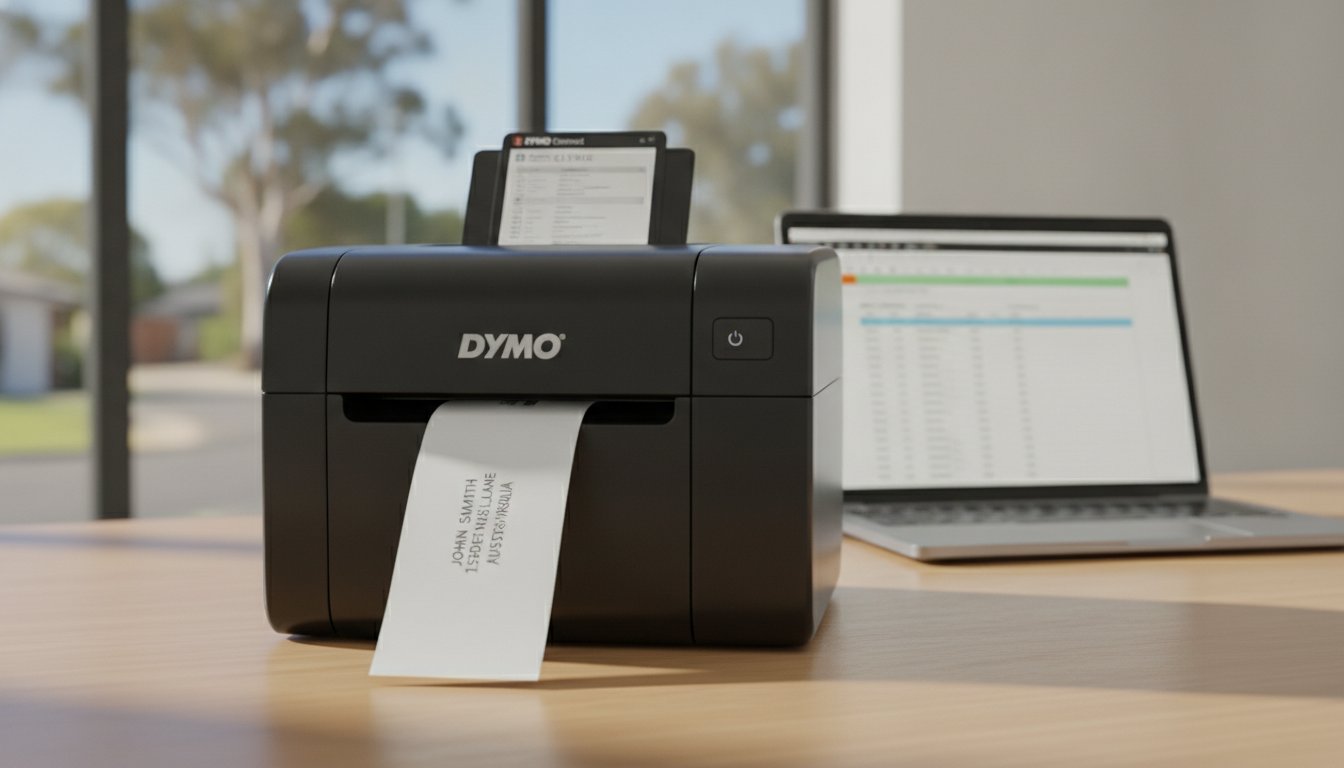
How much time did your team spend this week manually typing customer addresses into a template, only to have the office printer misalign half the labels? It's a common frustration for Australian small businesses trying to manage growing mailing lists while wrestling with standard A4 printers and the high cost of replacement ink. You likely already know that manual data entry isn't just slow; it's a magnet for shipping errors that can damage your brand's reputation.
We agree that your time is better spent growing your business than fixing paper jams or squinting at spreadsheet cells. By using a dedicated address label printer from excel, you can automate your entire mailing process and achieve a professional finish that reflects the quality of your work. This guide provides a clear, step-by-step method to organise your Excel data and integrate it seamlessly with the latest DYMO Connect software.
You'll learn the most efficient way to prepare your contact lists, select the right label dimensions for your LabelWriter 5 series, and ensure every delivery address is perfectly aligned. Whether you're sending out monthly invoices or bulk marketing materials, this repeatable process will help you minimise waste and maximise productivity.
Key Takeaways
- Learn how to correctly structure your spreadsheet headers to ensure the DYMO Connect software maps your customer data without formatting errors.
- Discover the efficient process of linking an address label printer from excel to automate high-volume mailing and eliminate manual data entry.
- Identify whether the standard LabelWriter 550 or the wide-format LabelWriter 5XL is the most suitable choice for your specific business workflow.
- Understand how to use the "Import Data" feature to maintain brand consistency and minimise shipping errors across your entire mailing list.
Organising Your Excel Spreadsheet for Seamless Labelling
Efficiency in your mailing process starts with the source material. When you use an address label printer from excel, the quality of your physical output is entirely dependent on how you structure your spreadsheet. Think of your Excel file as the digital blueprint for your mail merge process; if the data is cluttered or inconsistent, your labels will be too. Establishing a clear, logical structure from the beginning is the most effective way to eliminate alignment errors and wasted label rolls.
To better understand this concept, watch this helpful video:
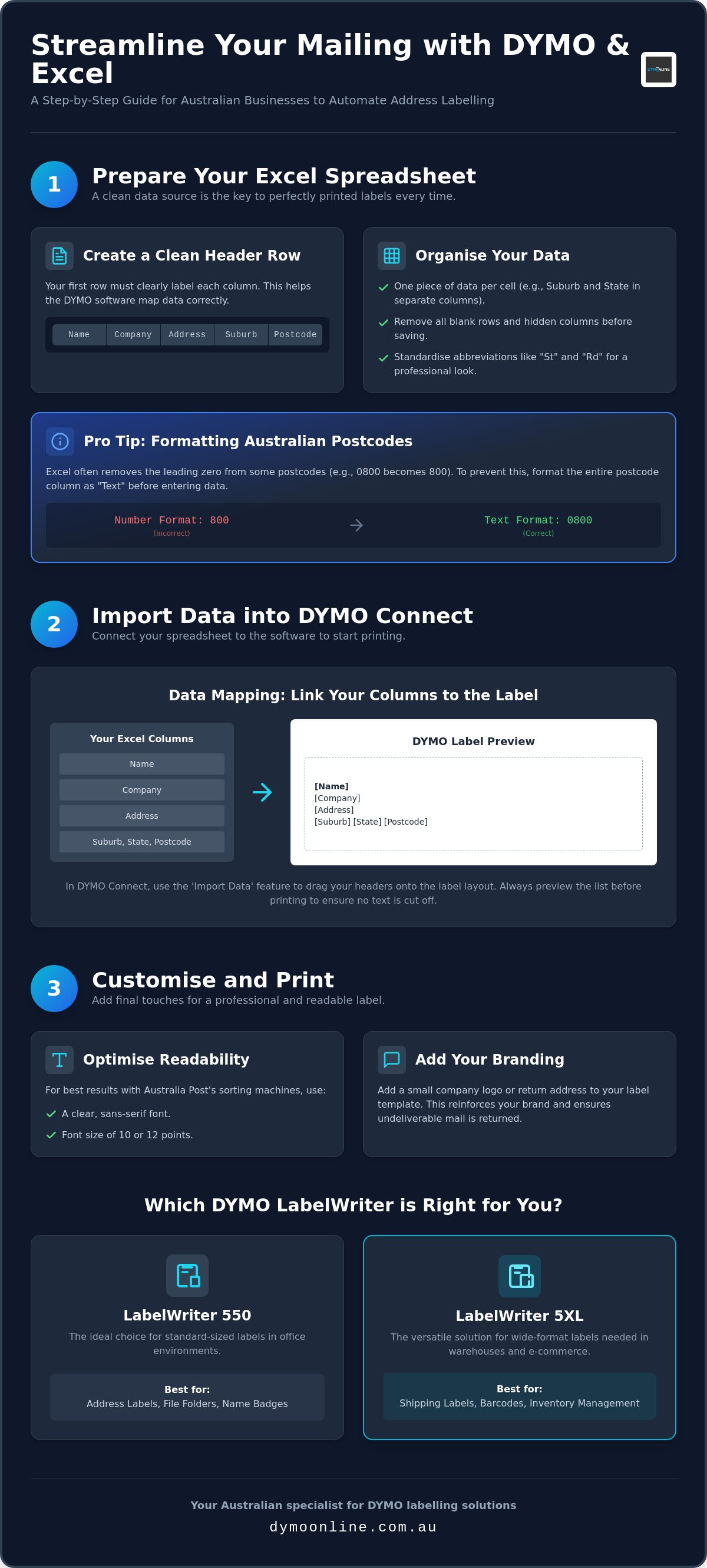
The first step is to create a clean header row in the very first line of your sheet. This row should clearly identify each data category: Name, Company, Address, Suburb, State, and Postcode. Ensure each piece of data is in its own cell. This level of granularity allows the DYMO software to map information accurately and gives you the flexibility to adjust the label layout later. Before saving, remove any blank rows or hidden columns, as these often confuse the import wizard and result in skipped records or empty labels.
Formatting for Australian Postal Standards
Australia Post requires a specific layout for reliable delivery. You must keep the suburb and state in separate columns to ensure they align correctly on the label. A common issue involves postcodes; Excel often removes leading zeros from northern Australian postcodes. To fix this, highlight your postcode column and set the cell format to "Text" rather than "Number". This ensures a postcode like 0800 remains intact and doesn't truncate to 800. Saving your final list in a standard .xlsx or .csv format ensures the best compatibility with your address label printer from excel.
The Importance of Data Integrity
Accurate data prevents the costly frustration of returned mail. Take a moment to verify the spelling of names and street addresses across your entire list. You can use Excel’s "Find and Replace" function to standardise abbreviations. Converting all instances of "Street" to "St" or "Road" to "Rd" creates a uniform, professional appearance that reflects well on your brand. This attention to detail ensures that your automated mailing process remains reliable and professional every time you print.
Importing Excel Data into DYMO Connect Software
Once your spreadsheet is properly structured, the next phase involves the interface of your address label printer from excel. Unlike generic web-based tools that often require a constant internet connection, DYMO Connect for Desktop version 1.6.1 operates locally on your Windows 10 or macOS 14 system. This ensures maximum data security and eliminates the lag associated with uploading large contact lists. To begin, open the software and select your specific label size from the template library. For standard Australian office envelopes, the 89mm x 28mm address label is the most common choice.
Click the "Import Data" feature and browse for your prepared Excel file. The software will prompt you to map your columns to the corresponding fields on the label layout. This process is very similar to a standard Mail merge using an Excel spreadsheet. You simply drag your headers, such as 'Name' and 'Address', into the desired position on the virtual label. It's best practice to preview the entire list before hitting print. Australian rural addresses or long business names can sometimes exceed the label margins, so a quick check ensures no critical information is cut off.
Setting Up the Address Block
To ensure your mail moves quickly through Australia Post sorting machines, customise your font and size for maximum readability. A clear, sans-serif font at 10 or 12 points usually delivers the best results. You can also add a professional touch to every envelope by inserting your company logo or a small return address at the top. This simple addition reinforces your brand identity and ensures undeliverable mail is returned to your office promptly.
Small workshops, such as Lolli's Loops, demonstrate how attention to detail in every aspect of the business—from handcrafted products to professional shipping labels—can help build a strong, recognisable brand.
Troubleshooting Common Import Errors
If your headers aren't showing up during the mapping phase, ensure your Excel file isn't currently open in another program. Thermal printers can occasionally struggle with non-standard special characters; if an import fails, try simplifying symbols like ampersands in your spreadsheet. For more specific software connectivity tips, refer to our Dymo Troubleshooting Guide. If you need further assistance with hardware compatibility, please contact us for expert support.
Choosing the Right Address Label Printer for Your Workflow
Selecting the correct hardware is the final step in establishing a reliable automated mailing system. While many businesses attempt to use standard office laser printers, these often lead to frustrating jams and expensive toner waste when printing individual or small batches of labels. A dedicated address label printer from excel streamlines this entire workflow. By using thermal printing technology, these machines eliminate the need for ink or toner entirely, which significantly reduces ongoing operational costs for Australian businesses. You'll never find yourself unable to send an urgent parcel because of an empty ink cartridge.
The Dymo LabelWriter 550 is the gold standard for standard office address labelling. It provides a compact, efficient solution for daily correspondence and administrative tasks. For businesses managing high-volume shipping or requiring larger warehouse labels, the LabelWriter 5XL offers the necessary wide-format capability. Both models integrate directly with your spreadsheet data to ensure a seamless transition from screen to satchel.
Speed vs. Versatility: 550 vs. 5XL
Both models offer impressive print speeds, ensuring your bulk mailing lists are processed in minutes rather than hours. The standard 550 is perfect for standard envelopes, whereas the 5XL provides added versatility for international shipping labels and larger parcels. This wide-format capacity allows you to use the same address label printer from excel for both standard letters and bulky Australia Post satchels without needing multiple devices.
Genuine Labels and Printer Longevity
To protect your investment, it's vital to use genuine LW Address Labels. The LabelWriter 5-series features advanced internal sensors that automatically recognise the label size and track exactly how many labels remain on the roll. Non-genuine alternatives lack the necessary chip technology, which can lead to significant downtime or even permanent print head damage. Choosing genuine supplies ensures your printer continues to operate with the professional reliability your brand demands.
Modernise Your Business Mailing Today
Transitioning from manual data entry to an automated workflow is one of the simplest ways to reclaim time in your daily operations. By maintaining clean spreadsheet hygiene and utilising the latest DYMO software, you can ensure every parcel or letter is addressed with professional precision. Implementing an address label printer from excel doesn't just reduce the risk of shipping errors; it eliminates the hidden costs of wasted ink and misaligned labels that often plague standard office equipment.
DymoOnline has been a specialist Australian provider since 2009, offering genuine Australian stock and expert technical support to help you choose the right hardware solution. Our fast nationwide delivery ensures you can upgrade your dispatch process and start seeing efficiency gains almost immediately. If you're ready to move away from unreliable sheet-fed labels and embrace a more robust system, we are here to assist with your selection.
To find the perfect hardware for your specific requirements or to discuss compatibility with your existing systems, browse our full range of DYMO LabelWriter printers and accessories or contact our team for expert advice. We look forward to helping you build a more efficient, professional, and error-free mailing process.
Frequently Asked Questions
Can I print labels directly from Excel without using Word?
Yes, you can print labels directly from Excel by using the DYMO Connect for Desktop software, which bypasses the need for Microsoft Word entirely. This approach is often more efficient for Australian businesses as it allows you to map data fields directly from your spreadsheet to the label template. It eliminates the complex steps of setting up a Word mail merge and provides a more stable connection with your LabelWriter hardware.
What is the best Excel format for importing addresses into a label printer?
The most reliable formats for an address label printer from excel are standard .xlsx or .csv files. While DYMO Connect version 1.6.1 supports direct .xlsx imports, using a .csv (Comma Separated Values) file can occasionally resolve compatibility issues if you're working with very large datasets. You should ensure your file contains only a single tab and a clear header row to allow the software to identify your contact information correctly.
How do I fix alignment issues when printing from an Excel list?
Alignment issues are typically caused by a mismatch between the software template and the physical label size in your printer. First, verify that you've selected the correct LW Address Labels template within the software. If text is still cutting off, use the "Print Preview" function to adjust font sizes or margins. Using genuine DYMO labels is also essential; the LabelWriter 5 series uses internal sensors to ensure each label is perfectly positioned before the print head engages.
Will a DYMO LabelWriter work with the latest version of Microsoft Excel in 2026?
Yes, the DYMO LabelWriter 550 and 5XL models are fully compatible with the 2026 versions of Microsoft Excel on both Windows 10 and macOS 14. To maintain this compatibility, you should ensure you're using DYMO Connect for Desktop version 1.6.1 or higher. This software is specifically designed to integrate with the modern Office suite, allowing you to import your contact lists without the stability issues often found in older legacy software versions.

Article by
DymoOnline Team
The DYMOOnline Team provides practical guidance for Australian businesses, warehouses, retailers, offices, schools, healthcare workplaces and home users who rely on accurate, efficient labelling. DYMOOnline specialises in DYMO label makers, DYMO label printers, label tapes, label rolls, shipping labels, address labels, barcode labels and labelling accessories, helping customers choose the right labelling products for organisation, mailing, inventory, filing, pricing and workplace efficiency.
General Information
This article is provided as general information only to help customers compare and choose DYMO label makers, label printers, label tapes, label rolls, shipping labels, address labels, barcode labels and related labelling supplies. Product details, specifications, compatibility, availability, pricing and suitability may vary. Always check the individual product page, manufacturer information, printer model compatibility and label size requirements before purchasing or using a product.
Latest News
How to Print Address Labels from Excel: A Step-by-Step Guide for Australian Businesses
How much time did your team spend this week manually typing customer addresses into a template, on...
The Truth About Dymo Labels: Myth-Busting Genuine vs Generic in 2026
On a busy Monday morning, an Australian business owner discovers their printer has ground to a hal...
Best Address Label Printer for Mac in Australia: 2026 Buying Guide
Updating your macOS shouldn't feel like a gamble with your office hardware, yet many Australian prof...
Choosing the Right DYMO LabelWriter 550 Labels: A Specialist Guide for Australian Businesses
Imagine you've just unboxed a new LabelWriter 550 Turbo, ready to streamline your warehouse shipping...
Choosing the Best 4x6 Thermal Shipping Label Printer in Australia: 2026 Buying Guide
Last Monday, a business owner named Sarah discovered that a simple calibration error on a generic pr...
Comprehensive Guide to the DYMO LabelWriter 550: The Professional Choice for Australian Offices
How much time does your team lose wrestling with misaligned labels or discovering the printer has ru...