
DYMO Printer Drivers: The Complete Australian Guide to Setup and Troubleshooting
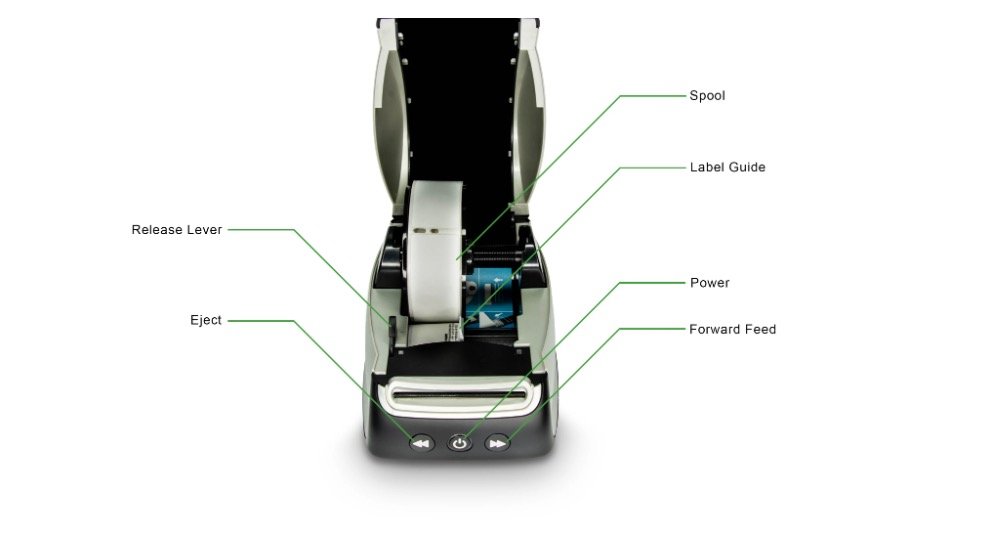
Imagine you have a stack of urgent customer orders ready for dispatch, but your computer suddenly refuses to recognise your printer, or perhaps your labels are feeding through completely blank. It's a frustrating bottleneck that usually points to a single culprit: outdated or mismatched dymo printer drivers. For any Australian business relying on precision, a driver isn't just a background file; it's the essential bridge that keeps your logistics moving without a hitch.
We understand that you'd rather focus on your core operations than spend hours troubleshooting software compatibility. This guide provides the technical clarity required to resolve connectivity issues and ensure your labelling setup is running at peak efficiency. As specialists at DYMOOnline, we know that professional results depend on using the correct tools and software for the specific task at hand.
You'll learn the critical differences between the modern DYMO Connect 1.6 and legacy software versions like 8.7.4 for Windows. We also provide a straightforward path to fixing misalignment and system crashes so you can return to your work. From the latest Apple Silicon updates to Windows ARM support, this is your definitive resource for maintaining a reliable labelling environment in your office, clinic, or warehouse.
Key Takeaways
- Identify whether your hardware requires the modern DYMO Connect 1.6 software or the legacy DYMO Label Software to ensure full compatibility with your operating system.
- Learn the essential "software-first" installation sequence that prevents common dymo printer drivers conflicts and hardware recognition issues.
- Discover practical troubleshooting steps to resolve "Printer Not Found" errors and connection drops caused by USB hub power limitations or outdated system files.
- Understand how maintaining updated drivers protects your business from system crashes and printing errors following major Windows or macOS updates.
- Recognise the technical importance of using genuine DYMO supplies to enable the Automatic Label Recognition features found in the LabelWriter 550 series.
What are DYMO Printer Drivers and Why are They Essential?
A printer driver acts as the essential digital translator between your computer's operating system and your physical hardware. Without the correct dymo printer drivers installed, your PC or Mac cannot communicate specific instructions, such as label dimensions or print density, to your LabelWriter. This "handshake" ensures that when you click 'print' in your software, the hardware knows exactly how to respond. It translates the visual design on your screen into the precise thermal heat patterns required to produce clear, sharp text on your LW address labels.
Maintaining current drivers is vital for operational security and feature compatibility. By 2026, operating systems have become increasingly stringent regarding hardware communication, making outdated files a common point of failure. A corrupted or old driver often manifests as a "Printer Out of Paper" error even when rolls are loaded, or it might cause the device to be completely unrecognisable to your network. These errors disrupt productivity and can lead to unnecessary delays in retail or medical administration settings.
To better understand the setup process for modern hardware, watch this helpful video:
Identifying Your DYMO Model Before You Download
Before searching for downloads, you must identify your specific device. Every DYMO unit has its model name and serial number printed on a label on the underside of the base. It's easy to confuse the older 450 series with the newer LabelWriter 550 series; however, the drivers for these generations are distinct. Using the wrong file will lead to installation failure or poor print performance. This is particularly relevant for high-volume users in warehouses who might be switching between a standard desktop unit and a Rhino 5200 for field work. Accurate model identification is the most important step to avoid wasting time with incompatible software.
The Evolution of DYMO Software Ecosystems
The Dymo Corporation history shows a steady shift from basic, standalone drivers to integrated, cloud-ready software ecosystems. In the modern Australian workplace, labelling has moved beyond simple address printing to complex, networked workflows involving industrial models and high-speed dispatch systems. This evolution requires businesses to match their driver versions precisely to their specific workflow needs. It ensures that hardware like the LabelWriter 5XL integrates seamlessly with current shipping platforms. Proper synchronisation between dymo printer drivers and your business software prevents the bottlenecks that often plague unoptimised offices. Keeping these files updated ensures you can take advantage of newer features like automatic label recognition and improved print speeds.
DYMO Connect vs. DYMO Label Software: Which Driver Do You Need?
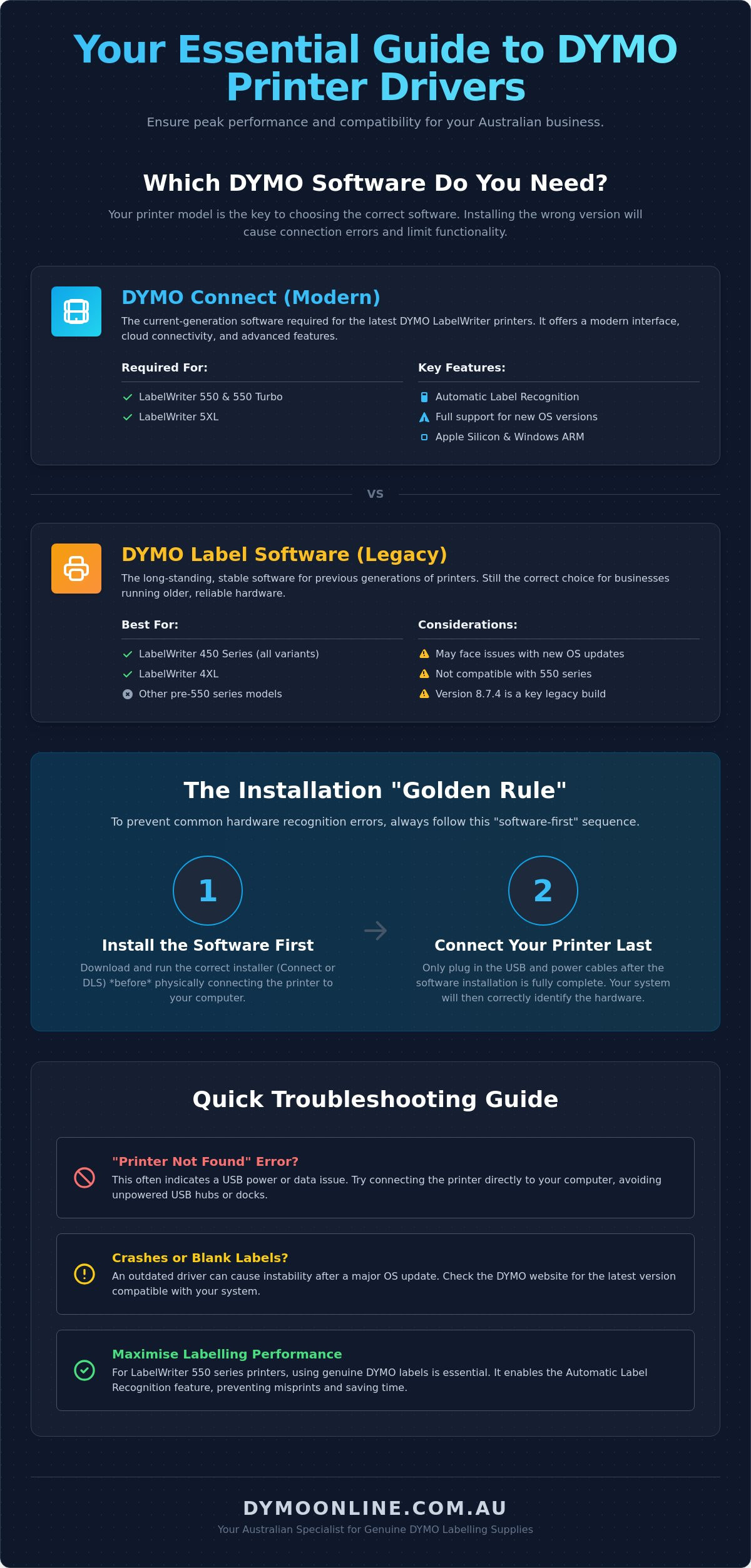
Choosing the right software environment is the most significant decision you'll make when configuring your labelling system. DYMO currently maintains two distinct platforms: DYMO Connect and DYMO Label Software (DLS). The choice depends entirely on your printer model and your business's specific technical requirements. Installing the wrong dymo printer drivers for your chosen software version will result in communication errors or limited hardware functionality.
When to Choose DYMO Connect
DYMO Connect 1.6 is the required solution for the LabelWriter 550, 550 Turbo, and LabelWriter 5XL. It offers modern design templates and mobile printing support, which is essential for dynamic Australian retail and warehouse environments. Updated software is also a security necessity, as a critical printer vulnerability in older Windows services can often be mitigated by using the latest manufacturer-supported drivers.
When to Stick with DYMO Label Software (DLS)
Legacy software like DLS 8.7.4 is necessary for older hardware like the LabelWriter 450 or the original 4XL. Many Australian medical clinics use DLS for its compatibility with older database integrations or custom-built office software. However, in 2026, this legacy software lacks support for modern security protocols and may not function reliably on newer ARM-based Windows PCs or Apple Silicon Macs.
If you've upgraded to the 550 series, you must use DYMO Connect. These newer machines feature Automatic Label Recognition, which requires genuine DYMO labels to function. Attempting to use legacy drivers with these machines will lead to "Out of Paper" errors or complete printer lockouts. If you're managing a mixed fleet and aren't sure which path to take, get in touch with our specialists for a quick assessment of your needs.
- LabelWriter 550 Series / 5XL: Use DYMO Connect 1.6 for both Windows and macOS.
- LabelWriter 450 Series / 4XL: Use DYMO Label Software 8.7.4 (Windows) or 8.7.5 (Mac).
- Rhino Industrial Series: Requires specific dymo printer drivers often bundled with the DYMO ID software package.
Step-by-Step Installation Guide for Windows and Mac
The most important rule for a successful setup is simple: install your software before you ever plug in the USB cable. Many users mistakenly connect the hardware first. This often triggers the operating system to install generic "ghost" dymo printer drivers that lack full functionality. By running the installer first, you ensure the system correctly recognises the device the moment it's connected. We recommend downloading the latest software package directly from a specialist source like DYMOOnline to ensure you have the correct version for the Australian market.
Once the installer begins, follow the prompts carefully. You'll need to grant administrative permissions for the software to modify your system's print spooler. After the installation finishes, restart your computer before connecting the USB cable to your LabelWriter. To verify the setup, perform a test print using a standard address label. This confirms the digital handshake is complete. As noted in PCMag's review of the Dymo LabelWriter, the software's ability to handle various label types is a standout feature when the drivers are configured correctly.
Windows 11 and 12 Installation Nuances
On modern Windows systems, you might encounter a SmartScreen warning. Since you're using official software, it's safe to click 'More Info' and then 'Run Anyway'. Once finished, open the Device Manager to confirm the printer appears under 'Printers' or 'Software Devices' without a yellow warning icon. For those in logistics, shipping labels require specific orientation settings within the driver properties. Organising your print queue properly at this stage prevents the "spooling" errors that can halt a busy warehouse operation.
macOS Installation: Permissions and AirPrint
Installing dymo printer drivers on macOS requires extra attention to security. Users on Apple Silicon (M1, M2, or M3) Macs will likely see a "System Extension Blocked" message. You must navigate to System Settings, then Privacy & Security, to allow the DYMO extension to load. Avoid adding the printer as an 'AirPrint' device. Instead, ensure you select the specific DYMO driver from the 'Use' dropdown menu. This prevents the "Filter Failed" error, a common issue that occurs when the Mac attempts to use a generic printing protocol rather than the dedicated manufacturer driver.
Troubleshooting Common DYMO Driver Conflicts
Even with a perfect initial setup, hardware conflicts can arise after a major operating system update. If your computer suddenly presents a "Printer Not Found" message, the issue often lies with how the latest version of Windows 11 or macOS Sequoia manages its USB power settings or print spooler. These updates can sometimes overwrite your dymo printer drivers with generic system files that don't support the specialised thermal printing requirements of your device. This results in a breakdown of communication that stops your labelling tasks instantly.
Performing a "Clean Uninstall" is often the most effective way to resolve persistent errors. This process involves more than just deleting the design application; you must remove the driver package from the system's library to prevent "ghost drivers" from interfering with a fresh installation. If your printer appears as an "Unknown Device" in the hardware tree, it indicates that the digital handshake has failed. In this scenario, disconnect the printer, remove the existing software entirely, and restart the installation process from scratch before reconnecting the USB cable.
Dealing with USB-C and Hub Connectivity
Modern Australian offices often utilise sleek laptops that rely exclusively on USB-C ports. While convenient, connecting a LabelWriter via an unpowered USB hub can lead to driver instability. DYMO printers require a consistent power draw to maintain the data connection. If the hub is shared with multiple high-draw devices, the driver may drop the connection mid-print. For the best results, use a high-quality, dedicated USB-C to USB-A adapter or a powered docking station. You should also check your computer's power-save settings to ensure the system isn't "putting the USB port to sleep" during periods of inactivity, which frequently causes the printer to go offline.
Software Crashes and "Not Responding" Errors
If your labelling software frequently freezes, it might be due to a conflict with the Microsoft .NET Framework on Windows machines or a background process hijacking the print spooler. Ensure that your system's framework is updated to the latest version. For users of the LabelWriter 550 series, it's critical to keep your printer firmware updated alongside your drivers. Firmware updates often include patches that improve how the hardware communicates with the software, reducing "Not Responding" errors during high-volume print runs. If you continue to experience technical hurdles that stop your workflow, contact our Australian support team for expert guidance on your specific configuration.
Maximising Performance with Genuine Supplies and Support
The reliability of your labelling system depends on the synergy between your hardware, your dymo printer drivers, and the consumables you load into the machine. In the latest LabelWriter 550 and 5XL models, this relationship is more technical than ever before. These printers utilise Automatic Label Recognition technology, where a sensor inside the printer communicates directly with the driver to identify the exact label size and type remaining on the roll. This communication ensures that your print settings are always optimised, preventing the misalignment issues that often plague high-volume shipping environments.
When you use non-genuine supplies, this digital handshake is broken. Because the driver cannot verify the authenticity of the roll via the internal RFID sensor, it frequently triggers a false "Out of Paper" error or refuses to initiate the print spooling process entirely. This isn't a software bug but a designed technical requirement to ensure print quality and hardware longevity. By sticking to authentic supplies, you maintain the integrity of your dymo printer drivers and ensure your business operations remain uninterrupted by avoidable software lockouts.
The Importance of Genuine DYMO Labels
Using genuine LabelWriter LW Standard labels is the most effective way to protect your investment. Authentic DYMO rolls are manufactured with high-quality adhesives that are specifically tested to withstand the heat of direct thermal printing. Generic alternatives often suffer from adhesive ooze, where the glue softens and leaks onto the internal sensors or the thermal print head. This residue can cause the driver to misread label gaps, leading to wasted rolls and potential sensor failure. While third-party options may seem cheaper initially, the cost of downtime and hardware repair far outweighs the marginal savings.
Accessing Specialist Australian Support
Managing a complex labelling setup in a warehouse or medical centre requires more than just a download link. Buying from a local specialist like DYMOOnline ensures you have access to professional expertise when technical hurdles arise. Whether you need to source DYMO accessories like replacement power adapters or require specific DYMO LabelWriter 550 troubleshooting advice, a dedicated Australian partner understands the local business landscape. We recommend setting up a basic maintenance schedule, including the regular use of cleaning cards, to maximise the life of your print head and ensure your drivers continue to deliver sharp, professional results for every label printed.
Optimise Your Professional Printing Setup
Maintaining a reliable labelling system requires more than just hardware; it's about the precision of your software configuration. By correctly identifying your printer model and matching it with the appropriate dymo printer drivers, you eliminate the most common causes of workplace frustration. Whether you're transitioning to the LabelWriter 550 series or maintaining a legacy 450 fleet, the "software-first" installation rule remains your best defence against connectivity errors. Using genuine supplies further protects your equipment from adhesive damage and sensor failures.
Since 2009, DYMOOnline has provided specialist Australian support to help businesses navigate these technical requirements. We only supply genuine DYMO products, ensuring your hardware remains compatible with the latest security updates and automatic label recognition features. With nationwide shipping from our local warehouses, you can quickly secure the supplies you need to keep your operations moving. If you're encountering persistent software conflicts or need help selecting the right labels for your environment, browse the full range of Genuine DYMO Printers and Supplies at DYMOOnline today. We're here to help you achieve a seamless and professional labelling workflow.
Frequently Asked Questions
Where can I download the latest DYMO printer drivers for Australia?
You can download the latest dymo printer drivers directly from the official DYMO Australia website or through the support sections of specialist retailers like DYMOOnline. It's vital to select the version that matches your specific operating system to ensure full compatibility. Always ensure you are downloading the Australian or international version to maintain correct regional settings for local label sizes.
Does the DYMO LabelWriter 450 work with Windows 11 or 12?
Yes, the LabelWriter 450 remains compatible with Windows 11 and Windows 12 using the legacy DYMO Label Software version 8.7.4. While the 450 series is no longer the flagship model, these drivers still support standard labelling tasks on modern PCs. However, users on ARM-based Windows devices may experience limitations and should consider upgrading to the 550 series for native support.
What is the difference between DYMO Connect and DYMO Label Software?
DYMO Connect 1.6 is the modern, app-based platform designed for the 550 series and 5XL, whereas DYMO Label Software (DLS) is a legacy product for older 400 and 450 series printers. Connect offers mobile integration and advanced design templates required for contemporary office workflows. DLS is primarily maintained for users who require compatibility with older database links or custom office integrations.
Why is my computer saying "DYMO Device Not Found" even though it is plugged in?
This error usually occurs if the printer was connected to the computer before the dymo printer drivers were fully installed, causing the system to assign a generic, non-functional driver. To resolve this, disconnect the USB cable, perform a clean uninstall of the software, and restart your machine. Reinstall the software first and only reconnect the device when the installer prompts you to do so.
How do I update the firmware on my DYMO LabelWriter 550?
You can update the firmware for a LabelWriter 550 series printer directly through the DYMO Connect desktop application. Connect your printer via USB, open the software, and look for the firmware update prompt within the settings or service menu. Keeping the firmware current is essential for the Automatic Label Recognition sensors to accurately identify your genuine DYMO label rolls.
Can I use DYMO drivers on a Chromebook or Linux machine?
Official DYMO drivers are currently only provided for Windows and macOS environments. There is no native manufacturer support for Linux, and Chromebook users are generally limited to using the DYMO Connect web service or specific browser extensions. If your business operates primarily on these platforms, we recommend using a supported Windows or Mac workstation to manage your primary labelling requirements.
Do I need a separate driver for my DYMO Rhino industrial printer?
Yes, Rhino industrial printers such as the 4200 or 6000+ require the DYMO ID software package, which includes its own specialised drivers. These drivers are distinct from the standard LabelWriter files to support industrial-specific features like heat-shrink tubing and cable wrap templates. Using the correct software ensures that your industrial tapes are formatted accurately for field use in electrical or data environments.
How do I fix the "Filter Failed" error on my Mac when printing labels?
The "Filter Failed" error on macOS typically happens when the system attempts to use a generic AirPrint driver instead of the dedicated manufacturer software. To fix this, delete the printer from your System Settings and add it again manually. Ensure you select the specific "DYMO" driver from the "Use" dropdown menu rather than the "Secure AirPrint" option to restore full printing functionality.
General Information
This article is provided as general information only to help customers compare and choose DYMO label makers, label printers, label tapes, label rolls, shipping labels, address labels, barcode labels and related labelling supplies. Product details, specifications, compatibility, availability, pricing and suitability may vary. Always check the individual product page, manufacturer information, printer model compatibility and label size requirements before purchasing or using a product.
Latest News
Asset Labelling Solutions for Australian Schools: The 2026 Buying Guide
Imagine walking into a classroom at the end of term only to find that dozens of new student laptop...
The Ultimate Guide to Professional Archive Box Labelling Systems
Imagine the frustration of an urgent compliance audit where the only thing standing between you an...
How to Print Address Labels from Excel: A Step-by-Step Guide for Australian Businesses
How much time did your team spend this week manually typing customer addresses into a template, on...
The Truth About Dymo Labels: Myth-Busting Genuine vs Generic in 2026
On a busy Monday morning, an Australian business owner discovers their printer has ground to a hal...
Best Address Label Printer for Mac in Australia: 2026 Buying Guide
Updating your macOS shouldn't feel like a gamble with your office hardware, yet many Australian prof...
Choosing the Right DYMO LabelWriter 550 Labels: A Specialist Guide for Australian Businesses
Imagine you've just unboxed a new LabelWriter 550 Turbo, ready to streamline your warehouse shipping...