
DYMO 4XL Driver: The Complete Australian Guide to Installation and Troubleshooting
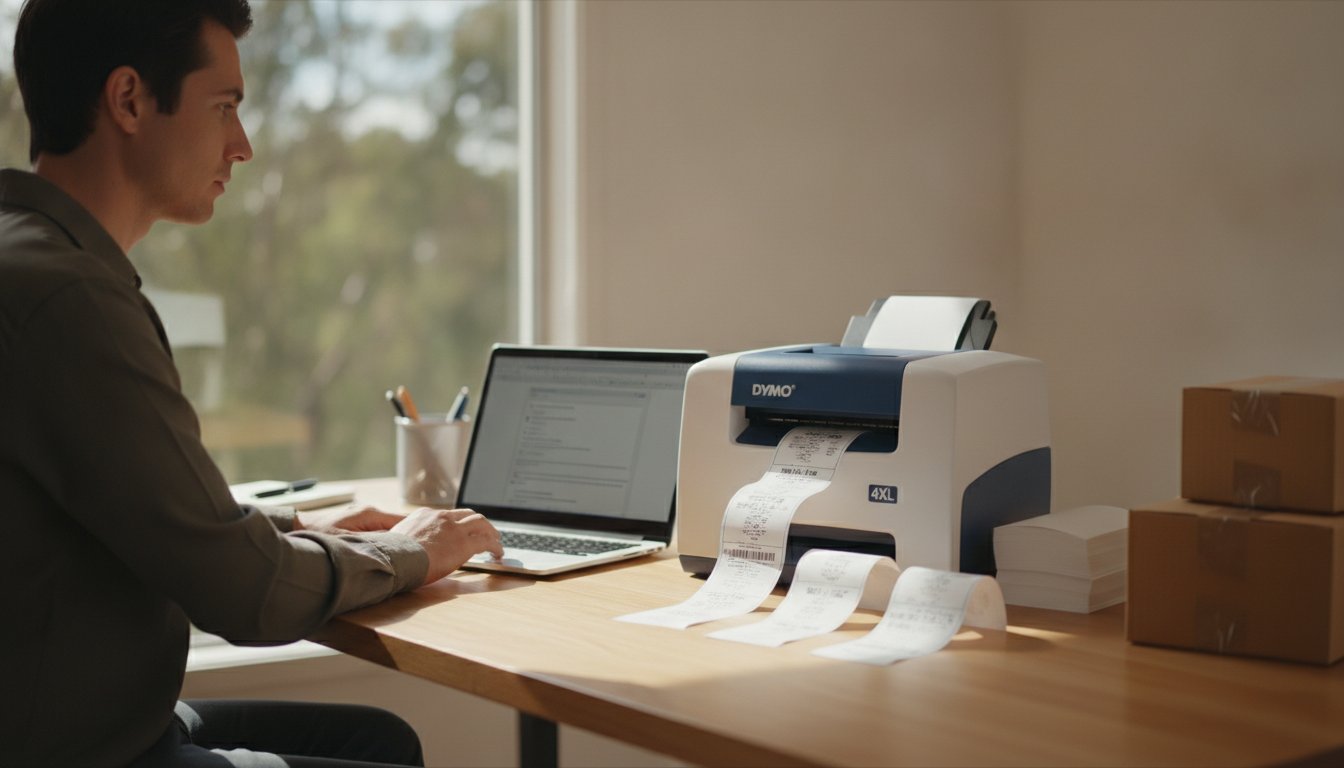
You've just packed a dozen orders and you're ready to dispatch, but your computer suddenly refuses to recognise your printer, or worse, it prints your shipping labels at the size of a postage stamp. It's a frustrating scenario that many Australian small businesses face when their hardware and software fall out of sync. You've likely spent time wondering why your dymo 4xl driver isn't performing as expected or which version of the software actually supports your current operating system.
Key Takeaways
- Learn why disconnecting your USB cable is the essential first step when installing the dymo 4xl driver to prevent system conflicts and ensure a clean setup.
- Identify whether DYMO Connect or the legacy v8 software is better suited to your specific label templates and operating system environment.
- Master troubleshooting techniques to fix common issues like "Driver Unavailable" errors or shipping labels printing off-centre and at the wrong scale.
- Understand when to maintain your legacy hardware and when to transition to the LabelWriter 5XL to maximise your labelling efficiency in the dispatch process.
Finding the Correct DYMO LabelWriter 4XL Driver in 2026
The DYMO LabelWriter 4XL has long been the backbone of Australian dispatch centres and home offices. Even though it's now considered a legacy model, its ability to produce wide-format shipping labels without ink or toner keeps it in high demand. The dymo 4xl driver acts as the critical communication channel between your computer's operating system and the printer hardware. Without the correct driver version, your computer won't recognise the device, and your shipping platforms like Australia Post or Sendle won't be able to format labels correctly. Understanding the history of the Dymo Corporation helps clarify why these drivers have evolved from simple print files into the comprehensive software packages we use today.
To better understand how to get your printer up and running on modern systems, watch this helpful video:
The distinction between a standalone driver and an integrated software package is vital. In the past, you could often download a tiny file just to let the printer "talk" to Windows. Now, the dymo 4xl driver is bundled within DYMO Connect or DYMO Label Software. This ensures that the printer settings, such as darkness and print speed, are optimised for the specific thermal technology used in the 4XL. Using these official bundles is the only way to guarantee that your shipping labels maintain the crisp barcodes required by Australian couriers.
Identifying Your Operating System Requirements
Before you begin your download, verify your current system version. Windows 11 and Windows 10 users should check if they're running a 64-bit version, as this impacts driver stability. For Mac users, the shift to Apple Silicon (M1, M2, and M3 chips) has changed the landscape. You'll need the latest compatible version of DYMO software, as older versions built for Intel processors may require the Rosetta 2 translation environment or fail to recognise the 4XL entirely. Additionally, if you're using a modern laptop with only USB 3.0 or USB-C ports, ensure you're using a high-quality adapter to maintain a stable connection with this legacy hardware.
Official Download Sources vs. Third-Party Risks
Always prioritise the official DYMO Australian support site for your downloads. Generic driver aggregate websites often host outdated files or, worse, malware disguised as a dymo 4xl driver. At DYMOOnline, we advocate for using verified software to protect your hardware investment. When you run the installer, look for the verified digital signature of the manufacturer. This small security check ensures the file hasn't been tampered with. If your 4XL is showing signs of age or you're tired of managing legacy drivers, it might be time to consider the LabelWriter 5XL, which features modern architecture designed for the latest operating systems.
Step-by-Step Installation Guide for Windows and macOS
Success with your LabelWriter 4XL begins with a single, non-negotiable rule: disconnect the USB cable before you start the software installation. Many users ignore this step, leading to the dreaded "Unknown Device" error that can haunt your system registry. By running the installer first, you allow the dymo 4xl driver to establish the necessary communication protocols before the hardware is introduced. This process ensures the operating system applies the correct settings for direct thermal printing technology, which relies on precise heat control rather than ink to create your labels.
If you've previously attempted an installation that failed, you must clear out the remnants. Go to your system's printer settings and remove any existing DYMO entries. A clean slate prevents software conflicts where the computer tries to use a generic driver instead of the specialized one required for wide-format shipping labels. Always run the installation file with administrative privileges. This gives the software permission to update registry keys and system folders that are otherwise restricted, ensuring a stable, long-term connection.
Windows 10 and 11 Installation Nuances
On Windows systems, the Print Spooler can sometimes hang during a fresh installation. If the progress bar stalls, you may need to manually restart the Spooler service through the "Services" app. Once the software is installed and the printer is finally connected via USB, navigate to "Devices and Printers" and set the 4XL as your default printer. This simple step minimises errors when printing directly from a web browser. Don't forget to enter the "Printing Preferences" menu to adjust the print density; setting this correctly ensures your barcodes are dark enough for Australian courier scanners to read on the first try.
macOS Setup and Security Permissions
Modern macOS versions, particularly those running on Apple Silicon, have strict security protocols that can block the dymo 4xl driver from functioning. You must grant "Full Disk Access" to the DYMO software in your System Settings to allow it to save label templates and communicate with the hardware. A common trap for Mac users is the "AirPrint" default. When adding the printer, macOS may try to use a generic AirPrint driver which won't support the 104mm x 159mm label size. Ensure you manually select the DYMO driver from the "Use" dropdown menu. For advanced users, the CUPS web interface (accessible via localhost:631 in your browser) provides deeper configuration options for custom label dimensions.
After the software is active, perform an initial calibration by pressing and holding the form-feed button on the front of the unit. The printer should align the labels perfectly at the tear-off bar. Finally, run a test print using a standard 104mm x 159mm shipping label to verify the scaling is correct. If you encounter persistent alignment issues during this phase, our team can provide further technical guidance for Australian users to help get your dispatch line moving again.
DYMO Connect vs. DYMO Label Software v8: Which One Should You Use?
Choosing between software versions is often where Australian business owners get stuck. While both packages contain the necessary dymo 4xl driver, the workflow they offer is vastly different. DYMO Connect represents the modern, app-style approach with a focus on visual design and cloud integration. In contrast, DYMO Label Software v8 is the legacy desktop application that many long-term users find indispensable for its utilitarian layout and speed. Your choice depends entirely on whether you prioritise a contemporary interface or the battle-tested reliability of traditional software.
Performance in high-volume environments is a critical factor for warehouse managers. In our experience, v8 often generates labels and manages the print spooler slightly faster on older hardware because it has a smaller memory footprint. However, if you're running the latest Windows 11 updates, DYMO Connect is more likely to receive the security patches and compatibility fixes required to keep your dymo 4xl driver functioning without interruption. Many Australian businesses continue to use v8 simply because their staff are trained on its specific menu structures, and transitioning to a new interface can cause temporary dispatch delays.
When to Choose DYMO Connect
If your business relies on modern design tools or you need to print labels from a mobile device, DYMO Connect is the logical path. It offers a more intuitive "drag and drop" experience that feels familiar to users of modern office suites. It's also the better option for those who want to store their standard label templates in the cloud, allowing for consistent branding across multiple workstations. Connect is built to align with modern Windows UI elements, making it feel more integrated into a 2026 computing environment.
The Case for Sticking with DYMO Label Software v8
For power users running large shipping runs, the legacy v8 software remains the gold standard. Its ability to handle complex Excel or CSV data imports is generally more robust than the newer Connect platform. If you've spent the last decade building an extensive library of .label files, you'll find that v8 handles these legacy formats with zero formatting issues. It's also the safer bet for systems with limited RAM, as it avoids the heavy graphical overhead found in newer applications. This stability is why many medical administrations and industrial warehouses in Australia refuse to upgrade, preferring the "if it isn't broken, don't fix it" approach to their labelling infrastructure.
Troubleshooting Common 4XL Driver and Connection Issues
Even after a successful installation, the dymo 4xl driver can occasionally lose its connection to the operating system. This often manifests as a "Driver Unavailable" or "Unknown Device" error within the Windows Device Manager. To resolve this, you must right-click the entry and select "Uninstall device", then perform a hard power cycle on the printer by removing the power cord for thirty seconds. Reconnecting the device often triggers the system to reassign the correct driver profile, clearing the communication block that prevents your computer from seeing the hardware.
A stuck print queue can paralyse your dispatch line. When the status remains "Printing" but nothing happens, you need to reset the internal print server. Stop the Print Spooler service in Windows, navigate to the spool folder, and delete all temporary files. This clear-out forces the dymo 4xl driver to re-initialise the job, often resolving the "Out of Paper" error caused by a confused sensor that has lost track of the label gap. This is a common occurrence when the printer is left on during a system update or a sudden power surge.
Fixing Scaling for Australian Shipping Platforms
When labels print too small or off-centre, the issue is rarely hardware. It usually stems from a mismatch between the PDF source and the driver's paper settings. For users of MyPost Business or Sendle, you must manually set the paper size to 1744907 (4 in x 6 in) within the printer properties. This ensures the driver maps the 104mm x 159mm label area correctly. Clearing your browser cache can also resolve discrepancies where the print dialogue box retains incorrect scaling factors from previous sessions, ensuring your shipping labels are always the correct size for scanning.
Hardware-Software Communication Errors
Hardware-software communication errors are frequently caused by the use of non-genuine labels. The LabelWriter 4XL relies on an optical sensor to detect the gap between labels. Third-party rolls often lack the precise backing markings required, leading to "Out of Paper" errors even when the roll is full. If you've ruled out label quality, try moving the USB cable to a different port directly on the computer chassis rather than using a hub. For a more exhaustive list of hardware fixes, consult our Dymo Troubleshooting Guide for expert solutions tailored to the Australian market.
If these troubleshooting steps don't restore your connection or fix your scaling issues, contact our specialist team for personalised technical support to get your dispatch process back on track.

Future-Proofing Your Labelling: Transitioning from 4XL to the LabelWriter 5XL
There comes a point where even the most diligent troubleshooting of a dymo 4xl driver cannot overcome the physical limitations of ageing hardware. If you've reached a stage where your printer frequently drops its connection or produces faded barcodes despite cleaning the print head, you're likely seeing signs of terminal wear rather than a software glitch. The 4XL has served Australian warehouses reliably for over a decade, but the transition to the Dymo LabelWriter 5XL represents a significant leap in both connectivity and ease of use.
The primary advantage of the 5-series hardware is the introduction of automatic label recognition. This technology allows the printer to communicate directly with the software to identify the exact size, type, and remaining number of labels on a roll. It effectively eliminates the need for the manual driver-side configurations that often cause scaling errors in the older 4XL models. Migrating your existing workflow is straightforward; DYMO Connect is designed to import your legacy v8 templates, ensuring your established branding remains consistent as you upgrade your dispatch desk.
Why the 5XL is the New Standard for Shipping
A Note on Genuine DYMO Labels
To achieve this level of automation, the 5XL utilises RFID technology embedded within each roll. This system ensures the printer applies the exact amount of heat required for the specific label type, protecting the print head from premature failure. It's essential to use genuine DYMO labels to access these features, as non-genuine alternatives lack the necessary sensors to communicate with the 5-series hardware. At DYMOOnline, we position ourselves as your long-term partner for bulk DYMO supplies in Australia, providing the authentic rolls required to keep your new 5XL operating at peak performance. Investing in the right hardware and supplies today ensures your labelling system remains robust as your business requirements evolve.
Streamlining Your Dispatch Operations
Maintaining a reliable dispatch line requires more than just hardware; it depends on precise software integration. We've covered how a clean installation and the correct dymo 4xl driver version can resolve the common scaling errors and connection drops that stall your shipping process. Whether you've chosen to stick with the legacy v8 software for its data handling or moved to DYMO Connect for modern features, these technical steps ensure your labels remain crisp and scannable for Australian couriers.
As legacy hardware reaches its natural end-of-life, transitioning to the 5-series provides a more automated, driver-free experience for busy environments. DYMOOnline is your specialist partner, offering expert knowledge of both legacy and modern systems alongside nationwide shipping from our local warehouses. If you need technical guidance or want to explore the latest equipment, Browse the full range of DYMO LabelWriter Printers and Accessories at DYMOOnline to secure your warehouse efficiency. We're ready to help you find the perfect match for your specific labelling tasks.
Frequently Asked Questions
Where can I download the DYMO 4XL driver for Windows 11?
You can download the dymo 4xl driver directly from the official DYMO Australian support website. It's currently packaged within the DYMO Connect for Desktop software or the legacy DYMO Label Software v8.7.4. Ensure you select the 64-bit version that matches your Windows 11 architecture to maintain system stability and ensure your shipping labels print with the correct dimensions.
Why does my DYMO 4XL say "Driver Unavailable" in the control panel?
This error usually occurs if the printer was connected to the computer before the software was fully installed. Windows assigns a generic, non-functional profile that blocks the official dymo 4xl driver from loading correctly. You'll need to disconnect the USB cable, uninstall the "Unknown Device" from your Device Manager, and restart the official installer to re-establish the proper communication path.
Is the DYMO 4XL compatible with the latest macOS Sequoia?
The 4XL remains compatible with the latest macOS versions, including Sequoia, provided you use DYMO Label Software v8.7.5 or the latest Connect release. If you're using an Apple Silicon Mac with an M1, M2, or M3 chip, you must ensure the software is updated to the latest version. This avoids the scaling issues and communication errors often seen when using older Intel-based drivers on modern Mac hardware.
Can I use DYMO Connect software with my old LabelWriter 4XL?
Yes, you can transition to DYMO Connect while still using your legacy LabelWriter 4XL hardware. The new platform is designed to be backwards compatible with the 4-series, offering a more modern interface and cloud-based storage for your templates. It's a practical way to modernise your workflow and access newer design features without the immediate need to replace your existing wide-format printer.
How do I fix my 4XL printing labels that are too small or off-centre?
This is almost always a driver configuration issue rather than a hardware fault. You must enter your Printer Properties and manually set the paper size to 1744907, which corresponds to the standard 4 inch by 6 inch shipping label. This forces the driver to align the print head perfectly with the 104mm x 159mm label boundaries used by major Australian dispatch platforms.
Do I need a different driver to print Australia Post shipping labels?
You don't need a specialised driver for Australia Post, but you must configure your existing driver to match their specific PDF output. Most Australian shipping platforms generate labels in a 104mm x 159mm format. Ensure your print dialogue is set to "Actual Size" rather than "Fit to Page" to prevent the barcodes from shrinking, which can make them unreadable by courier scanners.
What is the difference between the 4XL and the new 5XL model?
The primary difference lies in the sensor technology and connectivity options. The new LabelWriter 5XL features Automatic Label Recognition using RFID, which identifies the label size and type without any manual input. It also offers LAN connectivity for office-wide printing, whereas the 4XL relies on a local USB connection and requires manual driver-side configuration for every different roll type you use.
How do I completely uninstall old DYMO drivers before a fresh setup?
Start by uninstalling all DYMO software through the Windows Control Panel or macOS Applications folder. For a truly clean setup on Windows, you should also enter the "Print Server Properties" and remove the driver package entirely. This prevents the operating system from automatically re-applying a corrupted driver profile when you plug the printer back in during your fresh installation process.

Article by
DymoOnline Team
The DYMOOnline Team provides practical guidance for Australian businesses, warehouses, retailers, offices, schools, healthcare workplaces and home users who rely on accurate, efficient labelling. DYMOOnline specialises in DYMO label makers, DYMO label printers, label tapes, label rolls, shipping labels, address labels, barcode labels and labelling accessories, helping customers choose the right labelling products for organisation, mailing, inventory, filing, pricing and workplace efficiency.
General Information
This article is provided as general information only to help customers compare and choose DYMO label makers, label printers, label tapes, label rolls, shipping labels, address labels, barcode labels and related labelling supplies. Product details, specifications, compatibility, availability, pricing and suitability may vary. Always check the individual product page, manufacturer information, printer model compatibility and label size requirements before purchasing or using a product.
Latest News
How to Clean a DYMO Print Head: Maintenance Guide
Imagine you're preparing a batch of urgent shipping labels for an afternoon pickup, only to find eac...
DYMO Labels: A Complete Guide to Selecting the Optimal Labelling Solution
Last Wednesday, an operations manager discovered that hundreds of shipping labels had lost their gri...
Dymo 4XL Driver Download & Install Guide Australia (2026)
We agree that navigating the choice between DYMO Connect and the legacy Label Software feels unnec...
Best DYMO Barcode Printers: 2026 Australian Expert Guide
A single unreadable barcode can halt an entire Australian supply chain, costing your business prec...
DYMO Printer Drivers: 2026 Australian User Guide
Why does your computer suddenly claim your LabelWriter doesn't exist the moment you have fifty urg...
Genuine DYMO D1 Labels: The Ultimate Australian Buyer’s Guide
A single jammed cassette or a set of peeling labels can cost your business far more in lost produc...