
How to Install and Use DYMO LabelWriter 550 Software: A Complete Australian Guide
Why does a high-speed thermal printer sometimes feel like it's working against you? Many Australian professionals expect a plug-and-play experience; however, the dymo labelwriter 550 software acts as the intelligent gatekeeper to your daily productivity. If you've encountered "Unknown Label" errors or a printer that refuses to be detected, you aren't alone. These hurdles usually stem from specific software requirements or the transition to the new automatic label recognition technology that requires genuine DYMO rolls.
We understand that your time is better spent managing your business than troubleshooting hardware. This guide provides the technical clarity you need to master your setup and eliminate printing errors for good. You'll learn the exact steps to install the latest version of DYMO Connect for Desktop on Windows 10 or macOS 14. We also cover how to import Excel data for bulk shipping labels and how to design custom templates that help you maximise the efficiency of your office labelling.
Key Takeaways
- Understand why DYMO Connect for Desktop is the mandatory suite for the 550 series and how it facilitates the transition from legacy software.
- Discover how the dymo labelwriter 550 software utilises RFID technology to automatically identify label size, colour, and the number of labels remaining on a roll.
- Learn the correct installation sequence, which involves installing software before connecting hardware, to ensure a seamless setup and avoid common driver detection issues.
- Master efficiency-boosting features such as direct data imports from Microsoft Excel and Outlook to simplify complex mailing and inventory tasks.
- Identify the maintenance steps, including firmware updates and the use of genuine DYMO labels, required to keep your 550 series printer performing reliably.
Understanding DYMO Connect for Desktop: The Required Suite for the 550 Series
The DYMO LabelWriter 550 series represents a significant shift in how office labelling functions. Unlike older models that acted as simple peripheral devices, the 550 and 550 Turbo rely heavily on an integrated ecosystem. This means the dymo labelwriter 550 software, known officially as DYMO Connect for Desktop, is no longer optional. It serves as the primary interface for the printer's internal sensors; these are designed to communicate directly with your labels to prevent waste and ensure perfect alignment every time.
This technological evolution is part of a broader Dymo Corporation history of innovation, which recently introduced RFID technology into their consumables. This specific hardware-software handshake allows the printer to "read" the roll, identifying the size and type of label without any manual input from the user. For Australian businesses, this translates to a massive reduction in printing errors and lost time.
To better understand the initial setup process, watch this helpful video:
DYMO Connect vs. Legacy Software
If you've upgraded from an older LabelWriter 450, you might be tempted to stick with the familiar DYMO Label v8 software. However, older software versions won't recognise the 550 hardware at all. The 550 series was built specifically for the modern, app-based architecture of DYMO Connect. While the interface looks different, it's far more intuitive for designing complex layouts. You can still migrate your existing label templates by using the "Import" function within the new software, though some minor adjustments to font sizes might be required to ensure your DYMO labels look crisp and professional.
System Requirements for Australian Users
Before you begin the installation, it's vital to ensure your computer meets the 2026 technical standards. As of May 2026, DYMO Connect for Desktop v1.6 requires Windows 10 or higher. For Mac users, you'll need to be running macOS 14 or higher. Older operating systems simply don't have the driver support needed for the 550's advanced features. You'll also need a high-speed USB 2.0 or 3.0 port and a stable internet connection for the initial software activation and firmware updates.
It's critical to have full administrative privileges on your computer during the installation process. Without these rights, the dymo labelwriter 550 software might fail to register the printer as a valid device, leading to the common "Printer Not Found" error that frustrates many new users. Ensuring these prerequisites are met before you plug in the USB cable is the most effective way to guarantee a smooth start.
The Role of Automatic Label Recognition in Your Software
The defining feature of the LabelWriter 550 series is its ability to communicate directly with the media it uses. At the heart of this system is the dymo labelwriter 550 software, which acts as a command centre for the printer’s internal RFID sensors. When you drop a roll of genuine DYMO labels into the machine, the software instantly identifies exactly what is loaded. It bypasses the old manual setup process where users had to scroll through endless lists of product codes to find the right dimensions.
This intelligent handshake provides a live dashboard within the DYMO Connect interface. You can view the label type, size, and colour at a single glance. Perhaps most importantly, the software displays the exact number of labels remaining on the roll. This removes the guesswork from your workflow, ensuring you don't start a large print run only to have it fail halfway through. If you have questions about which specific rolls are compatible with your industry needs, you can speak with our Australian specialists for tailored advice.
Real-Time Inventory Tracking
The software acts as a safeguard against common office mistakes. If you attempt to print a shipping label while a roll of small multi-purpose labels is loaded, the software will prevent the job from proceeding. It flags the mismatch immediately, saving you from wasting expensive supplies. For warehouses and high-volume dispatch centres, this tracking is vital. You can monitor usage across several workstations, ensuring that your team always has enough stock on hand for the afternoon courier pickup.
Automatic Template Matching
Efficiency in a fast-paced retail or medical administration environment depends on speed. The dymo labelwriter 550 software facilitates this by automatically loading the correct design canvas based on the inserted roll. When the printer detects a new size, the software adjusts the printable area on your screen to match. This ensures your text and barcodes always fit perfectly within the margins, eliminating the "trial and error" that often leads to misaligned prints and wasted materials.
It is important to understand that this level of automation relies entirely on the proprietary sensors within the 550 series. If a non-genuine or compatible label roll is used, the software will trigger an "Unknown Label" or "No Label" warning. This isn't a software glitch; it's the system's way of indicating it cannot verify the dimensions or remaining count. Stick to genuine supplies to maintain the seamless, error-free experience that the 550 series was designed to provide.
Step-by-Step Installation: Setting Up Drivers and Software
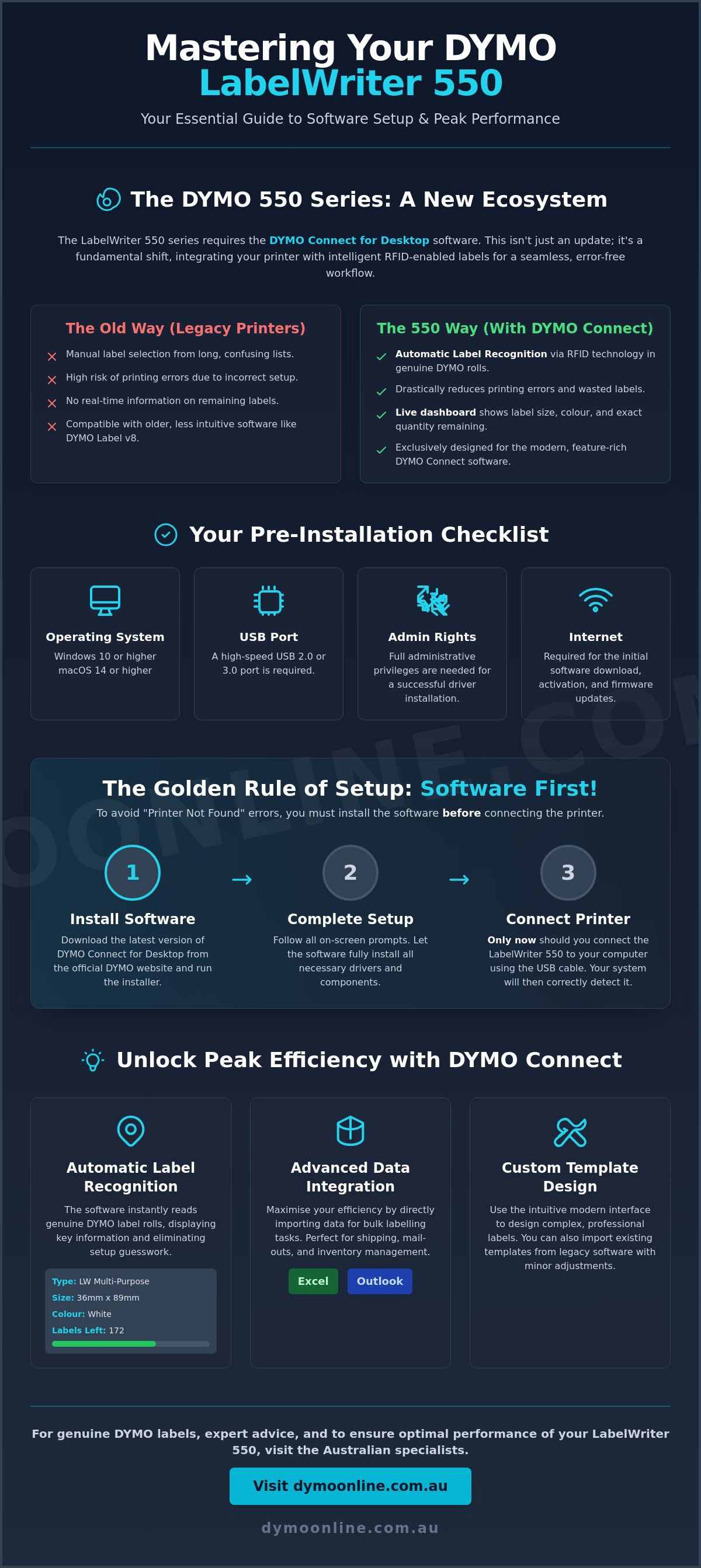
Success with your new printer begins with patience. The most common mistake Australian users make is plugging the USB cable into their computer immediately after unboxing. If you do this, Windows or macOS may attempt to assign a generic driver that doesn't support the advanced features of the 550 series. To avoid this, keep the hardware disconnected. Your first priority is to download and install the dymo labelwriter 550 software package from a specialist source like DYMOOnline to ensure you have the latest version of DYMO Connect.
Once the installer is downloaded, run the executable file. The setup wizard will guide you through the license agreement and file location settings. It's only when the software explicitly prompts you—usually near the end of the installation—that you should connect the power cable and plug the USB into your computer. This sequence ensures the operating system correctly identifies the specific 300 dpi print head and RFID sensors unique to the 550 series.
Windows Installation Guide
On Windows 10 and 11 systems, the "Unrecognised Device" error is a frequent hurdle. This typically happens if the dymo labelwriter 550 software wasn't granted administrative privileges during the run-time. To ensure a clean setup, follow these steps:
- Right-click the installer and select "Run as Administrator."
- Choose the "Standard" installation path unless your IT department requires a specific network directory for shared workstations.
- After the software prompts you to connect the printer, wait for the "Device is ready" notification in the system tray.
- Verify the installation by opening the "Devices and Printers" control panel; the LabelWriter 550 should appear with a green checkmark and no yellow warning icons.
Mac OS Installation Guide
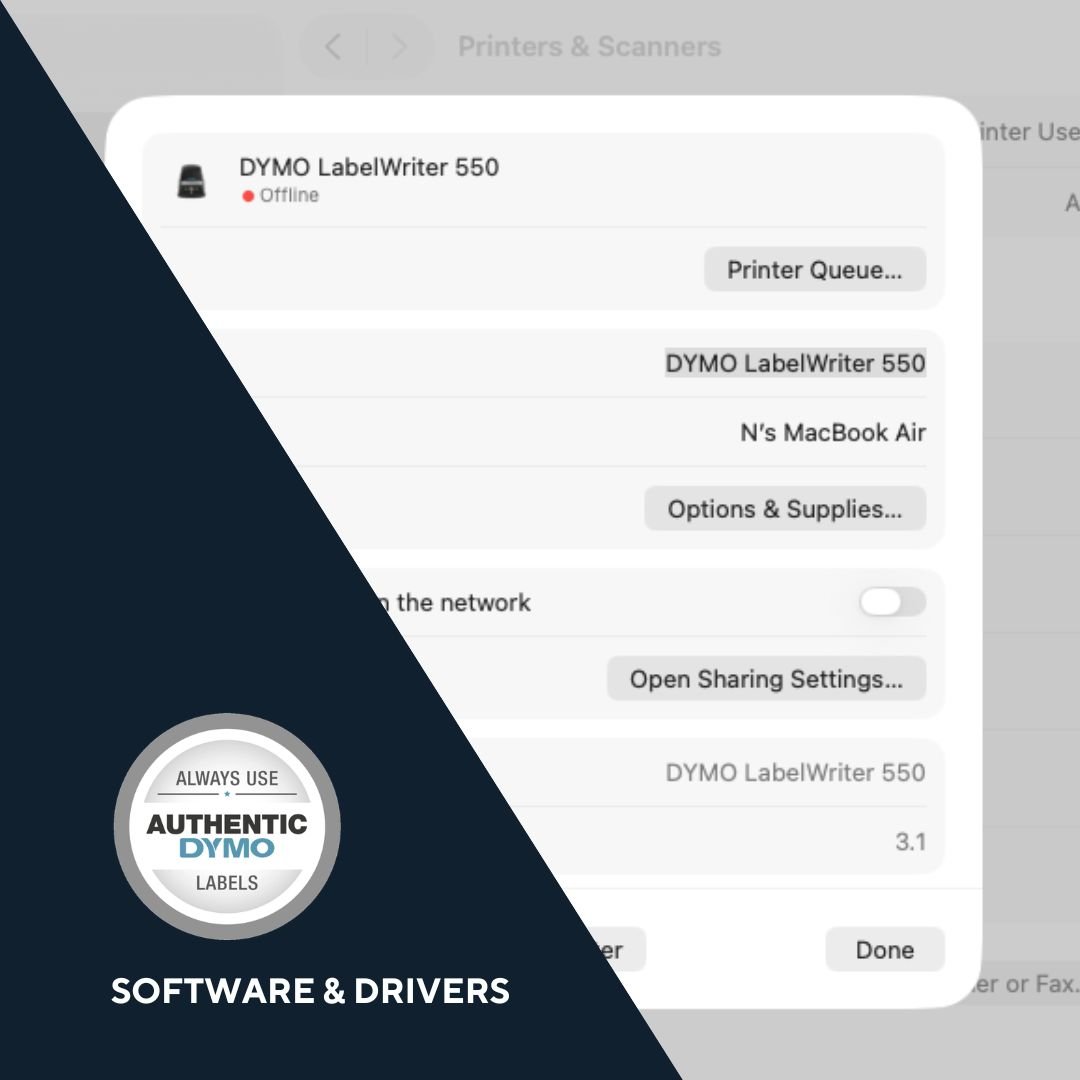
Mac users often face challenges related to the strict "Privacy & Security" settings in macOS 14 and higher. When you first launch the installer, you may need to navigate to System Settings to "Allow" the software to run. A critical step for Mac owners is avoiding the "AirPrint" default. While macOS might see the printer, you must ensure you select the "DYMO Driver" in the printer add screen. Using the generic AirPrint driver will prevent the software from reading the RFID chips on your DYMO labels, leading to "Unknown Label" errors.
Once the software is running and the printer is recognised, perform a test print. Use the "New" button in DYMO Connect to create a basic text label. If the printer feeds the label smoothly and the text is crisp, your installation is complete. You're now ready to organise your office with the reliability that only genuine DYMO LabelWriter hardware provides.
Maximising Efficiency: Advanced Features of DYMO Connect
The dymo labelwriter 550 software acts as a sophisticated design and data management hub rather than a simple print driver. For Australian businesses, the ability to integrate with Microsoft Office or Google Contacts is a significant advantage. You don't need to copy and paste individual addresses; instead, you can pull data directly from your existing databases. This functionality is particularly useful for medical clinics, schools, and legal firms that handle high volumes of daily correspondence.
Beyond basic addressing, the software allows you to generate custom barcodes and QR codes. These are essential for modern warehouse inventory management or tracking assets in a busy office. By organising your template library within the DYMO Connect interface, you can ensure that multiple users across your network have instant access to the same professional layouts. This level of standardisation reduces the time spent on design and minimises the risk of formatting errors.
Importing Data from Excel
Manual data entry is the primary cause of labelling errors. To print in bulk, start by preparing your Excel spreadsheet with clear header rows such as "Name," "Street," and "Postcode." Within the dymo labelwriter 550 software, use the "Import Data" feature to link your file. The interface allows you to map these headers by dragging the specific fields onto your virtual label canvas. Once the mapping is established, you can review the entire list and batch print hundreds of labels in a single click. This process ensures that every label is accurate and formatted consistently without manual intervention.
Designing Custom Templates
Professionalism matters in every customer interaction. You can easily upload your company logo to create branded shipping labels that stand out during transit. The software's "Smart Paste" feature is another efficiency booster; it allows you to highlight an address in a web browser and instantly format it for printing. By standardising your font sizes and styles within your custom templates, you maintain a unified aesthetic for all your outgoing parcels and internal filing. This consistency builds trust with your clients and keeps your office environment organised.
If your team requires assistance with setting up complex data imports or choosing the right supplies for a high-volume dispatch environment, contact our Australian specialists for professional guidance.
Maintaining Your DYMO Ecosystem for Long-Term Reliability
The LabelWriter 550 series is engineered for longevity, but its performance depends on the health of its digital and physical components. Unlike older thermal printers that operated in isolation, the 550 series relies on a continuous feedback loop managed by the dymo labelwriter 550 software. This ecosystem ensures that your print head, sensors, and labels work in perfect unison. To maintain this level of reliability, you must treat the software as a maintenance tool rather than just a design interface.
One of the most practical features of DYMO Connect is its ability to monitor the physical condition of the hardware. The software tracks your total label count and provides maintenance alerts when it's time to clean the print head. Over time, adhesive residue or dust can accumulate, which may lead to streaking or misaligned barcodes. By following these software-driven prompts and using a cleaning card, you protect the 300 dpi resolution and extend the operational life of your machine.
Firmware Updates via DYMO Connect
The logic that governs the automatic label recognition system resides in the printer's firmware. As new label types are released or operating systems like Windows 11 and macOS 14 receive updates, your printer may require a firmware patch to maintain compatibility. The dymo labelwriter 550 software will typically notify you when a critical update is available. It's vital to perform the "Verify" step within the settings menu to ensure your hardware is running the latest logic. Operating with outdated firmware increases the risk of "Unknown Label" errors or communication failures between the printer and your computer.
Professional Australian Support
While the 550 series is designed for a seamless user experience, complex office networks or legacy data conflicts can occasionally cause software hurdles. When these issues arise, accessing local expertise is the most efficient path to a solution. As a dedicated DYMO specialist, we provide the technical depth required to troubleshoot everything from driver conflicts to data mapping errors. Australian businesses can rely on our established knowledge base to resolve issues quickly and get back to their core operations.
If you've followed the installation steps but still face detection problems, we recommend consulting our sibling resource, the DYMO Printer Drivers Guide. This comprehensive manual covers deep-level troubleshooting for both Windows and Mac environments. For more specific queries regarding your 550 or 550 Turbo setup, DYMOOnline offers expert advice tailored to the unique needs of the Australian market. Maintaining a relationship with a specialised partner ensures that your labelling infrastructure remains a reliable asset for years to come.
Streamline Your Dispatch Workflow with Expert Support
Mastering the dymo labelwriter 550 software is the most effective way to eliminate printing errors and improve office efficiency. By following the correct installation sequence and maintaining your firmware, you ensure the automatic label recognition system works exactly as intended. This integration saves time. It prevents the waste associated with misaligned prints. Using genuine rolls ensures the software-hardware handshake remains secure, allowing you to focus on your business rather than troubleshooting hardware.
As an official Australian supplier, we provide the specialised knowledge needed to keep your labelling ecosystem running smoothly. Our team offers expert technical support for the 550 series. We also ensure rapid nationwide shipping from our local warehouses. Whether you're managing a medical clinic, a busy warehouse, or a home office, we're here to help you choose the right tools for your specific requirements.
Browse Genuine DYMO LabelWriter 550 Printers and Labels at DYMOOnline to secure your office productivity. We look forward to helping you achieve a reliable and error-free labelling environment.
Frequently Asked Questions
Can I use the old DYMO Label v8 software with the LabelWriter 550?
No, the LabelWriter 550 is strictly incompatible with the legacy DYMO Label v8 software. You must use the modern DYMO Connect for Desktop to operate this machine because the 550 series relies on specific sensors that the older v8 architecture cannot communicate with. Switching to the current software ensures you can access the automatic label recognition features and the latest design tools required for professional office labelling tasks across Australia.
Why does the software say "Unknown Label" when I have a roll inserted?
The "Unknown Label" error typically occurs when a non-genuine or compatible label roll is used. The 550 series features internal sensors that must read an RFID chip located on the core of genuine DYMO label rolls. If the dymo labelwriter 550 software cannot detect this chip, it cannot verify the label size or count. To resolve this, ensure you are using authentic supplies purchased from a specialist Australian provider to maintain full functionality.
How do I update the DYMO LabelWriter 550 drivers on Windows 11?
Drivers for the 550 series are integrated directly into the DYMO Connect for Desktop installation package. To update your drivers on Windows 11, simply download and install the latest version of the software from the official source. This process automatically replaces outdated driver files with the current versions required for stable performance. Always ensure you have administrative rights on your computer before starting the update to avoid installation blocks.
Can I use the DYMO Connect software on multiple computers in my office?
Yes, you can install the software on as many computers as your office requires. However, because the standard LabelWriter 550 connects via a USB cable, it can only be physically tethered to one machine at a time. If you need to share the printer across a local network without constantly moving cables, you might consider the LabelWriter 550 Turbo model. This model includes a LAN port for more efficient office-wide connectivity and sharing.
Is there a mobile app version of the DYMO LabelWriter 550 software?
There is a DYMO Connect mobile app available, but its compatibility depends on your specific printer model. The standard LabelWriter 550 is a USB-only device and requires a direct connection to a PC or Mac running the dymo labelwriter 550 software. Mobile printing is generally reserved for the 550 Turbo or 5XL models when they are connected to your network via an Ethernet cable, allowing the app to find them over Wi-Fi.
What should I do if the software does not detect my printer via USB?
If your printer isn't detected, first ensure the USB cable is securely connected to both the printer and a direct port on your computer. Avoid using unpowered USB hubs, as they often provide insufficient power for the hardware handshake. If the issue persists, disconnect the printer, uninstall the current software, and then reinstall it. Remember to only plug the USB cable back in when the setup wizard explicitly prompts you to do so.
How do I import a large list of addresses from Excel into the software?
You can import address lists by using the "Import Data" function located within the DYMO Connect interface. Prepare your Excel file with clear headers like "Name" and "Address" to make the process easier. The software allows you to drag and drop these data fields directly onto your label template. This batch printing method is significantly faster than manual entry and helps you avoid transcription errors during large mailing runs.
Does the software work with the LabelWriter 550 Turbo and 5XL models?
Yes, DYMO Connect for Desktop is the universal software suite for the entire 550 series. It works seamlessly with the standard 550, the high-speed 550 Turbo, and the wide-format 5XL models. The software automatically detects which model is connected and adjusts the available label templates and settings to match that specific printer's capabilities. This consistency makes it easy for Australian businesses to manage different DYMO machines within the same professional environment and dispatch centre.
General Information
This article is provided as general information only to help customers compare and choose DYMO label makers, label printers, label tapes, label rolls, shipping labels, address labels, barcode labels and related labelling supplies. Product details, specifications, compatibility, availability, pricing and suitability may vary. Always check the individual product page, manufacturer information, printer model compatibility and label size requirements before purchasing or using a product.
Latest News
Asset Tag Printer: 2026 Australian Buying Guide
When an expensive piece of portable equipment goes missing from a job site or office, the real cos...
Asset Labelling Solutions for Australian Schools: The 2026 Buying Guide
Imagine walking into a classroom at the end of term only to find that dozens of new student laptop...
The Ultimate Guide to Professional Archive Box Labelling Systems
Imagine the frustration of an urgent compliance audit where the only thing standing between you an...
How to Print Address Labels from Excel: A Step-by-Step Guide for Australian Businesses
How much time did your team spend this week manually typing customer addresses into a template, on...
The Truth About Dymo Labels: Myth-Busting Genuine vs Generic in 2026
On a busy Monday morning, an Australian business owner discovers their printer has ground to a hal...
Best Address Label Printer for Mac in Australia: 2026 Buying Guide
Updating your macOS shouldn't feel like a gamble with your office hardware, yet many Australian prof...