
DYMO Printer Drivers: The Complete Australian Guide to Software and Setup in 2026
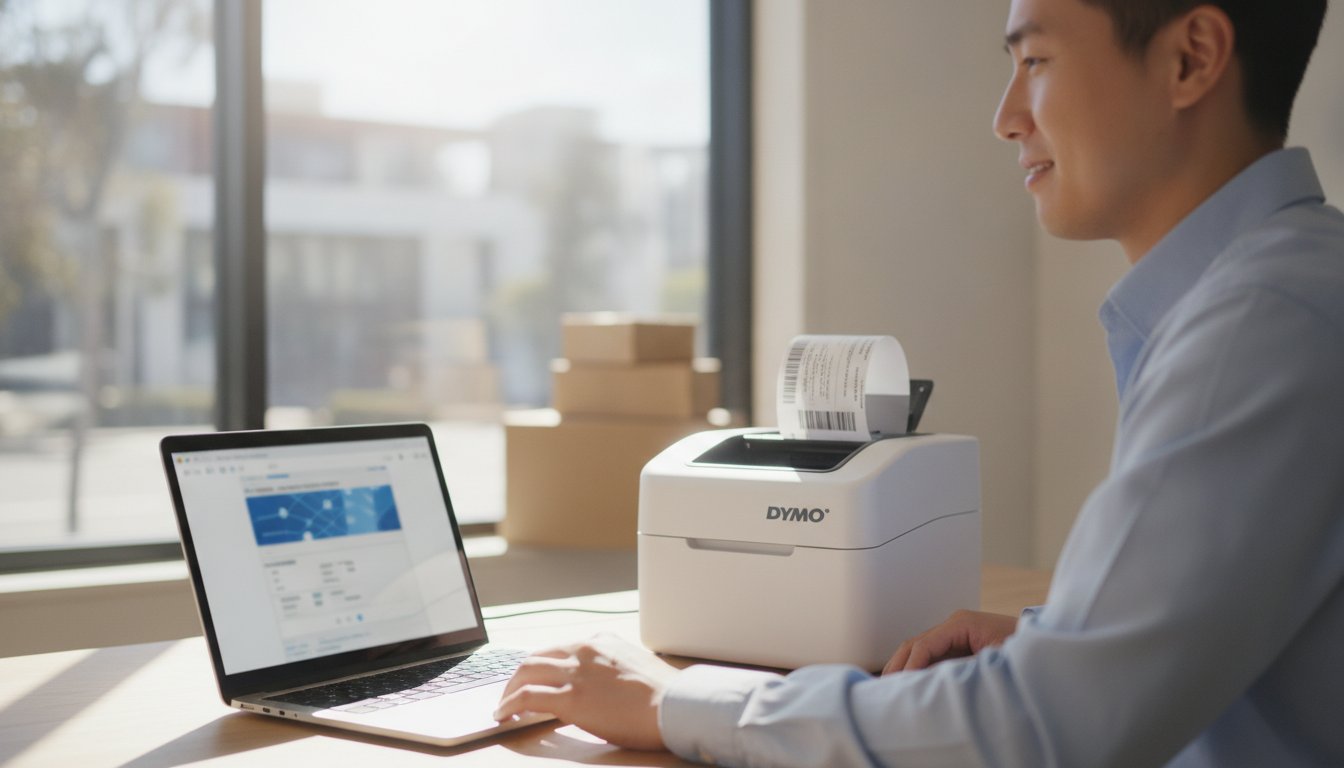
Why does your DYMO printer suddenly stop communicating with your PC the moment you have fifty shipping labels to print? It's a common headache for Australian small businesses and medical administrators who rely on seamless organisation every day. You've checked the cables and the power light is green, yet the software remains stubbornly offline.
We understand that driver errors and confusion between the legacy DYMO Label Software and the modern DYMO Connect for Desktop can bring your productivity to a standstill. Whether you're dealing with a recent macOS update or a Windows 11 glitch, effective dymo connect troubleshooting is essential to keep your operations running smoothly. You deserve a setup that works as hard as you do, without the technical roadblocks.
This comprehensive 2026 guide promises to help you master your hardware setup by providing clear, practical instructions for downloading and installing the correct drivers. We will preview the latest software versions, explain how to resolve common recognition errors, and ensure your LabelWriter 5 series or Rhino tools are fully optimised for the Australian market.
Key Takeaways
- Understand how drivers act as the essential communication link between your operating system and the thermal print head for precise label delivery.
- Learn to distinguish between the modern DYMO Connect interface and the legacy v8 software to ensure full compatibility with your specific printer model.
- Access practical strategies for dymo connect troubleshooting to resolve common "Printer Not Found" errors and conflicts caused by operating system updates.
- Follow a streamlined installation process using official sources to avoid driver corruption and ensure your labelling hardware is recognised immediately.
- Maximise the efficiency of your LabelWriter 5 series by leveraging the technical synergy between genuine label rolls and Automatic Label Recognition™ sensors.
What are DYMO Printer Drivers and Why are They Essential?
A printer driver is the digital translator for your hardware. It converts the visual design on your screen into the specific electrical pulses required by the thermal print head. Looking back at DYMO's history, the shift from mechanical embossers to sophisticated thermal systems highlights how critical software has become. Without this translation layer, your operating system cannot understand the specific heat and timing requirements of your DYMO LabelWriter.
Thermal printing is a precise process. The driver manages how long the print head stays heated and exactly when the motor advances the label roll. If this timing is off by even a fraction of a second, you will see blurred text or misaligned shipping labels. This is why dymo connect troubleshooting often begins with verifying the driver version. An outdated driver cannot interpret the latest security protocols or printing commands from a modern PC. This often results in the dreaded "Unknown Device" status in your device manager.
To better understand how these mechanical and software components work together, watch this helpful video on resolving common hardware issues:
The Difference Between Drivers and Labelling Software
It's easy to confuse the driver with the labelling software, but they serve distinct roles. The driver is the back-end engine that handles print spooling and hardware handshakes. In contrast, labelling software like DYMO Connect (currently version 1.6.1) is the front-end user interface where you choose fonts and add barcodes. Most modern Australian downloads bundle these together. When you install the software, the driver usually installs automatically in the background to ensure your PC communicates perfectly with the thermal elements.
When Should You Update Your Drivers?
Check for driver updates in these specific scenarios:
- After a major Windows or macOS update, as security patches can reset USB port permissions.
- If your printer is powered on but not recognised via USB or network connection.
- When upgrading to a LabelWriter 550 Turbo to enable Automatic Label Recognition features.
Proactive dymo connect troubleshooting prevents errors before they disrupt your warehouse or office workflow. Keeping your software current ensures your hardware remains compatible with the latest Australian security patches and operating system requirements.
Choosing the Right Software: DYMO Connect vs. DYMO Label Software
Selecting the correct software is the most critical step in avoiding hardware conflicts. While both platforms remain available for download, they serve very different generations of technology. DYMO Connect for Desktop is the modern, app-based interface designed specifically for the latest operating systems like Windows 11 and macOS Sequoia. In contrast, DYMO Label Software (DLS) v8 remains the legacy platform for older hardware. Choosing the wrong version is a frequent cause for dymo connect troubleshooting, especially when users attempt to run new 5-series printers on the older v8 software.
For those using the latest DYMO LabelWriter categories, such as the 550 or the wide-format 5XL, DYMO Connect is mandatory. These machines utilise Automatic Label Recognition™ technology. This feature requires the modern software to read the RFID chips embedded in genuine label rolls. Without this specific software handshake, the printer will not recognise the labels. This often leads to "out of paper" errors or a complete refusal to print, even with a full roll loaded.
DYMO Connect for Desktop: Features and Benefits
DYMO Connect offers a significantly more intuitive design experience than its predecessor. It integrates seamlessly with Google Fonts, allowing Australian businesses to maintain brand consistency across their shipping labels and office organisation. The software also includes a robust spell-check feature. This is invaluable for medical administration and retail environments where accuracy is paramount. For logistics teams using the LabelWriter 5XL, the software provides native support for large shipping labels, ensuring high-resolution barcodes every time. The ability to sync designs from mobile devices to the desktop application also allows for a more flexible workflow across the warehouse or office.
Compatibility Chart for Australian Users
Reliability in 2026 depends on matching your hardware to the correct software environment. If you are operating a legacy LabelWriter 450 in an Australian warehouse, DLS v8.7.4 for Windows or 8.7.5 for macOS may still be your most stable option. However, users on macOS Sequoia or ARM-based Windows PCs will find that DYMO Connect 1.6.1 offers the necessary stability for modern hardware. For industrial site work, the Rhino series, including the Rhino 6000+, typically requires specialised drivers to manage complex electrical and cabling templates. If you are unsure which version fits your current operating system, you can contact our technical specialists for specific guidance on your local office setup.
Troubleshooting Common Driver Errors in Australia
Few things halt a busy Australian office faster than a "Printer Not Found" error message. Even when your USB cable is firmly connected, the software might fail to establish a handshake with the hardware. This loop is often caused by a stalled print spooler or a conflict within the operating system's device stack. When your DYMO gets stuck on a "Label Jam" error despite the path being clear, clearing the print spooler in your system settings is a vital step to reset the communication queue. Effective dymo connect troubleshooting requires a systematic approach to these digital roadblocks.
We often recommend the "Australian Reset" as a reliable first line of defence for hardware communication issues. This involves a specific power cycle sequence: unplug both the power adapter and the USB cable from the back of the machine. Wait for at least 30 seconds to allow the internal capacitors to drain completely. Reconnect the power cable first and wait for the status light to stabilise before finally plugging the USB cable back into your computer. This re-sequences the connection and often forces the driver to re-identify the device.
Windows Update conflicts are another frequent source of frustration. Occasionally, specific security patches can disable thermal printer drivers or reset port assignments. If your printer was working yesterday but is offline today, check your recent update history. You may need to manually refresh the driver through the Device Manager to restore functionality. For deeper hardware and software fixes, you can refer to our Dymo Troubleshooting Guide which covers a wider range of industrial and office scenarios.
Resolving USB Connectivity Issues
Stable power is essential for thermal printing. You should always avoid using unpowered USB hubs or monitor pass-through ports, as these often fail to provide the consistent voltage required for the print head. Connect your LabelWriter directly to a primary port on your PC or Mac. If the device remains unrecognised, check the "USB Printing Support" entry in the Windows Device Manager. If a yellow warning icon appears, a clean reinstall of the driver is usually the most efficient way to resolve the conflict.
MacOS Permissions and Privacy Settings
Modern macOS versions like Sequoia require strict permission sets for third-party hardware. You must grant DYMO Connect "Full Disk Access" in your System Settings to ensure the software can save label templates and access address books. If you encounter a "Developer Cannot Be Verified" warning during installation, you can usually bypass this by right-clicking the installer and selecting "Open" from the context menu. These small adjustments are a core part of dymo connect troubleshooting for Apple users, ensuring the software has the necessary environment to operate without interruption.
Step-by-Step Installation Guide for DYMO Printers
The golden rule of printer setup is simple: run the installer before you ever touch the USB cable. Plugging the hardware in prematurely often causes Windows to assign a generic "USB Printing Support" driver that lacks the specific thermal controls needed for DYMO hardware. This sequence is a primary driver of dymo connect troubleshooting calls for new users. Before you begin the download, ensure your printer is powered on and you have a roll of genuine DYMO labels ready for the initial calibration.
Start by visiting the official source to secure the latest version of DYMO Connect (version 1.6.1 for most 2026 systems). Once the installer is running, follow the prompts until the software specifically asks you to connect the device. This allows the operating system to map the correct driver files to the physical USB port. After the connection is established, the software should automatically recognise your specific model, whether it's a LabelWriter 550 or a Rhino industrial unit. If the "Finish" button appears without any error prompts, your background driver is likely active and ready.
Calibration is the final step of a successful installation. Print a single test label to verify that the driver is communicating correctly with the thermal print head. This test ensures that the label alignment is perfect and the heat settings are optimised for the specific material you're using. If the print is faint or the label stops halfway, it often indicates a driver handshake issue that requires a quick restart of the DYMO background service.
Setting Up the LabelWriter 550 and 5XL
The 5-series models introduce a specific layer of complexity due to their Automatic Label Recognition sensors. The driver must calibrate with the RFID chip in the roll to function correctly. If you are setting up a LabelWriter 5XL in a high-volume warehouse, ensuring the software accurately displays the remaining label count is your best indicator that the driver is installed correctly. If the count shows as "Unknown," the RFID sensor may be misaligned or the driver may need a refresh.
Network and Shared Printing Setup
In Australian office environments, sharing a single device via Windows Print Sharing is a common requirement. To do this, ensure the host PC has the full DYMO Connect suite installed and the printer is set to "Shared" in the system settings. You must also configure your firewall to allow the DYMO background service to communicate across the local network. For larger organisations, configuring the driver for a dedicated "Print Server" environment provides a more stable connection for multiple users than individual ad-hoc sharing. If your network configuration remains stubborn after these steps, get in touch with our support team for expert assistance with your local setup.

Optimising Performance with Genuine DYMO Labels and Software
The technical synergy between the printer driver and the hardware's internal sensors is most evident in the LabelWriter 5 series. These machines utilise an RFID sensor that communicates directly with the software to identify the exact roll type and the number of labels remaining. When you use DYMO labels, the driver automatically configures the print settings to match the material. This automated handshake eliminates the need for manual adjustments and prevents the driver from entering an "Error" state, which is a frequent hurdle in dymo connect troubleshooting for those using third-party consumables.
Non-genuine labels often lack the necessary RFID chips required by the 550 and 5XL models. Without this digital signature, the driver may pause the print queue or report that the printer is "Out of Paper" even when a roll is clearly loaded. Beyond software compatibility, authentic labels are engineered with a specific smoothness and thickness to protect the thermal elements. Abrasive materials from inferior rolls can cause premature wear on the print head, leading to faded text or "ghosting" that no amount of driver reinstallation can fix. Using genuine supplies ensures that your hardware remains within its intended operating specifications.
Ensuring Long-Term Reliability
Software stability in 2026 requires a proactive approach to maintenance. You should clean the thermal print head with a specialised cleaning card every few rolls to remove adhesive residue and dust. This physical upkeep prevents driver-level jams and ensures that the high-resolution barcodes required for Australian logistics remain crisp. It's also vital to manage your software updates. Staying current with version 1.6.1 or its successors ensures your setup remains compatible with the latest Windows and macOS security requirements. Buying from a specialist Australian supplier like DymoOnline provides the peace of mind that you are receiving authentic products backed by local expertise.
Next Steps for Your Labelling Project
Maximising your efficiency often requires more than just a stable driver. Organising your workspace with the correct power supply and replacement parts can significantly minimise downtime. You can explore the DYMO Accessories range for authentic AC adapters and replacement print heads to keep your equipment in peak condition. If your organisation requires volume-based pricing for a large-scale rollout or you need specific technical guidance via our contact page, our team is ready to assist. Reliable labelling is the backbone of an organised office, and we are committed to helping you maintain a seamless printing environment.
Maintaining a Seamless Labelling Environment
Mastering your driver setup is the most effective way to eliminate downtime in your warehouse or home office. By matching the correct software version to your specific hardware and prioritising genuine labels, you ensure that the Automatic Label Recognition technology works as intended. Effective dymo connect troubleshooting relies on this foundation of technical accuracy and high-quality consumables.
As a specialist Australian supplier since 2009, we possess the deep category knowledge required to support your organisational goals. Our expert technical support covers all aspects of DYMO hardware and software, backed by efficient nationwide shipping from Mega Office Supplies. You don't have to manage technical hurdles alone. Contact the DYMOOnline team for expert technical support and genuine labelling solutions to ensure your printing environment remains stable and efficient. Your organisation deserves a system that works reliably every time you press print.
Frequently Asked Questions
Where can I download the latest DYMO printer drivers for Windows 11?
You can download the latest drivers for Windows 11 directly from the official DYMO support website or through trusted Australian specialists like DYMOOnline. The current version, DYMO Connect 1.6.1, is fully compatible with Windows 11 and provides the essential background services for modern thermal printing. Always ensure you select the "Windows" version of the installer to bundle the driver with the design software for a seamless office setup.
Why is my DYMO LabelWriter 550 not being recognised by my computer?
Your LabelWriter 550 is likely not being recognised because the USB cable was connected before the software installation was complete. This is a common hurdle in dymo connect troubleshooting that results in the operating system assigning a generic driver. To fix this, disconnect the USB, uninstall the software, restart your PC, and then reinstall the DYMO Connect package before reconnecting the hardware when prompted by the installer.
Can I use the old DYMO Label Software v8 with the new LabelWriter 5XL?
No, the older DYMO Label Software v8 is not compatible with the LabelWriter 5XL. The 5-series printers utilise Automatic Label Recognition technology that only functions with the modern DYMO Connect interface. Attempting to use the legacy v8 software will prevent the printer from reading the RFID chips in your label rolls. This stops the device from printing entirely, even if the hardware appears to be powered on.
What should I do if my DYMO printer driver says "offline"?
If your driver status is "offline," first verify that the power adapter is securely connected and the status light is solid green. In Windows, you should check the "Devices and Printers" menu to ensure the "Use Printer Offline" option is not ticked in the print queue settings. A simple power cycle, involving a 30-second disconnect of both the power and USB cables, often restores the online status immediately.
Do I need to install a driver for the DYMO LabelManager 160?
You do not need to install a driver for the DYMO LabelManager 160 because it is a standalone handheld device. It operates independently of a computer and does not feature a USB port for PC or Mac connectivity. For users who require computer-based printing, hardware like the LabelManager 210D or the 420P would be the appropriate choice to utilise the DYMO Connect software for more complex designs.
How do I fix the "Unknown USB Device" error for my DYMO printer?
The "Unknown USB Device" error typically indicates a driver conflict or a lack of stable power from a USB hub. Connect your printer directly to a primary port on your computer and check the Device Manager for any yellow warning icons. If the error persists, performing a "Clean Reinstall" by removing all previous DYMO driver instances is the most reliable way to clear the communication path for a fresh start.
Is there a specific DYMO driver for macOS Sequoia?
Yes, the latest DYMO Connect for Desktop version 1.6.1 is the recommended driver for macOS Sequoia. This version includes the necessary security certificates to satisfy Apple's strict privacy requirements. During dymo connect troubleshooting on Mac, you must ensure that the software is granted "Full Disk Access" in the System Settings. This allows the program to save your label templates and access the background printing services without being blocked.
Will my DYMO driver work with generic or compatible labels?
Your driver will only work with generic labels if you are using a legacy LabelWriter 450 or an older model. The newer LabelWriter 550 and 5XL printers feature sensors that require the RFID chip found in genuine DYMO labels. If the driver cannot detect this specific chip, it will report an "Error" state and refuse to print. This makes genuine consumables essential for all 5-series hardware to maintain functionality.

Article by
DymoOnline Team
The DYMOOnline Team provides practical guidance for Australian businesses, warehouses, retailers, offices, schools, healthcare workplaces and home users who rely on accurate, efficient labelling. DYMOOnline specialises in DYMO label makers, DYMO label printers, label tapes, label rolls, shipping labels, address labels, barcode labels and labelling accessories, helping customers choose the right labelling products for organisation, mailing, inventory, filing, pricing and workplace efficiency.
General Information
This article is provided as general information only to help customers compare and choose DYMO label makers, label printers, label tapes, label rolls, shipping labels, address labels, barcode labels and related labelling supplies. Product details, specifications, compatibility, availability, pricing and suitability may vary. Always check the individual product page, manufacturer information, printer model compatibility and label size requirements before purchasing or using a product.
Latest News
How to Clean a DYMO Print Head: Maintenance Guide
Imagine you're preparing a batch of urgent shipping labels for an afternoon pickup, only to find eac...
DYMO Labels: A Complete Guide to Selecting the Optimal Labelling Solution
Last Wednesday, an operations manager discovered that hundreds of shipping labels had lost their gri...
Dymo 4XL Driver Download & Install Guide Australia (2026)
We agree that navigating the choice between DYMO Connect and the legacy Label Software feels unnec...
Best DYMO Barcode Printers: 2026 Australian Expert Guide
A single unreadable barcode can halt an entire Australian supply chain, costing your business prec...
DYMO Printer Drivers: 2026 Australian User Guide
Why does your computer suddenly claim your LabelWriter doesn't exist the moment you have fifty urg...
Genuine DYMO D1 Labels: The Ultimate Australian Buyer’s Guide
A single jammed cassette or a set of peeling labels can cost your business far more in lost produc...